Step 8
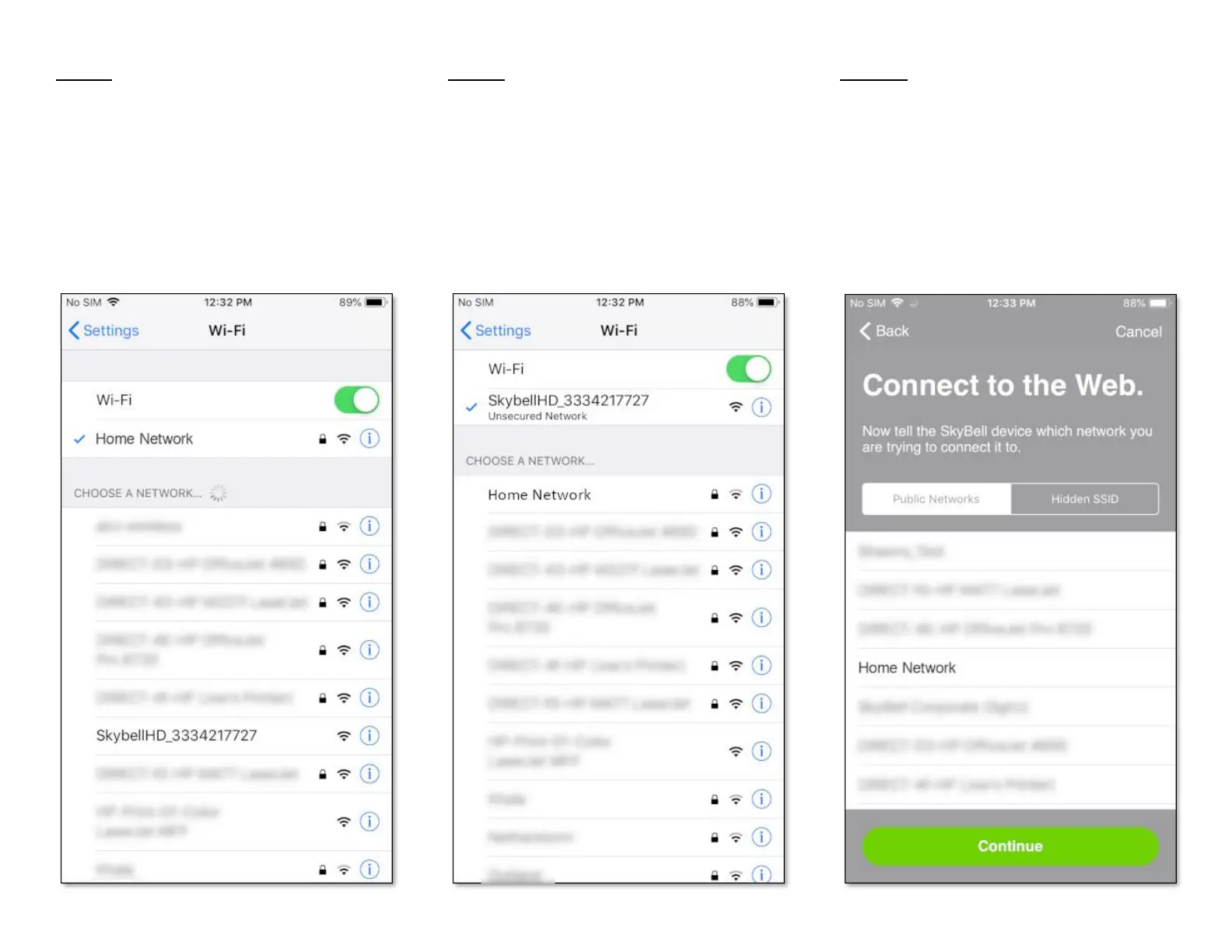
A similar screen to the one below will be
displayed.
• Tap the SkyBellHD_XXXXXXXX network. The
numbers after SkyBellHD_ will be different to
the ones shown. This will connect your smart
device to the SkyBell device's Wi-Fi network
(temporarily disconnecting your smart device
from your home Wi-Fi network).
Step 9
A similar screen to the one below will be
displayed.
• Verify that the SkyBellHD_XXXXXXXX network
is selected (at the top of the screen).
Step 10
• Return to the SkyBell app by double clicking
the smart device's Home button and selecting
the SkyBell app from list of running
background apps. You can also press the smart
device's Home button and then find and tap
the SkyBell app icon.
A similar screen to the one below will be
displayed.


 To Next Page