If you do not see the Add a SkyBell screen, do the
following:
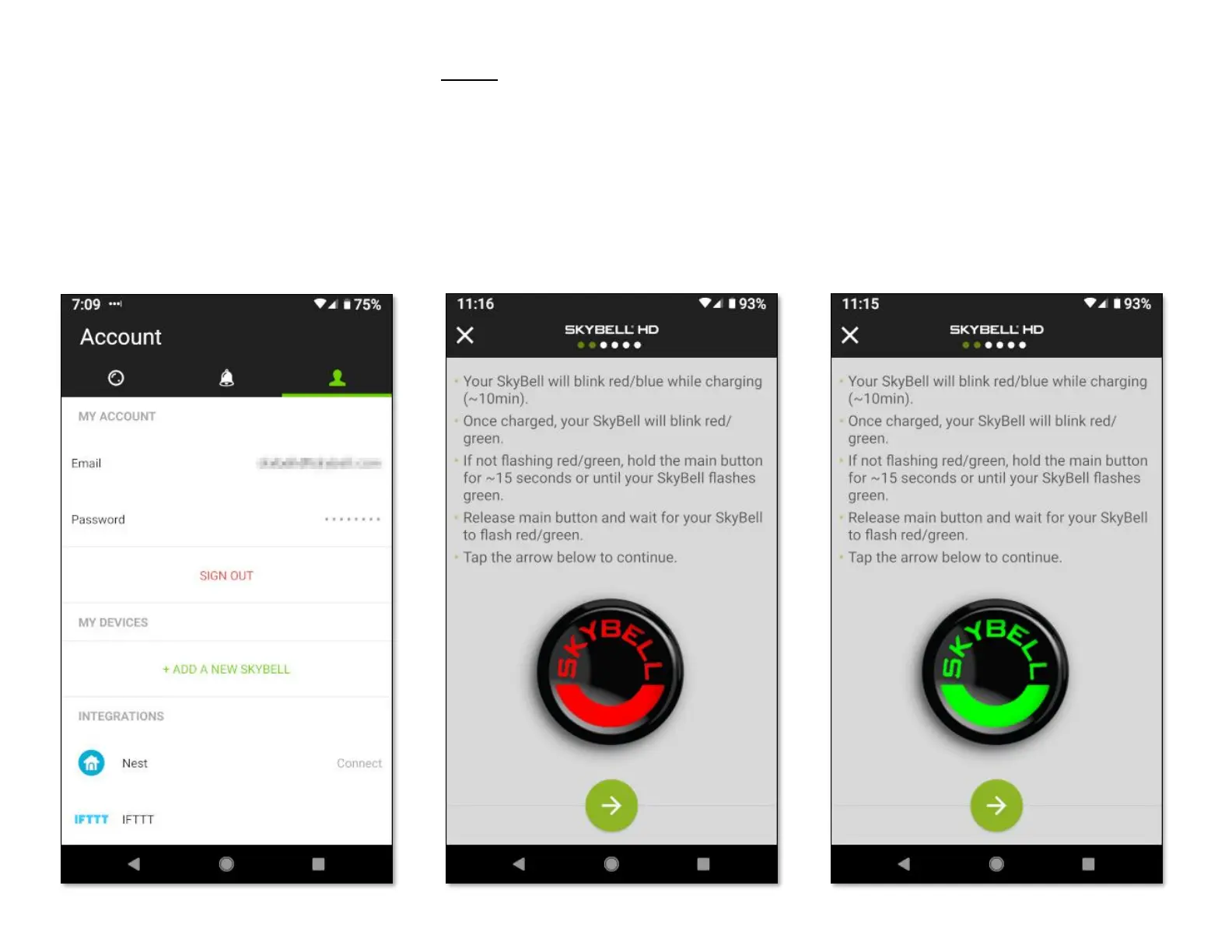
• Tap the Account button. The screen below will
be displayed.
• Under the MY DEVICES section, tap the
+ Add New SkyBell button. This will take you
to the correct screen.
• Tap the Continue button at the bottom of that
screen.
Step 4
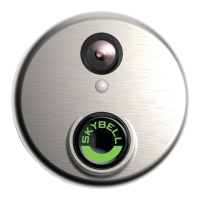
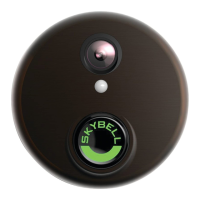
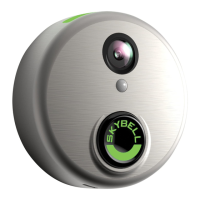
Put the SkyBell device into Sync Mode. The
SkyBell device is in Sync Mode when the LED is
blinking red / green.
• If your SkyBell device is already in Sync Mode
(LED blinking red / green), tap the Continue
button at the bottom of the screen.
• If not, press & hold the SkyBell device's
button (for approximately 15 seconds) until
the LED blinks green rapidly, then release the
button. Approximately 5-10 seconds after the
LED starts blinking green the LED will change
to blinking red / green. Then, tap the Continue
button at the bottom of the app screen.


 To Next Page