SkyCaddie® TOUCH User Guide
©2015 SkyHawke Technologies, LLC. All Rights Reserved. v.1.1
information about downloading Vivid HD course
maps for your SkyCaddie TOUCH.)
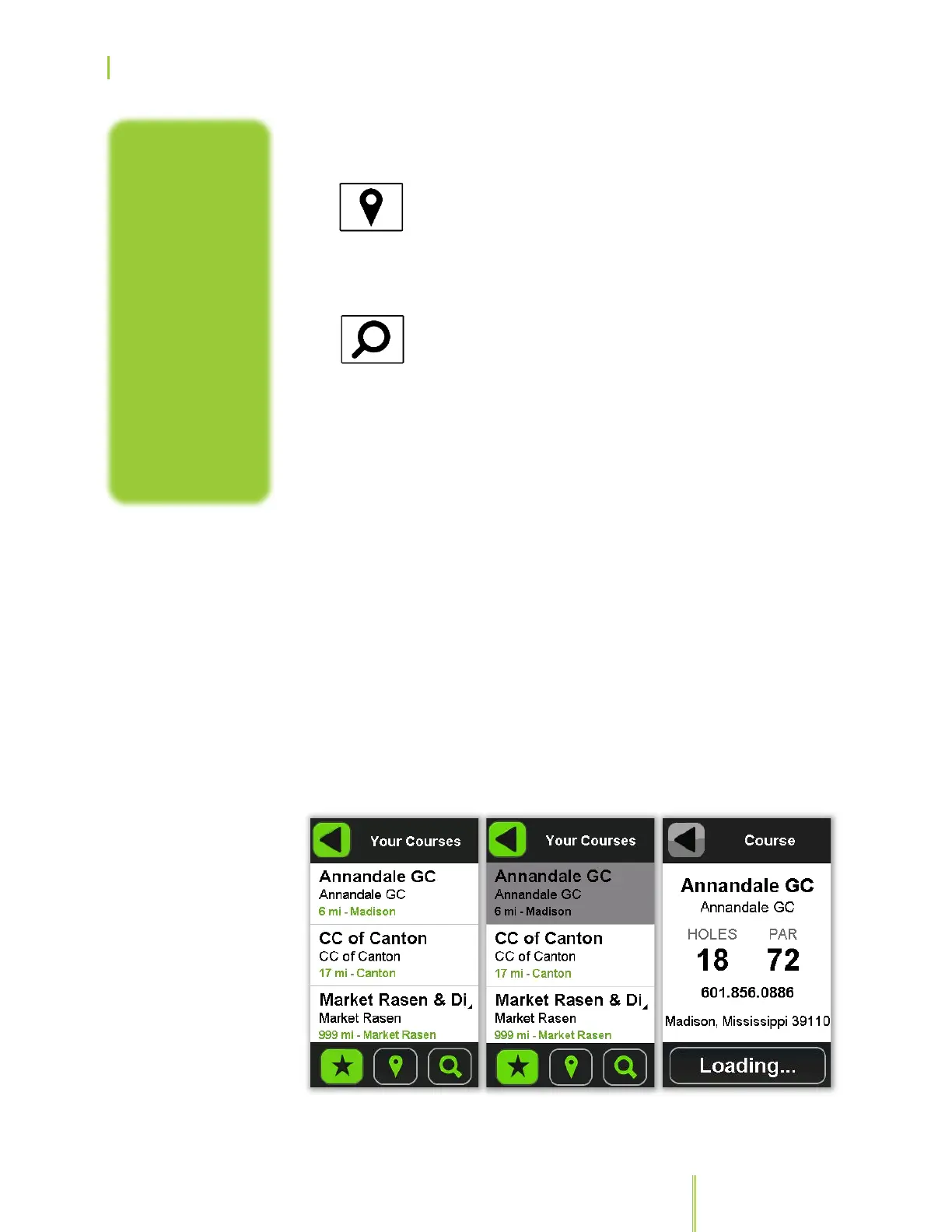
Courses Nearby: After acquiring a GPS signal
outdoors, your SkyCaddie will auto-select the
nearest golf courses, based on your current
position. This list of preloaded courses will be
sorted by distance from your current location.
Library Search: Select a course from the library of
preloaded, high-precision golf courses. Press the
“+” and “-” buttons below the screen to scroll
through the menu lists that follow and press to
select:
a. The Region (typically the country) of the
golf course’s location.
b. The State/Province or other sub-region
where the course is located.
c. After you select a Sub-region, you will also
be prompted for a Zone, such as when
playing one of the Hawaiian islands’
courses.
Search for the course by name by scrolling through the list of courses
shown on the TOUCH. Once you have discovered the course, press
on its name to select it. Your TOUCH will load that course map so
you can either play that course or preview it in Demo Mode.
the Course Map
Library anytime
through the public
area of the
www.SkyGolf.com
website. However,
in order to obtain
the courses for
use with your
TOUCH, you must
have an eligible
Membership Plan
to download
updates or Vivid
HD+ course maps.
Listing of Downloaded
Courses


 To Next Page