
 Need help?
Do you have a question about the SkyLink wc-400 and is the answer not in the manual?
Steps to set up the IP camera to work with the Internet Hub.
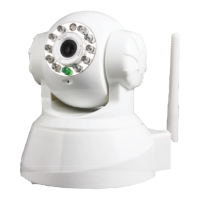
Connect the power adapter to the IP Camera and the LAN cable to your Wi-Fi router.
The wizard searches for the IP camera. Click 'Next' when the camera is displayed.
Review IP settings, enter default username 'admin', and note the port number.
Scan for Wi-Fi networks, select yours, enter the password, and apply settings.
View the camera via web browser and change user name/password in settings.
Configure the camera within the Internet Hub interface by assigning it to zones.
Input the camera's IP address, port, username, and password into the Internet Hub.
Access the live camera image and control its viewing angle via the Internet Hub.
Details on compliance with FCC Rules, including conditions and warnings for interference.
Details on product repair or replacement within one year of purchase due to defects.
Information on finding support, FAQs, and contact details for assistance.
 General
| Brand | SkyLink |
|---|---|
| Model | wc-400 |
| Category | Security Camera |
| Language | English |

 To Next Page