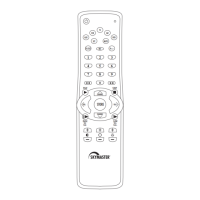
A. Setup with brand code:
1. Switch on the device which you wish to control (e.g. TV). If this is a video recorder, insert a
video cassette.
2. Find the brand name of your device and the associated code (e.g. Skymaster 0091, …) in the
relevant group of devices (e.g. SAT receiver).
3. Hold the required device key pressed for 3 seconds until the LED function indicator (2) lights
up continuously, i.e. you are in setup mode.
4. Enter the 4-digit device code (e.g. 0091 for Skymaster SAT sat receivers). If no entry is made
within 30 seconds the setup mode ends automatically.
5. The LED goes out if the code has been accepted by the remote control unit.
If the LED flashes 3 times, the code may be incorrect. Repeat steps 2 to 4.
6. Check whether the keys on your remote control unit work. If most of the keys on your new re-
mote control unit do not work correctly, try a different 4-digit device code from the list (for
page 26 onwards) for the same brand.
Repeat steps 2 to 4 until all the basic functions operate correctly.
Once the correct code has been entered, setup is complete.
Note:
A. To exit from setup mode, press any key (except the numerical keys 0-9, (3) “-/-“ (4) and the
Power key (1)) or do not press any key for 30 seconds to exit from Setup mode automatically.
B. Automatic search:
If the setup via brand name was not successful or the brand name is not in the list, you can use
the “Automatic search” function in order to find the correct code for your remote control unit.
1. Switch on the device which you wish to control (e.g. TV).
2. Point the remote control unit at the device and hold a device key pressed (e.g. TV) until the
LED function indicator (2) lights up, i.e. the remote control unit is in setup mode.
3. Briefly press the Power key (1) and then release it. Press the Power key (1) again and keep it
pressed. The OFF signal will be automatically transferred from the remote control unit to the
device (code scan). As soon as the device (e.g. TV) switches off, release the Power key (1)
and then immediately press the required device key in order to stop the automatic search and
save the code which has been found. LED function indicator (2) goes out.
4. Switch the device on again by pressing the Power key (1). Check whether the other keys on
your remote control unit work. If no keys work (i.e. you cannot stop the search in time) or
most of the keys do not work, you can start the search again (see steps 2 and 3) to find a
suitable code. If most of the keys work correctly, i.e. your setup was successful, press a de-
vice key (e.g. TV) to save the code and exit from setup.
Note:
To exit from setup mode, press any key (except the numerical keys 0-9, (3) “-/-“ (4) and the
Power key (1)) or do not press any key for 30 seconds to exit from Setup mode automatically.
7


 To Next Page