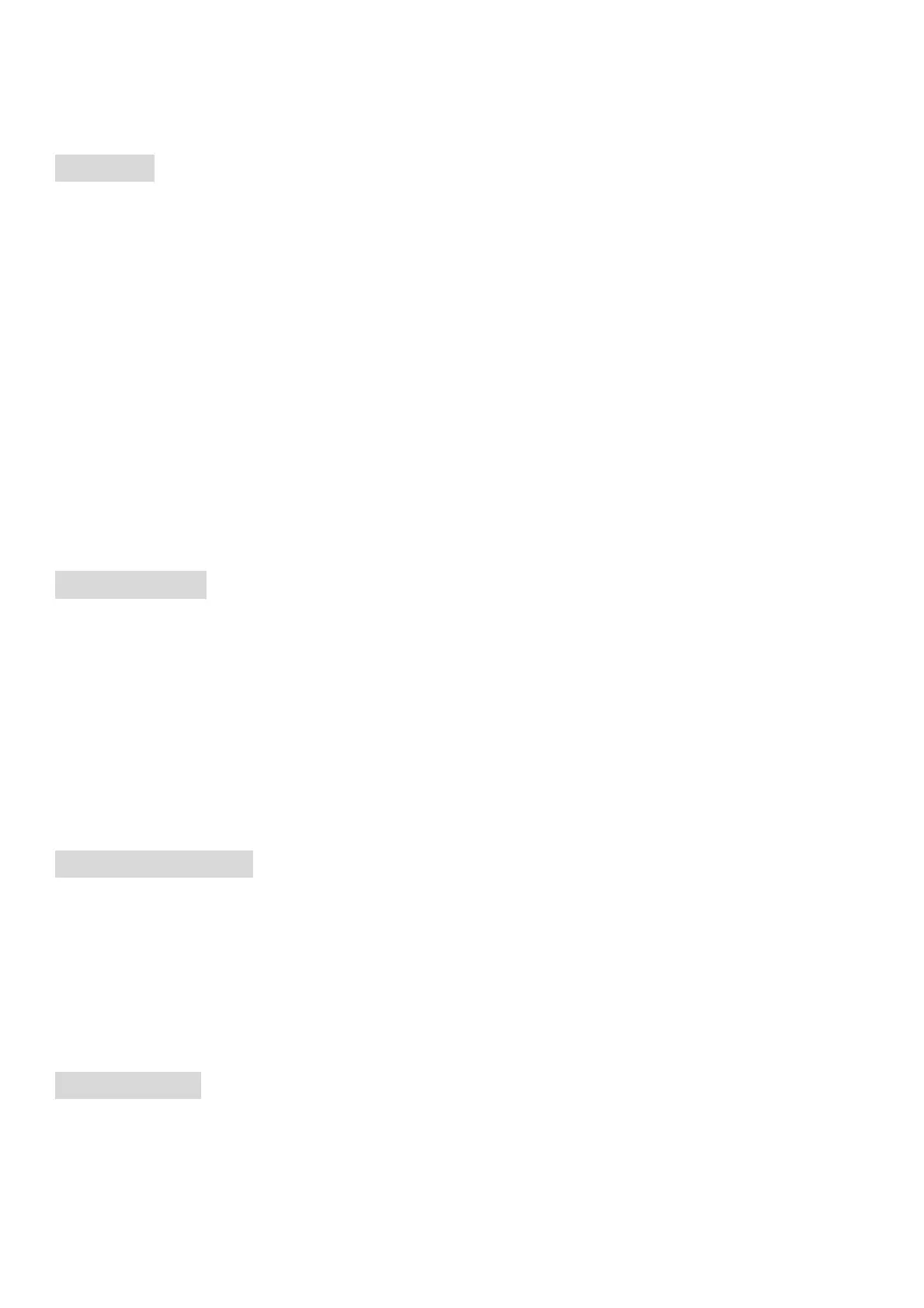
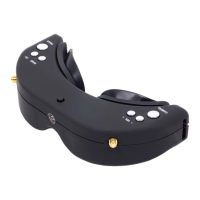
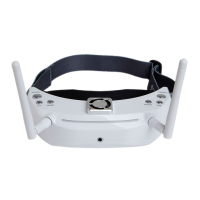
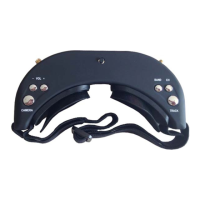
· Short press to switch to Front Camera mode in any mode
· Long press 3 seconds to fast switch to 2D from 3D RF Mode
RF mode
3D mode
· 3D mode in RF mode, and will be in 2D in all other modes.
· Press up/down button to adjust the 4 default channels.And it is also ok to custom the RF Band to select
the proper band and channels.(Caution:there will be interference if select frequency too close. The
recommended frequency interval is 40MHz
· Long press<CAMERA>button to fast switch to 2D mode.
2D mode
· They will work in diversity mode if close the 3D mode in the menu. And the setup in 3D mode will not
work.
· Press <CHANNEL>button to select channels, and <BAND> for band, multiple press to cycle.
·
Front Camera
· The Front Camera is Wide-Angle Camera with 680X480(VGA) Resolution and good low Illumination. It's
very convenient to view around without taking off the Goggles.
· Press "Camera" button to open the Front Camera.
· The Front Camera can neither be recorded nor display via AV OUT but for viewing around only. It's ok to
open the Front Camera while recording.
· It's ok to setup the goggles with the Front camera turning on
Image adjustment
· It's ok to adjust the Brightness、Contrast、Saturation、Hue、Sharpness Parameters in Image setup
Menu
· Press REC/OK button to enter setup and press UP/DOWN to adjust, press ESC to exit
· It's recommended to adjust while the image is good.
Head Tracker
· Please keep the goggles in horizontal position and steady, initialization is ok when there is 1 beep. Or
short press the <TRACK> button.
· short press the TRACK button with beep to setup the PPM to center.
· Setup PPM CHANNEL in the Menu :CH5-CH6、CH5-CH7、CH5-CH8、CH6-CH7、CH6-CH8、CH7-


 To Next Page