has an Edit button that enables you to customize the activity and a Help button that displays detailed instructions for
building and using the activity.
Press Edit to get started. Fill in the blanks and make any selections required to set up the activity. When editing the activity,
you can add text by typing in the text fields, or by dragging and dropping text into a text field from the Notebook
™
page or
another application such as word processing software or a webpage.
If you would like to ensure that others cannot edit your activity, check the Password box, and set a password. This action
can prevent participants from accidentally accessing the edit area of the activity during class.
In class, you can lead the activity or have a student come up to the interactive whiteboard to manipulate the objects. Many
of the activities include a Check button that will grade the activity, a Reset button that will clear the activity and a Solve
button that displays the correct answers, enabling you to review the activity with the entire class.
If you prefer not to use Adobe Flash-based activities, some activities are also available in a Notebook page format. Adobe
Flash activities are identified with a symbol, and Notebook pages are identified with a folded down top-right corner .
Games
The Games section of the Lesson Activity Toolkit provides game playing pieces such as cards, checkerboards and dominos.
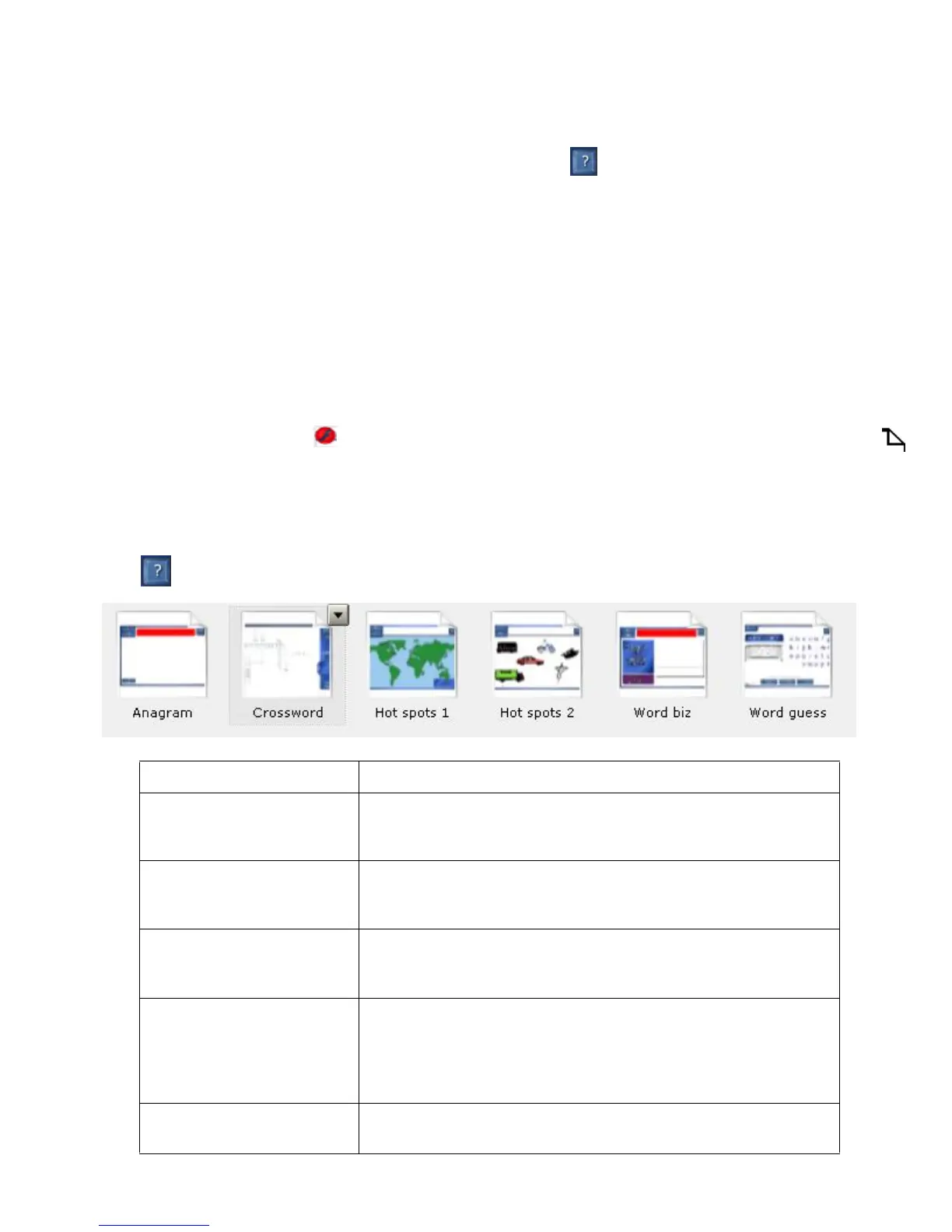
Adobe Flash tools are available to generate customized education games for your lessons, including crosswords, anagrams
and word guessing games. For game ideas, see the Examples folder in the Games section of the Lesson Activity Toolkit.
Press the button on any Adobe Flash game for instructions on how to edit and use the game.
Game Description
Anagram Participants can rearrange letters to form a specific word. You can
provide a clue, set a timer, adjust the speed of the game and include
up to five anagrams in one game.
Checkers Checkerboards, complete with playing pieces, are provided.
Participants can move the pieces around on the board and group
pieces together as required.
Chess Chess boards, complete with playing pieces, are provided.
Participants can move the pieces around on the board to play the
game.
Crossword Generate your own crossword puzzle by entering your Words and
Clues into this tool. When completing the puzzle, participants can
enter words using either the On-Screen Keyboard or a pen tool. A
Solve button reveals the correct answers. This game is useful for
introducing and reviewing vocabulary.
Deck of cards Individual playing cards are available for use in a game or lesson
activity


 To Next Page