Hands-On Practice
Using Notebook Software in the Office
Before You Start
Before you begin your meeting, ensure that your computer is turned on and the
SMART Board™ interactive whiteboard is connected and oriented. The SMART
Board icon should be visible in the Windows Notification Area at the bottom right
of your screen, indicating that your SMART Board software is running.
If the SMART Board icon is not visible, select Start > Programs > SMART Board Software > SMART
Board Tools. The SMART Board icon will appear in the Windows Notification Area.
For more information on how to get started with your interactive whiteboard, refer to the Quick Reference
Guides available at www.smarttech.com/trainingcenter/windows/trainingmaterials.asp
.
This Hands-On Practice assumes you have a basic understanding of the Microsoft
®
Windows
®
operating
system. You may find it useful to think of how you normally work with a computer as you go through the
lesson. When working at your computer, for example, you use left-, right- or double-clicks, depending on the
function you want to perform. Use the SMART Board interactive whiteboard in the same way. If you get
confused, simply think about what you would do at your computer, and then replicate these actions on the
interactive whiteboard.
What Is Notebook Software?
Notebook™ software is SMART’s whiteboarding software. It acts as an electronic notebook to immediately
capture and save notes and drawings written on the SMART Board interactive whiteboard or at your desktop
computer. You can import graphics, text and multimedia elements into your Notebook file or export your
Notebook file to HTML, PDF, PowerPoint or as a series of image files.
Preparing Your Meeting Template
As a corporate professional, you want to use the SMART Board interactive whiteboard during in-house and
client meetings to show that you are technically savvy – not to mention that it’s a great way to collaborate on
issues and brainstorm new ideas. All meetings take place in the main boardroom where your SMART Board
interactive whiteboard is located. In this Hands-On Practice, you will create a standard template on your
desktop computer to prepare for an upcoming meeting discussing a workflow issue.
1 Open Notebook software
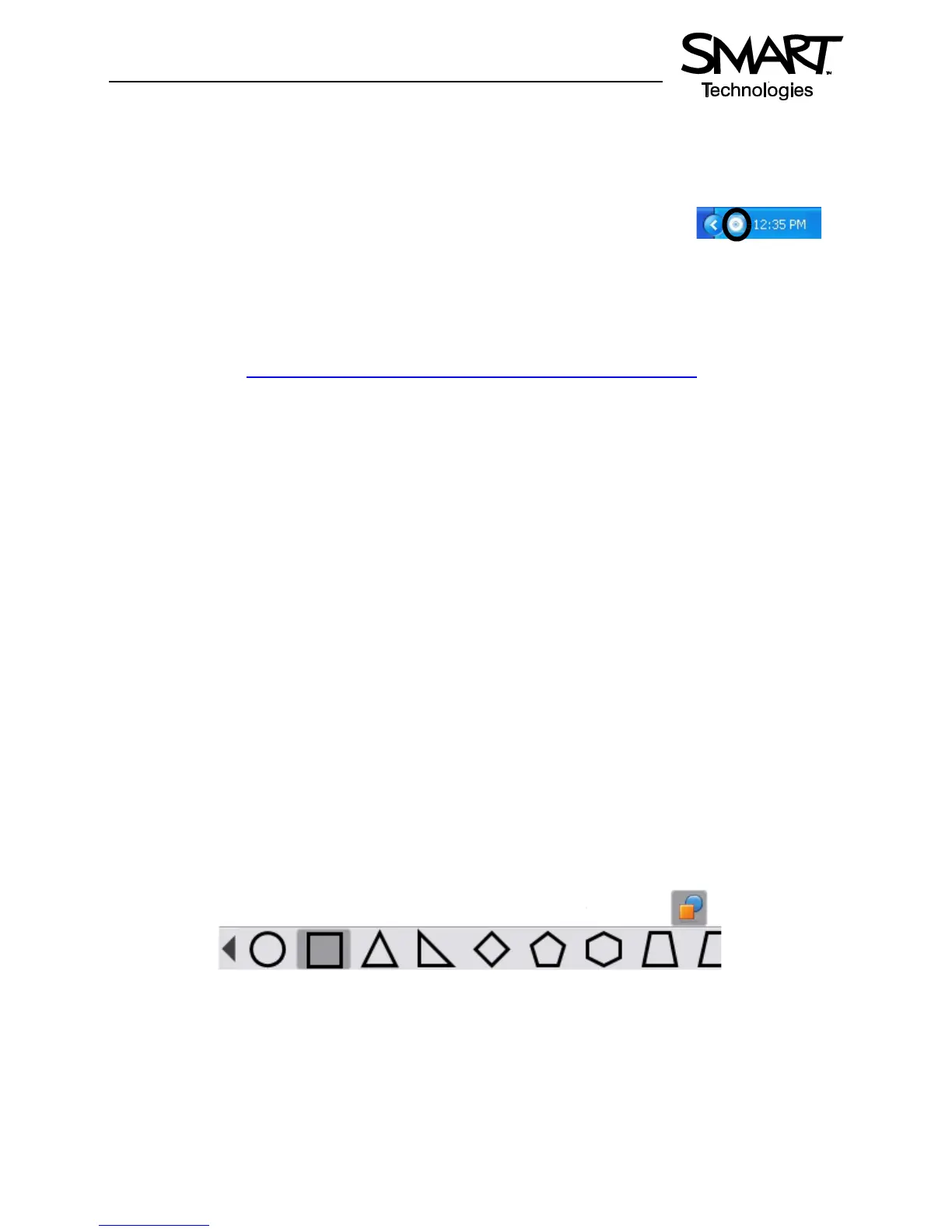
2 Select the square from the Shapes drop-down menu on the Notebook software toolbar. Position your
cursor at the bottom of the Notebook page and drag it across to draw a rectangular shape..
Windows Notification Area


 To Next Page