Hands-On Practice
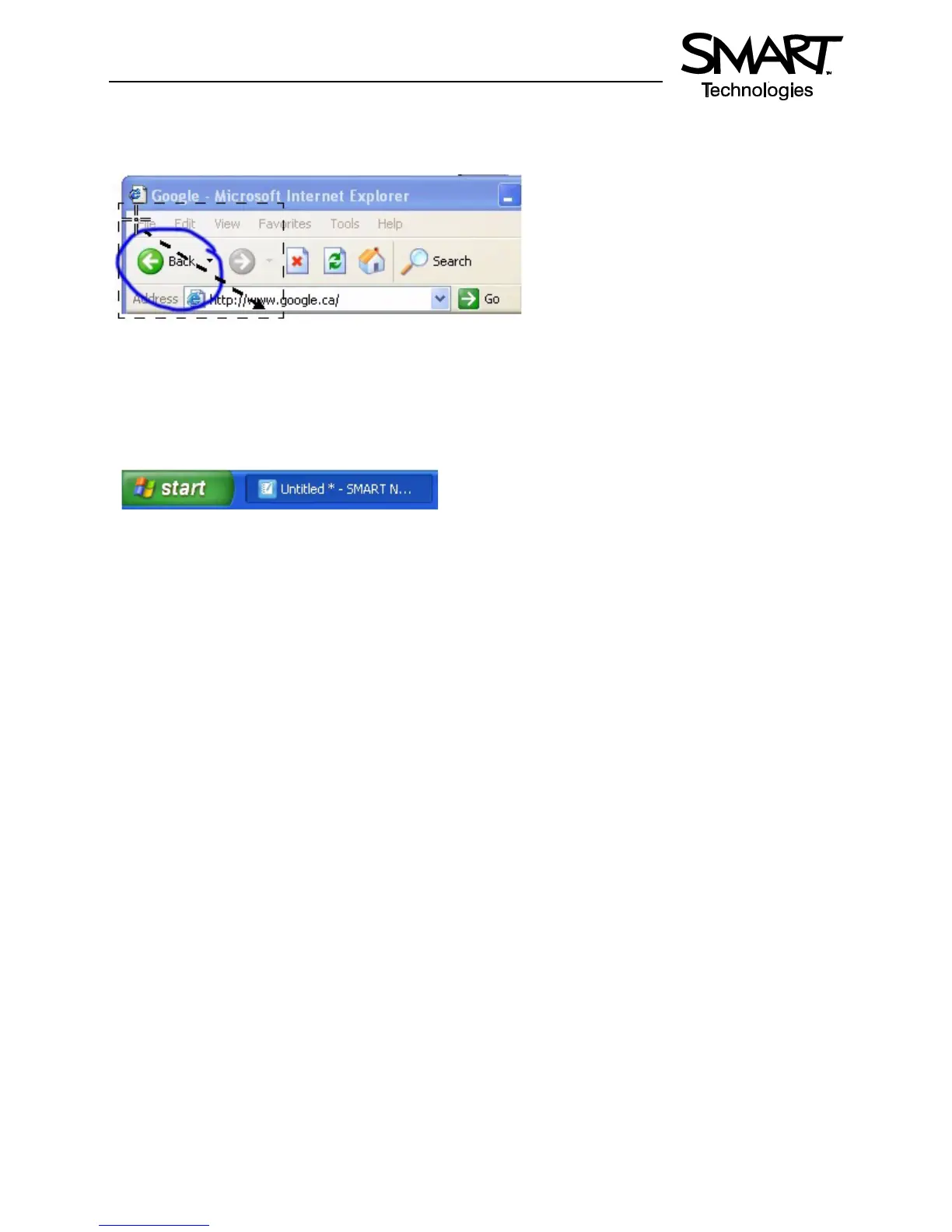
10 Press the interactive whiteboard and, without releasing pressure, drag the selection box using your
finger to outline the circle around your browser’s Back button. Release your press to capture the
image to Notebook™ software.
NOTE: Notebook software will open automatically, and your notes and background will be saved to a
new Notebook page.
11 Touch the screen once to clear the circle from your browser’s Back button.
12 Select the unsaved Notebook file from the taskbar to view your captured image in Notebook software.
Select File > Save to save your notes for future reference.
Congratulations
You have completed the Basic Functionality Hands-On Practice.
© 2008 SMART Technologies ULC. All rights reserved. SMART Board, Notebook and the SMART logo are trademarks of SMART Technologies Inc. All
other third-party product and company names may be trademarks of their respective owners. Printed in Canada 03/2008.



 To Next Page