Hands-On Practice
6 You know you will be writing notes directly over the Google™ Web page during your lesson or
presentation to highlight key points.
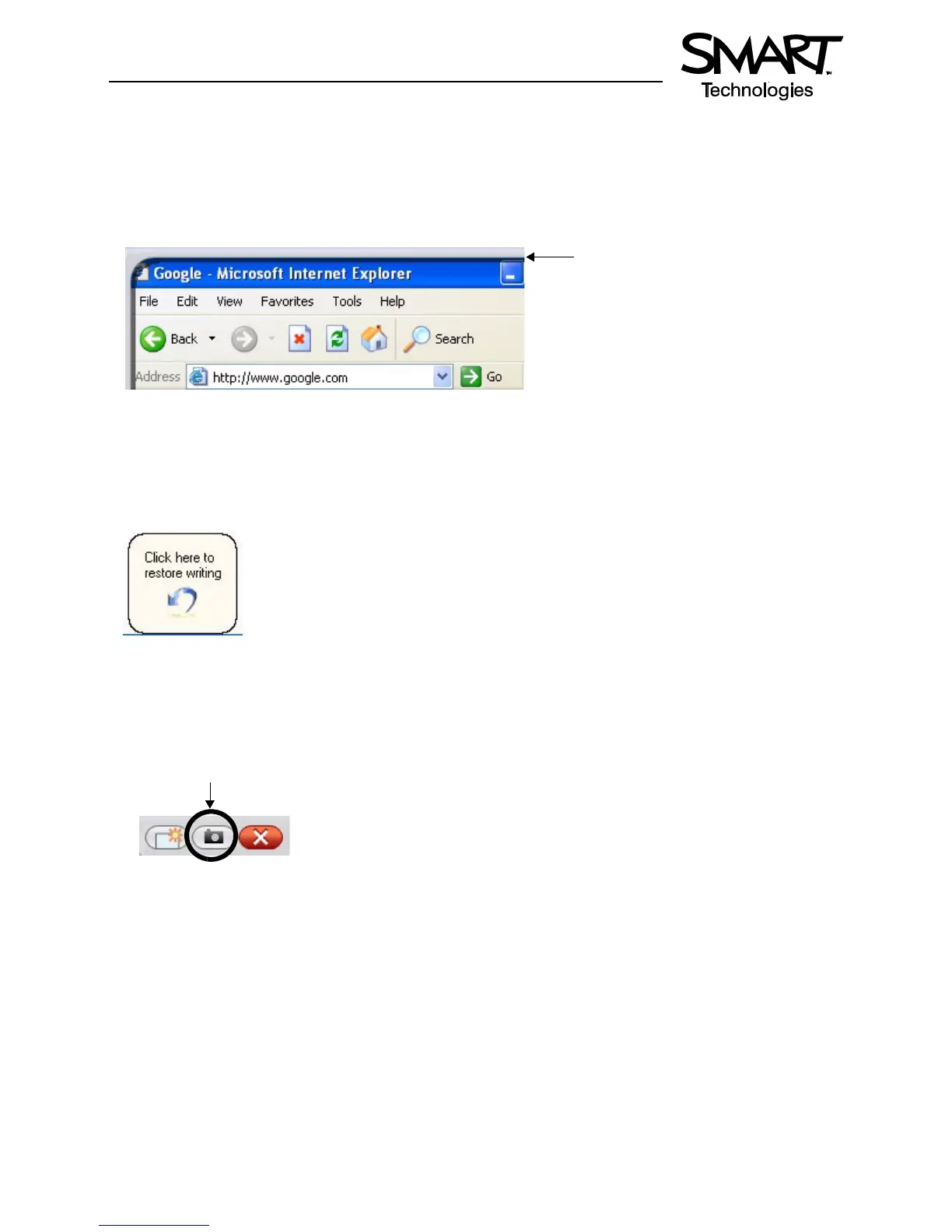
Pick up a pen from the pen tray. You will notice the Digital Ink Layer appears, shown by a visible
border around the desktop as a visual cue. The border indicates you can write on the desktop, and it
remains in place until all pens and the eraser have been returned to the pen tray and you touch the
SMART Board.
7 Using a pen, circle the browser’s Back button.
8 Return the pen to the pen tray and touch the interactive whiteboard once to clear the circle around the
browser’s Back button. Press the Click here to restore writing icon at the bottom right of the screen
to bring the circle back.
You have now confirmed that you can clear your notes by touching the interactive whiteboard, then
restore your notes by pressing the Click here to restore writing icon.
9 To ensure you will be able to capture and save important information for a future lesson or
presentation, press the Capture button in the upper right hand corner of the Digital Ink Layer menu.
Digital Ink Layer
border appears



 To Next Page