Browse by subject, curriculum standard or content type
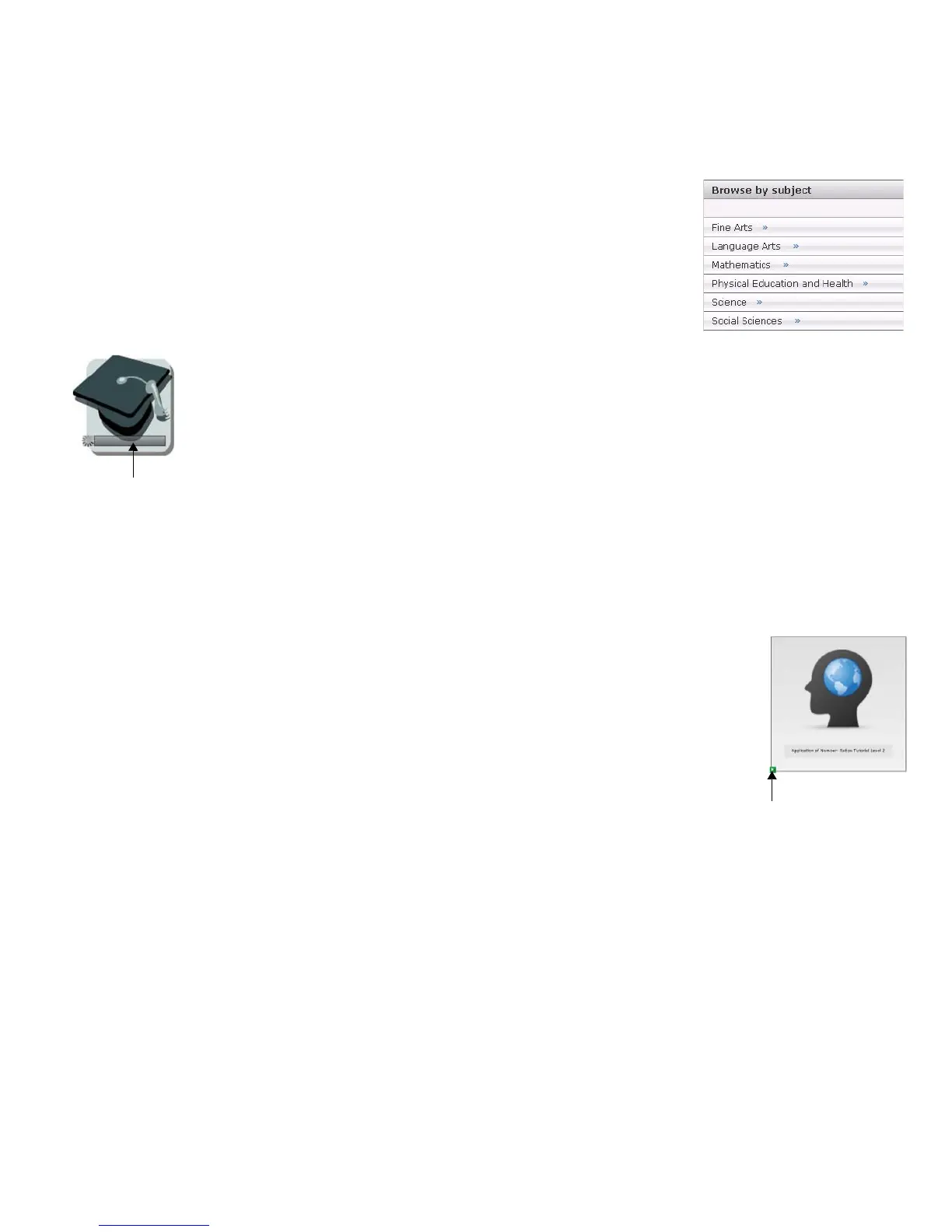
You can also search for content by navigating through the categories defined in the
SMART Learning Marketplace. Click the subject or content type link that you’re
interested in. Some subjects will prompt you for additional categorization before results
appear.
To search by curriculum standard, select your country, state and grade from the drop-
down lists, and click Go.
Download content
Click the Add to Notebook button to add the learning object directly to a page in your SMART Notebook
file. If you are using the SMART Learning Marketplace through a Web browser, but do not have a
SMART Notebook file open, SMART Notebook software starts. Either the learning object or learning
object icon appears on the SMART Notebook page and a progress bar indicates that your object is
downloading.
To add the learning object to your Gallery, which makes it accessible to you whenever you are using
SMART Notebook software, drag the learning object to the My Content folder. You may wish to set up
a subfolder for SMART Learning Marketplace material. When you add a manipulative learning object to
My Content, it is categorized in the Pictures and Backgrounds section.
If you are using the SMART Learning Marketplace through a Web browser, you can also click the Download button to save
the learning object as a file outside of SMART Notebook software, which you can use with other software applications or on
its own.
Working with SMART Learning Marketplace learning objects in
SMART Notebook software
When the download is complete, you can resize or move the object anywhere on the SMART
Notebook page or to another page. Lesson resources in Adobe PDF format, identified as Extras in
the SMART Learning Marketplace, will appear on the page as a link. The PDF file is stored in the
Attachments tab of the SMART Notebook file. Manipulative files are shown on a page by a special
icon. Click the green Play button to open the manipulative object in a new window. Close or minimize
the window to return to SMART Notebook software.
The SMART Learning Marketplace and Microsoft
®
Internet Explorer
®
Security settings in Microsoft Internet Explorer can interfere with downloading content from the
SMART Learning Marketplace, causing error and warning messages to appear, and occasionally preventing content
downloads. To adjust your security settings, complete the following steps:
1 Select Tools > Internet Options from the menu bar
2 Click the Security tab
3 Click the Custom Level button
4 Scroll down until you see Downloads – Automatic prompting for file downloads and select the Enable radio button
5 Click OK
A progress bar
indicates the status
of the download.
Click the green Play
button to launch the
manipulative file in a
new window.
© 2008 SMART Technologies ULC. All rights reserved. The SMART logo and smarttech are trademarks or registered trademarks of SMART Technologies ULC in the U.S.
and/or other countries. All other third-party product and company names are for identification purposes only and may be trademarks of their respective owners. Printed in Canada
07/2008.


 To Next Page
 Loading...
