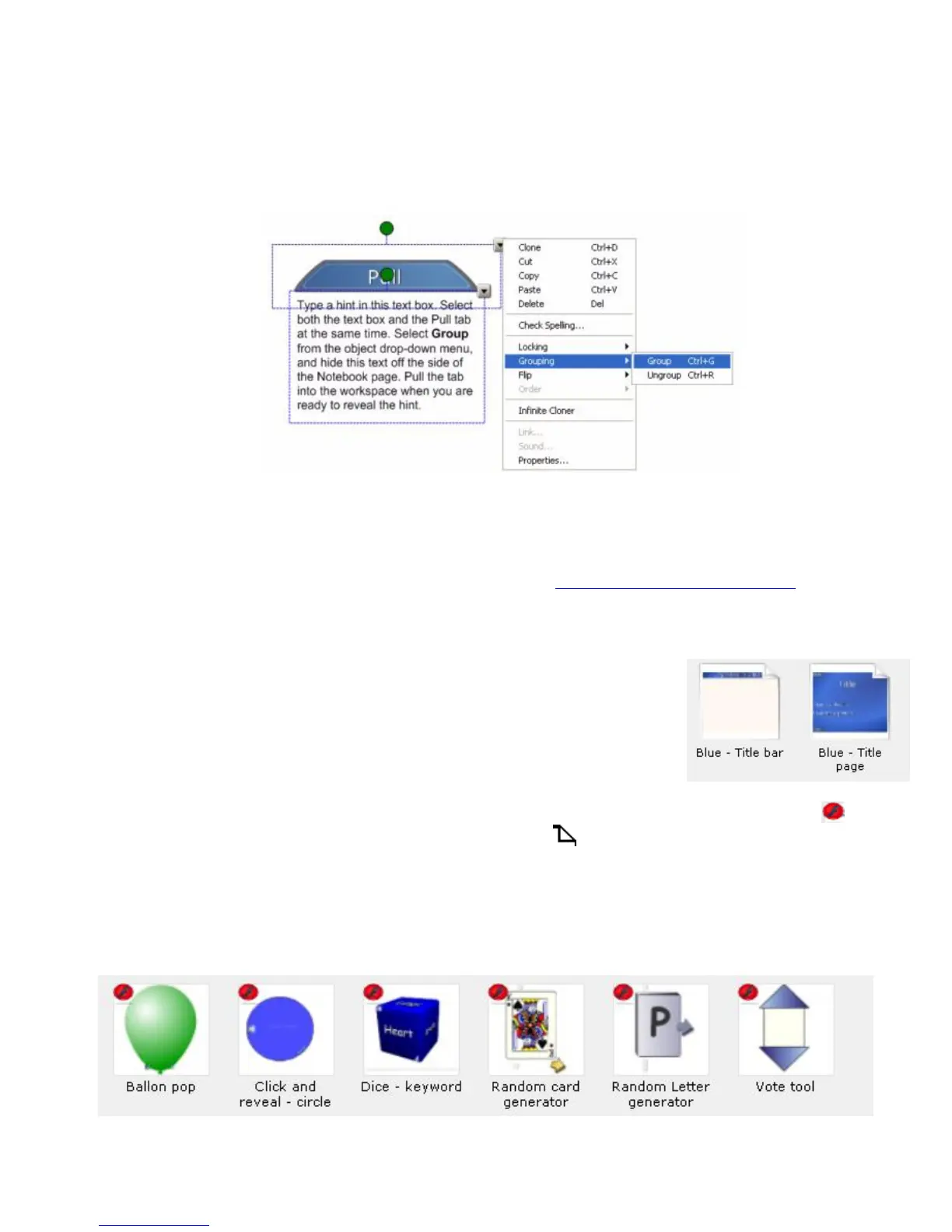
You can also use the grouping feature to group graphics with additional images and text. For example, group a pull tab with
a hint to a puzzle. Then, move the pull tab to the edge of the Notebook page so that the text is hidden until you are ready to
reveal it.
The Lesson Activity Toolkit provides all items in five colors, enabling you to coordinate with other objects on your Notebook
page.
Help
The Help folder contains a link to the Lesson Activity Toolkit webpage, www.education.smarttech.com/slat, where you can
find additional information and supporting materials for the toolkit.
Pages
Ready-made pages make it easy for you to add structure and style to your lessons. You
can find templates for title pages and standard lesson activity pages – complete with title
bars containing notes – in the Pages folder. To change the text on these pages, just
highlight the existing text and start typing. The title pages include Teachers’ notes and
Lesson notes, useful tools for documenting learning objectives and lesson instructions. To
create a professional looking lesson, consider selecting a colored template and using
matching buttons and graphics from the Graphics folder.
Pages are available in both Adobe Flash and Notebook page format. Adobe Flash pages are identified with a symbol,
and Notebook pages are identified with a folded down top-right corner .
Tools
The Tools folder includes several Adobe Flash tools that you can use to add interactivity to your lesson activities, including
click and reveal tools, customizable keyword dice, random card, number and color generators, scrolling text bars and many
more. Many of the tools are explained below, but be sure to browse through the folder to find tools that work for you, and
creative ways to use them. The tools in the Examples folder may help you generate some ideas.


 To Next Page