Hands-On Practice
a cause-and-effect diagram to address a workflow issue mentioned earlier. You will be delivering this
session on a SMART Board interactive whiteboard.
1 Double-press the Meeting Template file you saved on the company’s computer network to launch
Notebook software. Your blue rectangle and logo will appear on the first Notebook page in the Page
Sorter tab.
2 Select Clone Page from the Notebook page’s drop-down menu to create extra Notebook pages in
your presentation.
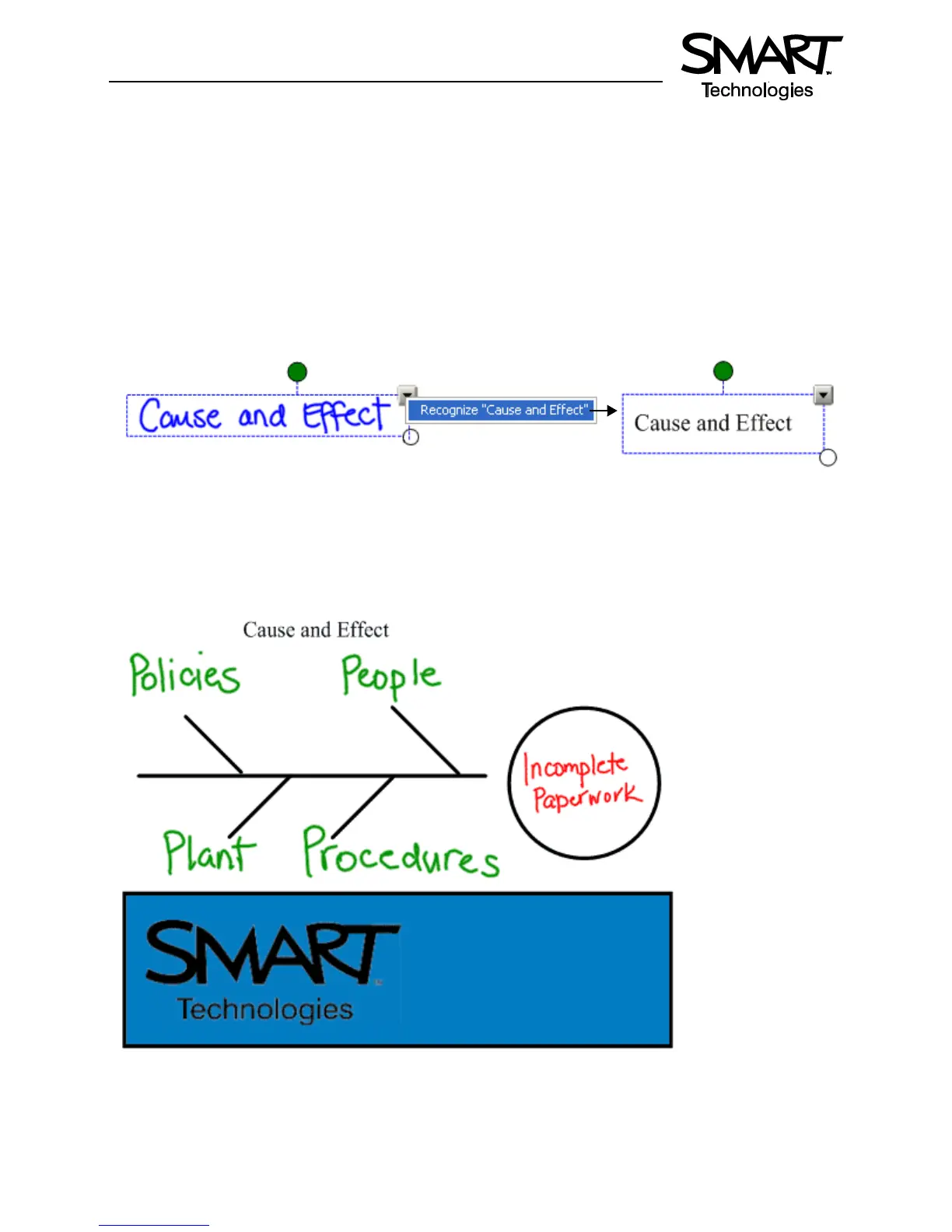
3 Use a pen from the pen tray to write Cause and Effect on the work area. Select the written text and
choose the appropriate typed text from the object’s drop-down menu. Resize and center the words so
the page can act as your title page.
4 Use the Line tool in the Notebook software toolbar to draw a horizontal line and four connecting lines.
TIP: Hold down the Shift key while pivoting a line to make the line snap in place every 45 degrees.
5 Use the Shape tool to draw a circle at the head of your diagram, and write Incomplete Paperwork.
This is the effect of the workflow issue that needs resolution.


 To Next Page