36 Cleaning and Troubleshooting
Cleaning and Troubleshooting
Cleaning
Before you clean the interactive whiteboard, log off the computer. If you touch the interactive
whiteboard when the computer is in any other state (e.g., with a program open or at the
desktop), you may activate program components or scramble desktop icons.
Clean the interactive whiteboard surface on a regular basis so that dust buildup doesn’t
adversely affect the operation of the interactive whiteboard.
Do not spray glass cleaner directly onto the overlay. Instead, spray it lightly on a cloth and
then gently wipe.
Remove marks made with a permanent marker by completely covering them with the ink from
a dry-erase marker (not a low-odor or unscented marker). Then wipe with a soft cloth. Dry-
erase ink contains solvents that work to remove permanent ink. If any trace of the original
permanent ink remains, spray the area with standard glass or whiteboard cleaner and wipe
clean.
You can also use whiteboard cleaner, such as Expo
Board Doctor. To remove permanent ink
with this product, cover the ink with the solvent, let it dry, and then erase the ink.
Troubleshooting
The interactive whiteboard uses light-emitting diodes (LEDs) to communicate status
information to you. Use this information for your troubleshooting investigation.
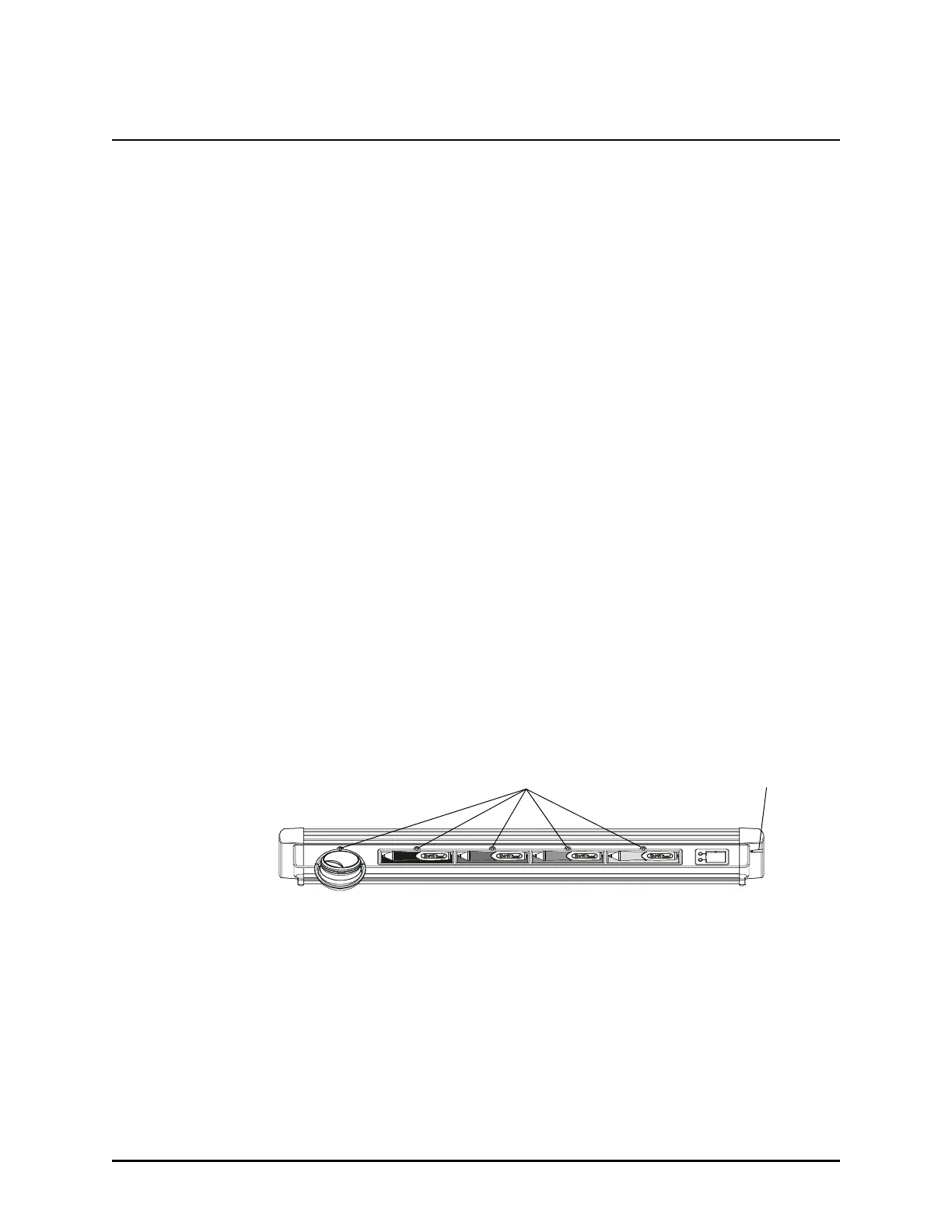
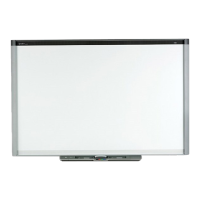
On the pen tray, a Ready Light (LED) glows red when the pen tray has power and green when
the SMART Board driver is running (indicating that the pen tray is active). Each pen tray tool
has an LED above its holder. When you pick up a tool, the LED illuminates green, and when
you replace that tool, the LED stops glowing.
The Pen Tray
If you look at the back of the interactive whiteboard, you’ll see two LEDs behind the bracket
that holds the pen tray to the overlay. One LED glows red to indicate that the interactive
whiteboard is receiving power. The second LED glows green when the corner cameras and
the master controller inside the pen tray are communicating properly.
If you encounter a problem with the interactive whiteboard, check all the cable connections. If
this doesn’t solve the problem, note the color of the LEDs described above. Then call
Technical Support at the numbers listed on page 39.
Ready Light
LED for Active Tool





 To Next Page