Installing Batteries in Your
FlashPath
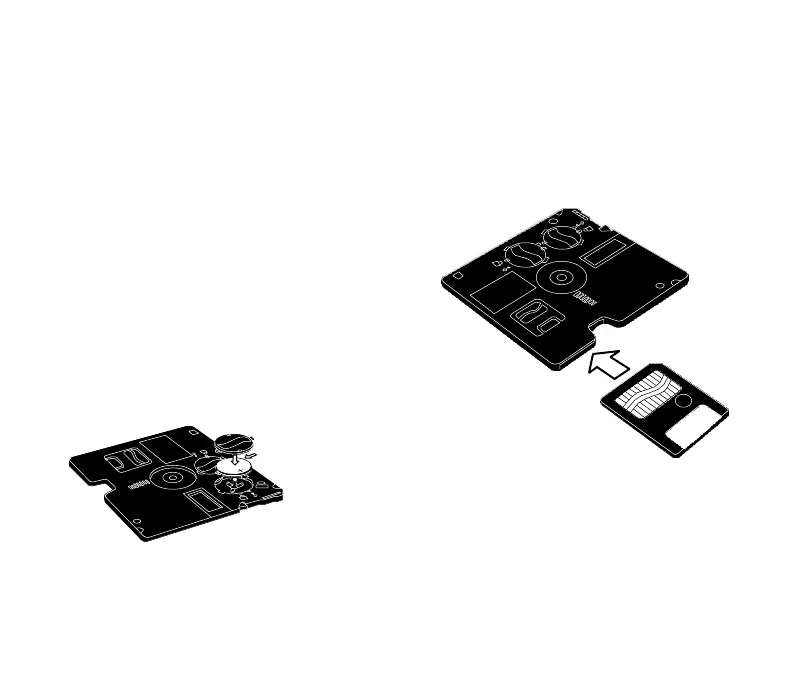
Removing and Installing Batteries
When you purchase the product, batteries have
been pre-installed in FlashPath. When the batteries
run out, replace with new ones. (Recommended
manufacturers: Toshiba, Sanyo, Maxell, Sony).
To change batteries:
1. Place your FlashPath on a flat surface and gently
press down on the battery cover.
2. Use your thumb to turn the cover counter- c l o c k w i s e .
3. Remove the old batteries and replace them with
new lithium button cells. Make sure that the positive
sign (marked with a + sign) is up and that the
side spring contact is located on the side of the
battery. The contact must not be trapped under-
neath the battery.
4. Replace the cover and turn it clockwise while
exerting a slight downward pressure.
Note:
• Always replace both batteries at the same time.
Care should be taken when replacing batteries to
ensure the positive ("+") side is up. Use lithium
button battery CR2016.
Inserting SmartMedia into the
FlashPath
To insert SmartMedia:
Insert the SmartMedia into the FlashPath with the
electronic contacts facing away from the metallic
top cover of the FlashPath. Make sure the
S m a rtMedia is inserted firmly in the correct dire c t i o n .
Note:
• FlashPath will not operate if SmartMedia is insert e d
incompletely or upside down.
• When using an Macintosh
®
PowerPC
®
, do not
insert the FlashPath into the PC until prompted to
do so.
6
Lithium button battery
CR2016
FP SDC-OEM.QXP 1/13/00 9:38 AM Page 7



 To Next Page