Viewing on PC by Eseecloud Software
4
Please contact seller for Eseecloud software.
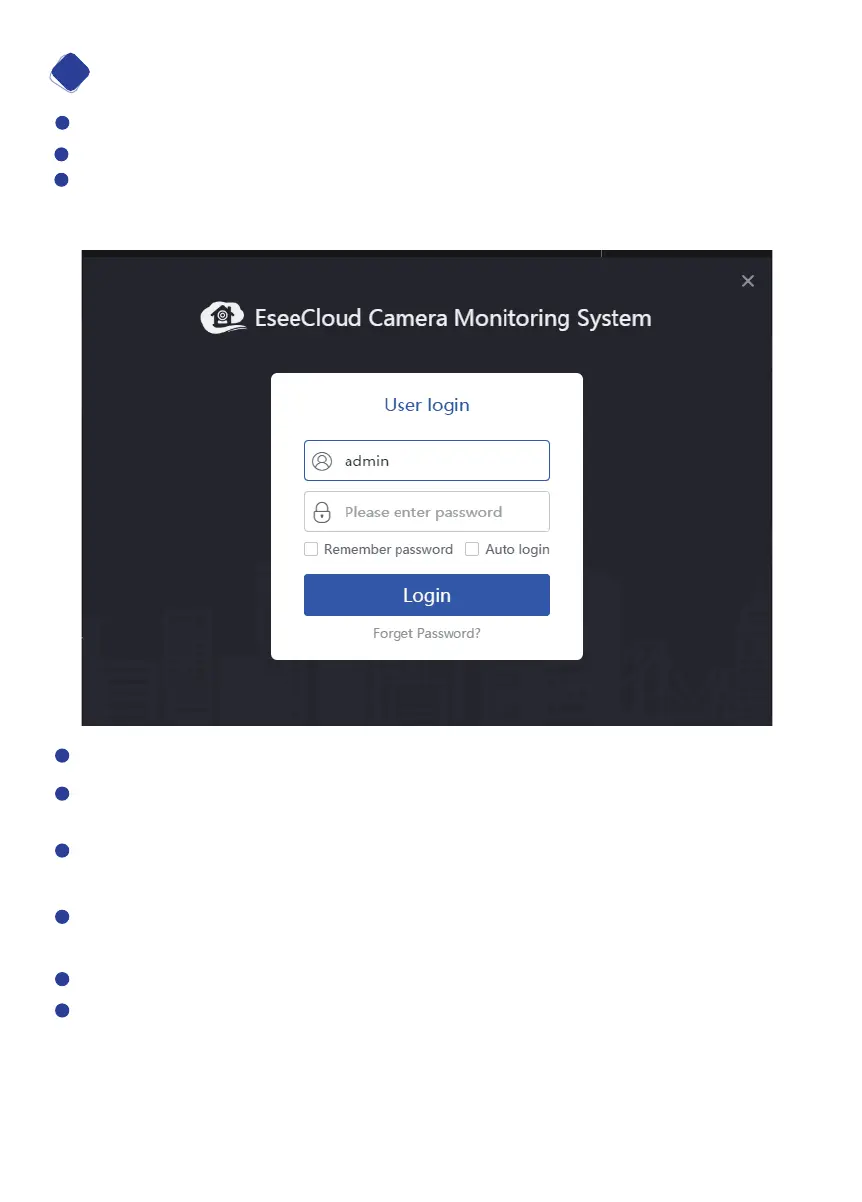
Install Eseecloud Software first.
The default setting of Eseecloud software is no password under admin account,
please.
Select “Add” at upper right corner.
In the “Add device” box, select Cloud ID. Enter the cloud ID(9 or 10 numbers). You
can find it at the bottom right side of your home monitor screen.
Username is NVR system user name on your home monitor screen.(If you don’t
change it in your setup, it should be admin)
Password is your NVR system password on your home monitor screen.(If you
don’t change it in your setup, it should be blank, no password)
Channels: Input 4 or 6 or 8. If you have 4 cameras, enter 4 etc.
Click Finish, the device will be added successfully.
09


 To Next Page