9
Toshiba Bluetooth Stack:
These instructions are based on a Motion Computing tablet. Refer to the manual for
your Bluetooth hardware/software for specific Bluetooth usage instructions.
1. Turn on the Bluetooth radio of your computer. Tap on the Dashboard icon on the
desktop. In the dashboard, check Enable Internal Bluetooth Wireless Radio. Tap OK.
2. Turn on the CHS. Press the small power button for 5 seconds, until you see
the LED turn blue. The LED should blink blue once every second to show that
the Bluetooth radio is on but not connected.
3. Double-tap on the Bluetooth icon at the bottom of your screen.
4. In Bluetooth Settings, tap New Connection at the bottom of the screen.
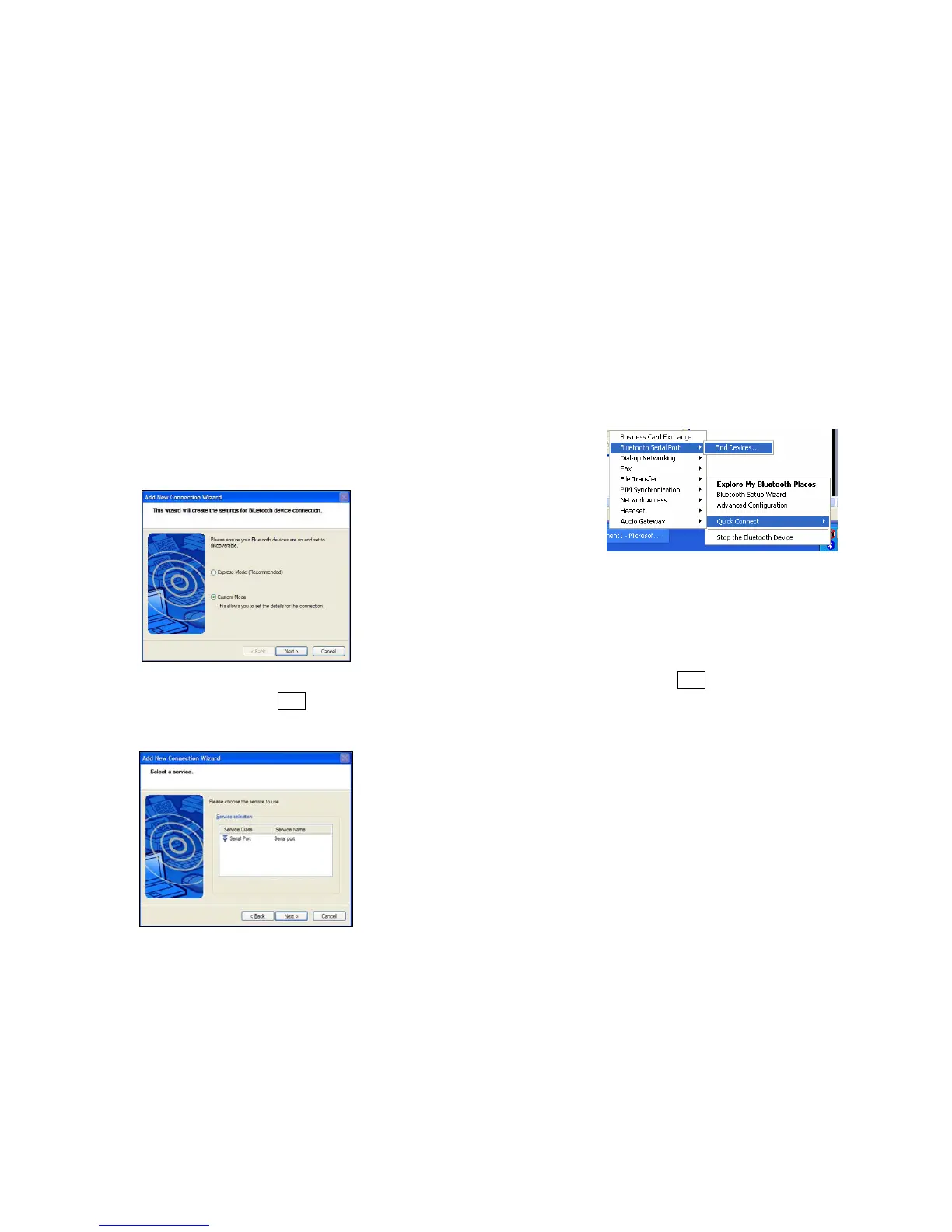
5. The Add New Connection Wizard will launch. Select Custom Mode and tap
Next. The tablet will begin searching for Bluetooth devices in range.
6. In the list of found devices, select Socket CHS [xxxxxx]. Tap Next.
7. If a passkey is requested, enter the default PIN 1234. Tap OK. To indicate the
connection, the CHS will beep once.
8. In the list of device services, select Serial Port. Tap Next.
9. Note which COM port is assigned to the CHS.
10
Broadcom (Widcomm) Bluetooth Stack:
Refer to the manual for your Bluetooth hardware/software for specific instructions.
Many Bluetooth USB adapters use this stack.
1. Turn on the Bluetooth radio of your computer.
2. Turn on the CHS. Press the small power button for 5 seconds, until you see
the LED turn blue. The LED should blink blue once every second to show that
the Bluetooth radio is on but not connected.
3. Perform a Quick Connect to a Bluetooth Serial Port. Click the Bluetooth icon in
the task tray. Click Quick Connect | Bluetooth Serial Port | Find Devices.
It is essential to connect to the CHS via Quick Connect because this sets the
CHS as your default Bluetooth serial device.
4. During the device search, the CHS will appear as Socket CHS [xxxxxx]
The characters in brackets are the last 6 characters of the scanner’s Bluetooth
MAC address.
5. If a passkey is requested, enter 1234. To indicate the connection, the CHS will
beep once.
By default, the Bluetooth software will ask you for the passkey each time you
connect. To stop the automatic prompts, under Advanced Configuration, disable
the Secure Connection requirement for both the Local Service and Client
Application, then unpair the devices. Refer to the documentation for your
Bluetooth hardware/software for complete instructions.















 To Next Page