See Appendix F for unpairing instructions.
SOCKETSCAN 10 SPECIAL FEATURES (SPP MODE ONLY)
SocketScan 10 software offers a variety of special features:
• Task tray icon – Indicates CHS connection status at a glance
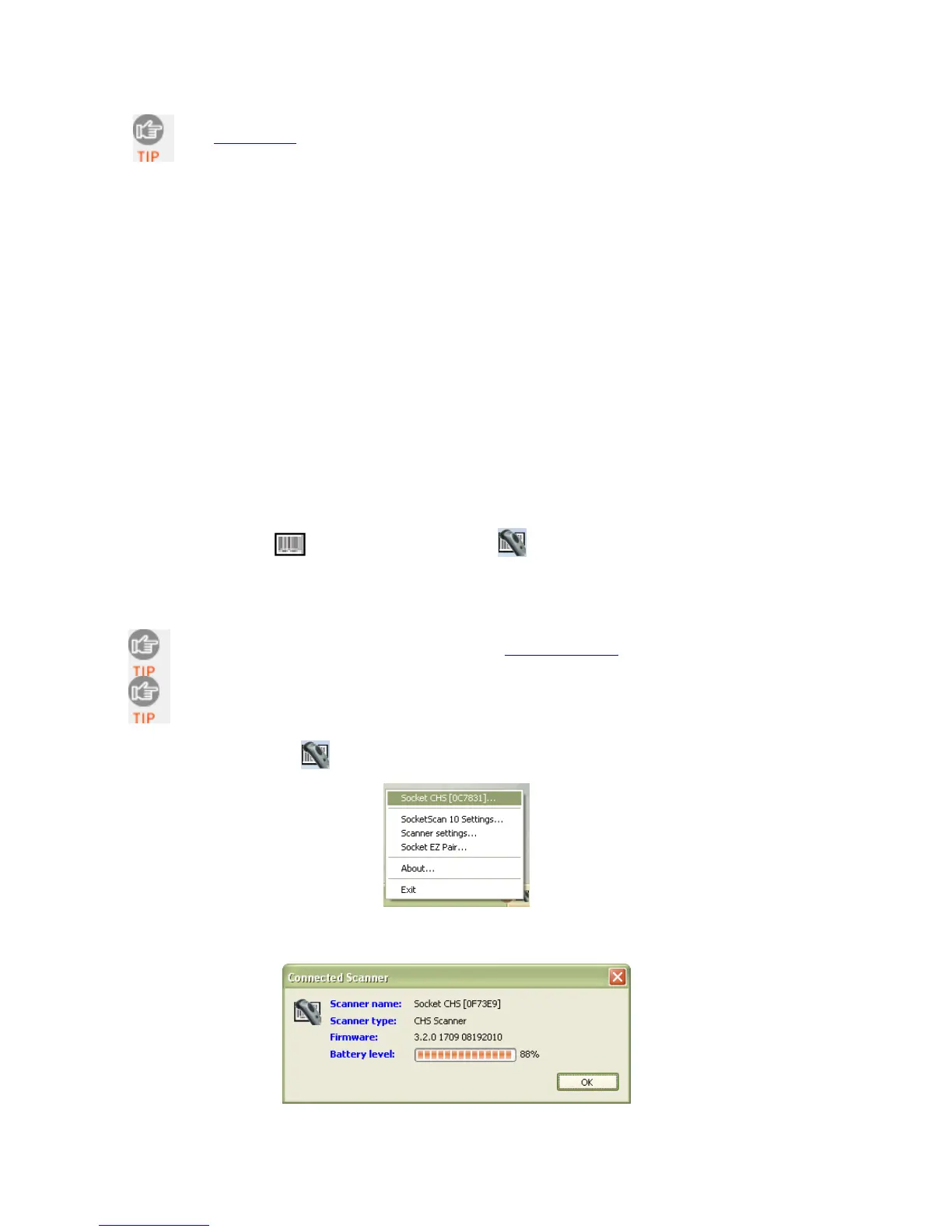
• Basic scanner information – Quick view of basic scanner properties
• SocketScan 10 Settings – Utility for configuring COM port, keyboard wedge, task tray
icon, and VIN mode
• Scanner Settings – Utility lets you view Bluetooth properties, battery level, adjust beep /
LED / vibrate settings, test barcodes, and more
• About – Software version information
Task Tray Icon
When SocketScan 10 is running, an icon that indicates the CHS connection status will appear in
the task tray.
CHS not connected CHS connected
Basic Scanner Information
To view more detailed scanner properties, use Scanner Settings
.
You can only view Basic Scanner Properties when the CHS is connected to your
computer.
1. Click on the CHS icon
in the task tray. In the pop-up menu, click Socket CHS.
2. A screen will appear displaying basic information about your CHS, including the
Bluetooth friendly name, scanner type, firmware, and battery level.
3. After viewing the information, click OK to exit.
28















 To Next Page