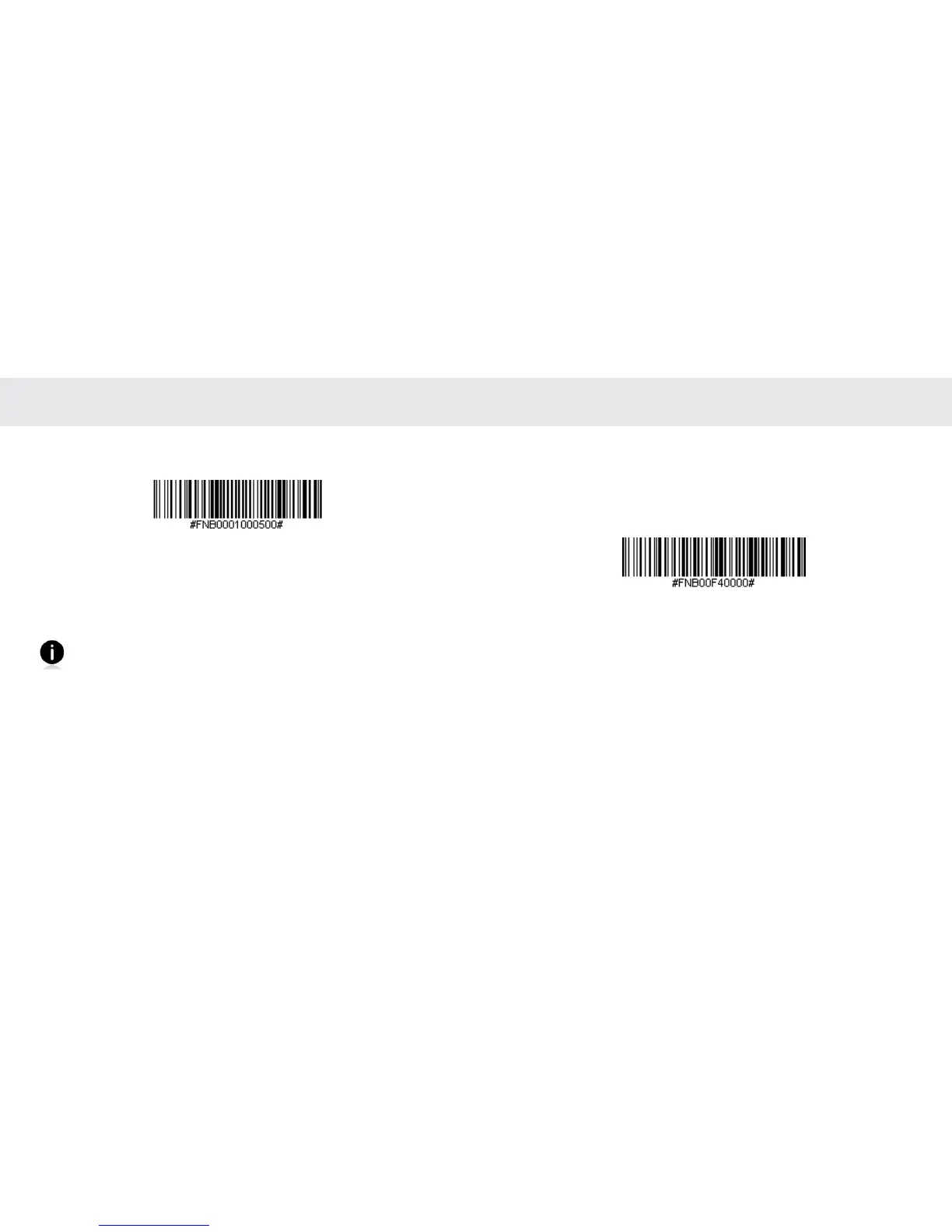
SPP MODE
Connect Android & Windows Mobile Device Quickly:
Highly recommended, allows two-way communications with Android,
Blackberry, and Windows. SocketScan 10 software installation required.
1. Power on the CHS and scan this barcode. The CHS will beep 3 times.
2. Turn Bluetooth on for your device. Go to Settings > Bluetooth. A
Bluetooth Devices search will begin.
3. Tap Socket CHS[xxxxxx] in the list of Devices found. After a few
seconds the “Not Paired” status will change to “Connected” and the
CHS Blue LED will blink every 3 seconds conrming the connection.
You are now ready to scan barcodes with the Scanner-enabled
Application.
Windows: Connect Windows PC as a HID Peripheral
1. Power on the CHS and scan this barcode. The CHS will beep 3 times.
2. Turn on Bluetooth on your PDA or PC and start a device search.
3. Select Socket CHS. If prompted for a passkey, enter 0000 (four ze-
roes). If prompted to select services, select Input Device.
4. After the CHS connects and is ready to scan barcodes, it will beep
once.
Now you are ready to scan barcodes!
To connect to a new device, you must rst unpair the CHS See
page 20.
WINDOWS HID (PERIPHERALS) MODE
12
13














 To Next Page