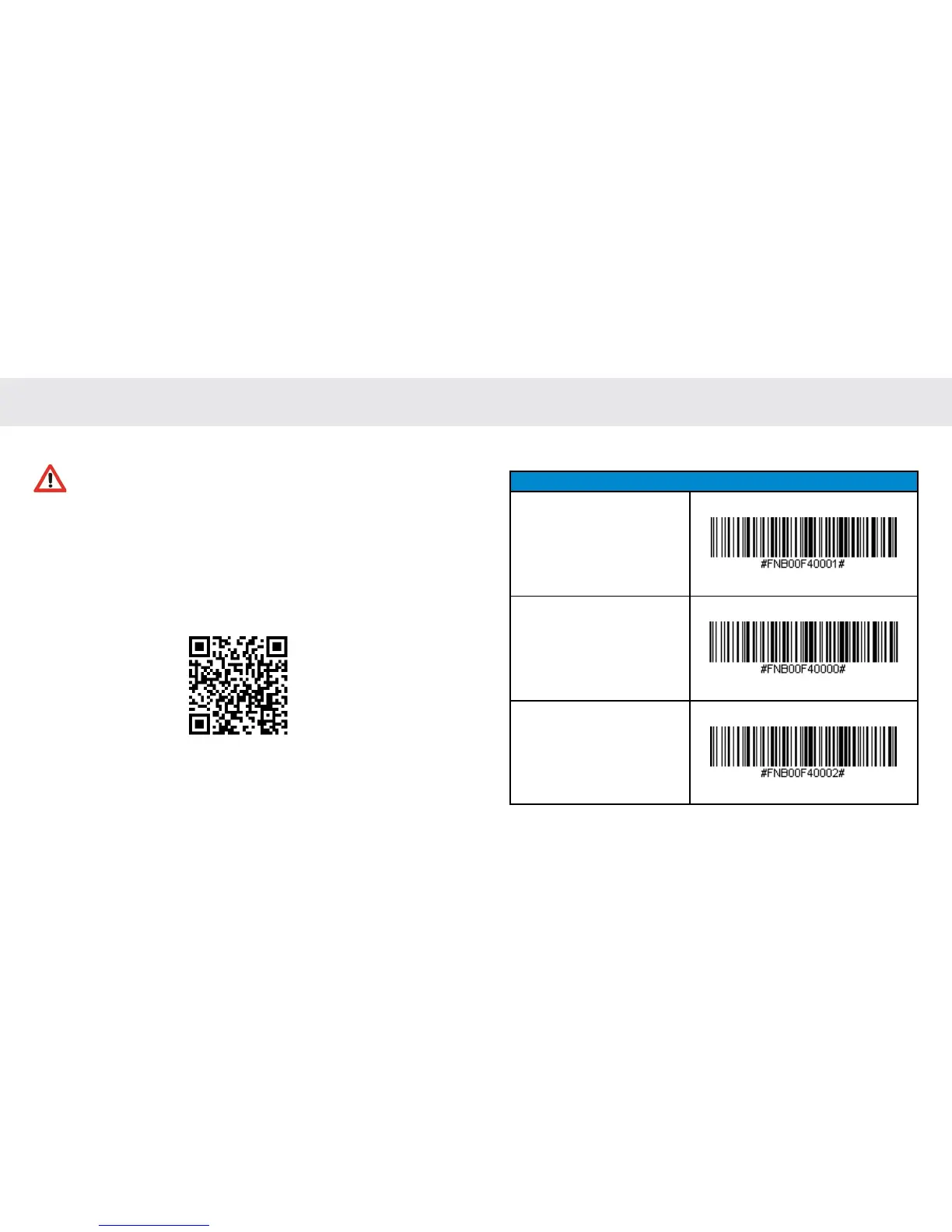
Scan command barcode(s) to quickly congure the CHS.
Make sure the CHS is not connected to a device before scanning a
command barcode! See page 20 for unpairing instructions.
For a complete set of command barcodes, download the Command
Barcodes Sheet: http://www.socketmobile.com/support/downloads
The web link is also provided in the below QR Code. To open the web
page, scan this QR Code using a QR Code Reader App in your iOS device.
COMMAND BARCODES
22
Bluetooth Connection Modes
HID-Keyboard (default)
Congures the CHS to Human
Interface Device (HID) mode
as a Keyboard class device.
SPP Mode
Changes the CHS to Serial
Port Prole (SPP) mode.
iOS Mode
Changes the CHS to iOS
mode.
Important! Make sure the CHS is not connected to a host computer or
device before scanning a command barcode!
23
COMMAND BARCODES (CONTINUED)













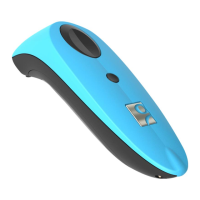

 To Next Page