pg 6 | Pod Demo Guide | www.mersive.com | © Copyright 2019 Mersive
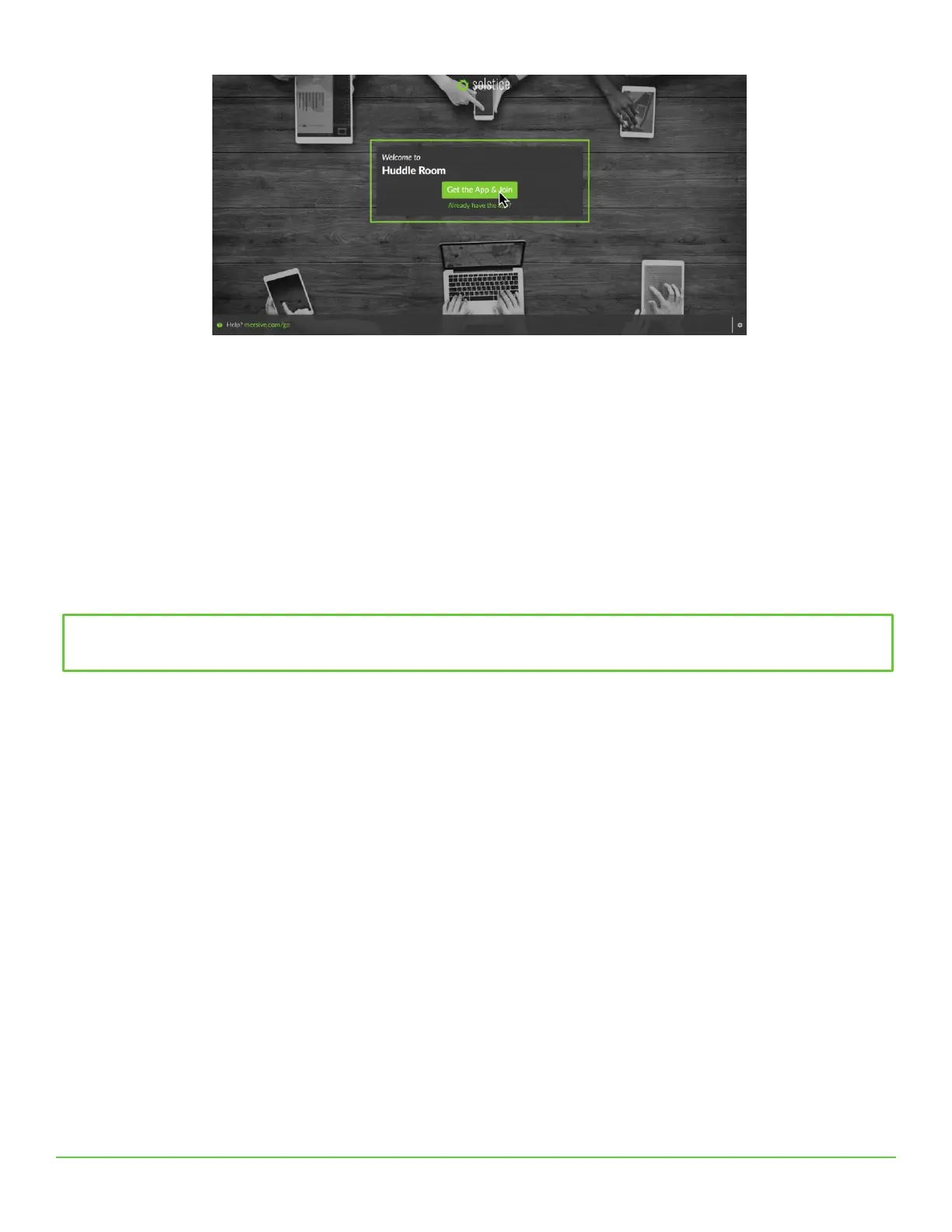
Android or iOS device users will be directed to the corresponding app stores to download and install the app. However, this
requires internet access which is not available when connected to the Pod’s hotspot network (available when the Pod is in
WAP mode). For this evaluation, these users will need to connect to a network that has internet to install the Solstice
mobile app. Note: For full rollout and deployment, Pods should be deployed on internet-enabled networks. Deployment of
the Pod in WAP mode is not recommended.
Although Solstice users don’t need to download the user app before they walk into the room, we’ve also provided download
links here for convenience.
Windows: download from www.mersive.com/download or directly from the Pod
Mac: download from www.mersive.com/download or directly from the Pod
iOS: https://itunes.apple.com/us/app/solstice-client/id887643816?mt=8
Android: https://play.google.com/store/apps/details?id=com.mersive.solstice.client_v2
Step 4: Connect the Solstice User App to the Pod
Now that you have the user app, let’s connect to the Pod. First, your device must always be on the same network as the Pod
to connect. For example, if your Pod is in the default WAP mode, your device must be connected to the “SolsticePod”
hotspot network.
When you launch the Solstice app, you will see the Discovered Displays tab. This tab shows all the Solstice displays on your
network so that you can simply click the appropriate display and connect. For now, the discovery panel is likely to only show
the single Pod you’re evaluating. Click on the SolsticePod display and enter the on-screen PIN if prompted.


 To Next Page