pg 5 | Pod Demo Guide | www.mersive.com | © Copyright 2019 Mersive
2. Go to the Network tab and enable Wireless Settings.
3. Select the Attached to Existing Network radio button.
4. Click Apply. The list of available networks will populate.
5. Select a wireless network and enter in the network credentials, then click Apply.
Step 3: Install the Free Solstice User App
Once your Pod and display are powered on, it’s time to install the free Solstice App. The Solstice App is what allows end
users to connect to a Solstice display and share and control content. The Solstice user App is installed on Windows, MacOS,
Android, and iOS devices (such as laptops, tablets, and phones) that you want to use to connect and share media to the
Solstice display. These user devices must be on the same network as the Solstice Pod in order to connect.
First time users that have not previously installed the Solstice user software app have two options: download the user app
from the Mersive downloads page, OR, download the app directly from the host. Note: Admins permissions are not required
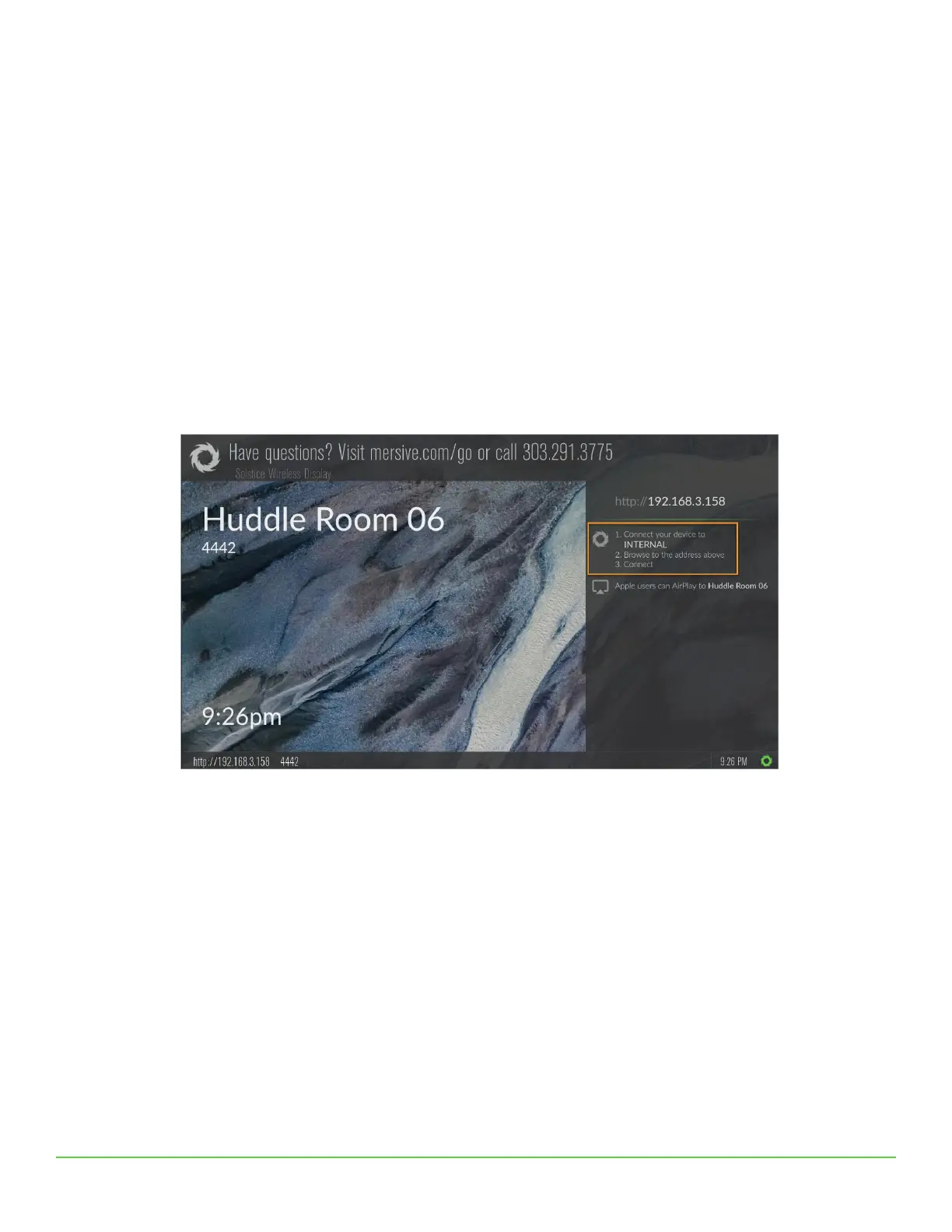
to install the app. Instructions to get the app are shown on the Solstice display’s welcome screen. These instructions direct
you to the Pod’s QuickConnect page, which allows you to directly download the most recent apps that were pre-installed on
your Pod.
How to Download the Solstice App from the Pod
1. On the user device, connect to the “SolsticePod” network.
2. Enter the IP Address shown on the display into a browser on your device. The QuickConnect page opens.
3. Click the Get the App & Join button. The Solstice App will be installed and opened.


 To Next Page