pg 8 | Pod Demo Guide | www.mersive.com | © Copyright 2019 Mersive
sharing option. Next, open a PowerPoint or PDF document and share by using the App Window option. You can resize the
PowerPoint or PDF to half screen and note the difference between the desktop post and shared app window post on the
display. Also share multiple images or videos saved locally on your device using the Media File sharing option. Lastly,
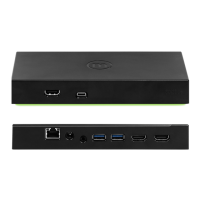
connect a laptop PC to the Pod using an HDMI cable. The HDMI cable should be plugged into both the HDMI input port on
the front of the Solstice Pod as well as into the laptop PC sharing content.
You’ll notice that your posts carry an outline color that matches the user color assigned to you when you connected. If you
have a second device available, connect to the Pod from that device too and share something to see how different users are
represented on the shared display.
Step 6: Control your Posts
By selecting Layout in the grey sidebar menu, you can access Solstice’s intuitive What-You-See-Is-What-You-Get
(WYSIWYG) control interface. Here, you have multiple ways that you can control the content and how it appears on the
display. Any user connected to the session can control the content layout.
• Drag and drop posts around to change the order of the content.
• Drag and drop posts on or off the on-deck panel on the left side of the display.
• Click and hold, or right-click on a post to view options to make the post full screen, view post details, create a stack,
or delete the post.
• Pinch-to-zoom posts on touch-enabled devices.
• Control videos posted to the display with the Solstice video player. The Solstice video player functions similarly to
other video players, with play/pause buttons, volume control, and loop options. To view the video player controls,
click the camera icon in the lower right corner of the video post.
• Click a Meeple to access the participant menu. This menu gives you options to show, hide, stack, or delete the
participant’s posts, as well as disconnect the participant from the collaboration session.
• Click the vertical ellipsis icon to view the media placement menu. This menu allows you to set whether or not
posts are aligned to a grid and allows you to quickly move all posts on or off the screen.
Step 7: Try out Moderator Mode
Moderator mode allows you to approve requests from collaborators to join the session or post content to the display. Once
moderator mode is enabled, any future collaborators will request to join and wait for a session moderator to approve the
request. Only the moderator will have the ability to control what content is posted and the layout of the content.
1. Click the Meeting control in the user app sidebar.
2. Toggle Moderate this meeting to “On”.
3. Use a different user device to try and connect to the display. When a new collaborator tries to connect to the
display, an alert will appear in the moderator’s app sidebar. On the moderating device, click Alerts to view the
request. Three options display for the connection request:
• Reject: Connection is rejected. The collaborator will be notified that their connection attempt was
canceled by the moderator.
• Approve: The collaborator will be connected to the display.
• Approve as Moderator: The collaborator will join with full moderator rights to approve and reject requests
to join and post media content.
4. Once approved as a collaborator, post a piece of media to the display. When a collaborator tries to post media
content to the display, another alert will appear in the moderator’s app sidebar. On the moderating device, click
Alerts to view the request. Two options display for the media post request:
• Reject: The post will not appear on the display. Rejecting the request will not alert the user that their post
has been rejected.


 To Next Page
 Loading...