pg 7 | Pod Demo Guide | www.mersive.com | © Copyright 2019 Mersive
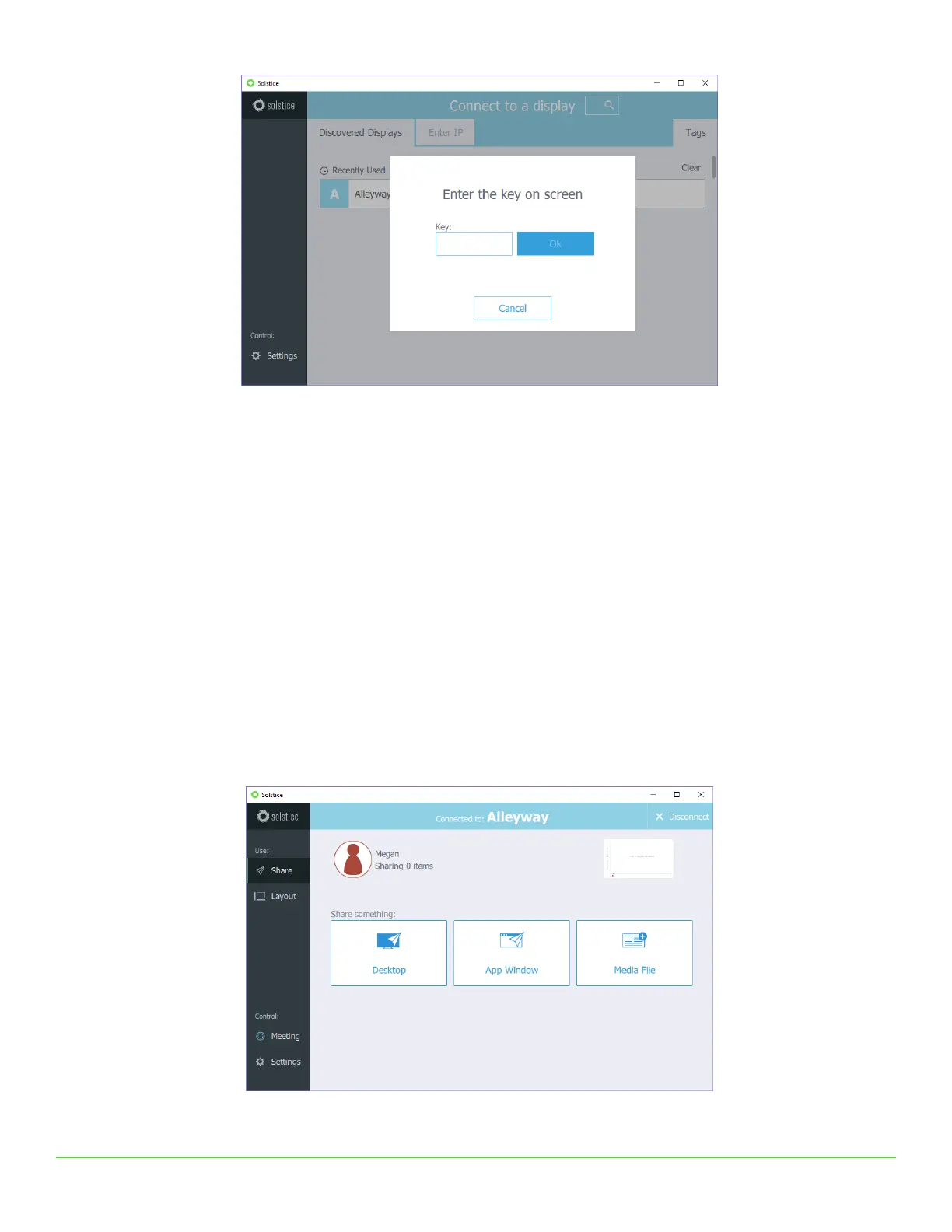
If you are unable to see any Pods to connect to, you can select the “Enter IP” option and type the IP address visible on the
Solstice Pod welcome screen.
Regardless of which device you are using to evaluate Solstice, the user interface and experience is nearly identical. This
allows users to freely move between devices when sharing content to the display without needing to navigate a new user
interface.
Step 5: Share Content from your Solstice App
Once you are connected to the Pod, there are several ways you can share content to the display:
• Sharing your entire desktop or device screen
• Sharing a specific application window (not supported on all mobile devices)
• Sharing media files such as images and videos
• Sharing using a wired source via HDMI input
When you connect to a Pod, you’ll be presented with the Share panel. The Share panel allows you to share various content
sources to the display. From PC-based devices, you can share desktops, application windows, images, and videos. From
mobile devices, you can share the device screen, images, and videos stored on the device, and even images and videos
captured live from the device’s camera.
Try sharing multiple pieces of content to the display using the Share panel. For example, it’s useful to share a couple
different application windows and some media files to see how things work. Try sharing your desktop by using the Desktop


 To Next Page