12COMPUTER-BASED AUDIO SET-UP
CHECKING THE FIRMWARE VERSION (WINDOWS USERS)
As soon as the XMOS Driver has been successfully installed, and your PC and M1 are both powered ON,
use File Explorer to navigate to the following folder:
C:\Program Files\XMOS\USBAudioStDriver_308E
In the folder locate and run the following file:
xmosusbaudiost308E_cpl.exe
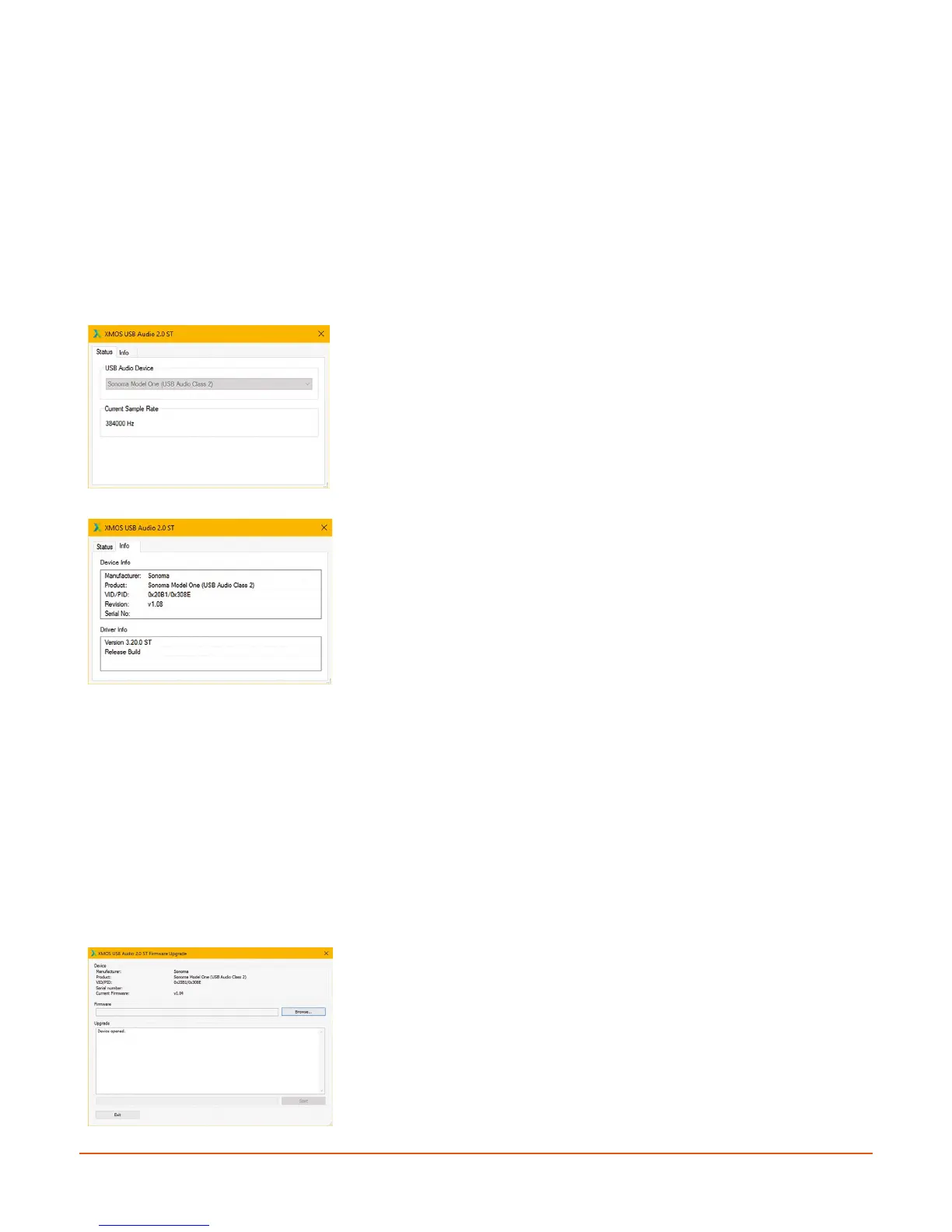
This will launch a small utility called the Control Panel, and you should see the following information
displayed:
The Status tab indicates that (a) the PC is correctly ‘seeing’ the
Sonoma M1 system, and (b) that it is capable of communicating at
its highest operating PCM sample rate (384 kHz).
The Info tab indicates the current version of the firmware loaded
onto the device (in this case v. 1.0.8). Compare the displayed
version number to the latest firmware version available at www.
sonomaacoustics.com/support. If the version number is different,
please see the section Updating the Firmware Version (Windows
Users) for instructions on how to update.
UPDATING THE FIRMWARE VERSION (WINDOWS USERS)
Should you need to update the M1’s firmware version, begin by saving the .bin firmware file located
at www.sonomaacoustics.com/support to a location on your PC which you can easily locate, e.g., the
Desktop. Then navigate to the following folder:
C:\Program Files\XMOS\USBAudioStDriver_308E
Locate and run the following executable file:
xmosusbaudiost308E_dfuapp.exe
This will launch the firmware update utility, and display the following.
In this example, the installed firmware version is v. 1.0.4. Use the
Browse… feature to locate the .bin file saved on your PC.


 To Next Page