38
"
• When you attempt to play the following photo
files, the
~J
mark appears on the screen and they
cannot be played.
- photo files larger than 8,192 pixels (width or
height)
- photo files smaller than
15
pixels (width or
height)
- photo files exceeding 32 MB
- photo files with extreme aspect ratios (greater
than 50: I or
I:
50)
- photo files
in
Progressive IPEG fonnat
- photo files that have a ".jpeg" or ".jpg"
extension, but not in IPEG format
- photo files that have an extremely long name
• The following photo files cannot be played.
- photo files recorded on BD-Rs
in
any format
other than UDF (Universal Disk Format) 2.6
- photo files recorded on BD-REs
in
any format
other than UDF (Universal Disk Fonnat) 2.5
• The following photo files or folders cannot be
displayed
in
the file list or folder list.
- photo files that have an extension other than
".jpeg" or ".jpg"
- photo files that have an extremely long name
- photo files
in
the 5th tree
or
lower
- 50Ith or more folders when the total number
of
folders and files
in
a single tree exceeds 500
• Photo files edited on a PC may not be played.
• Thumbnail images
of
some photo files may not be
displayed.
• Large photo files may take some time to display
or to start a slideshow.
To
view
best
quality
images
If
you have a Sony TV compatible with
"PhotoTV HD," you can enjoy best quality
images by the following connection and
setting.
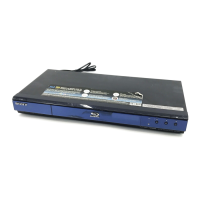
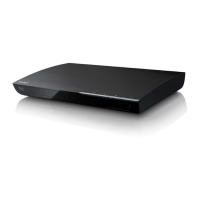
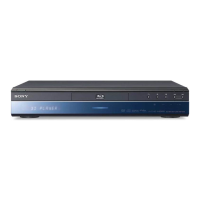
1 Connect the player to the TV using an
HDMI cable (not supplied).
2 Set the
TV's
video setting to [VIDEO-A]
mode.
For details on [VIDEO-A], refer to the
operating instructions supplied with the
TV.
"
You can enjoy "PhotoTV HD" only when "HDM!
Resolution"
of
the player
is
set to "Auto,"
"I
080i,"
or "1080p"
in
the "Video Settings" setup (page 43).


 To Next Page