52
"
When
you
set
the "DNS Server (Primary)"/
"DNS Server (Secondary)" addresses
manually, enter the "DNS Server (Primary)"
address. Otherwise, the "Internet Settings"
will
be
set
incorrectly.
4
If
your
ISP
has
a
specific
proxy
server
setting,
select
"Proxy
Settings"
using
t/.,
and
press
ENTER.
The
"Proxy
Settings" display appears.
If
the proxy
server
does
not have a
specific setting, go to step 8.
5
Set
"Use
of
Proxy
Server"
to
"On."
6
Select
"Proxy
Server"
and
"Port,"
and
enter
the
settings.
To
enter
the proxy server, see
"To
enter
characters"
(page 52).
7
Press
RETURN.
8
Select
"Network
Diagnostic"
using
tl
.,
and
press
ENTER.
9
Select
"Start,"
and
press
ENTER.
10
Check
that
the
message"
Network
connections
are
correct."
appears.
The
setup is finished.
If
the message
does
not appear, follow the
on-screen
messages.
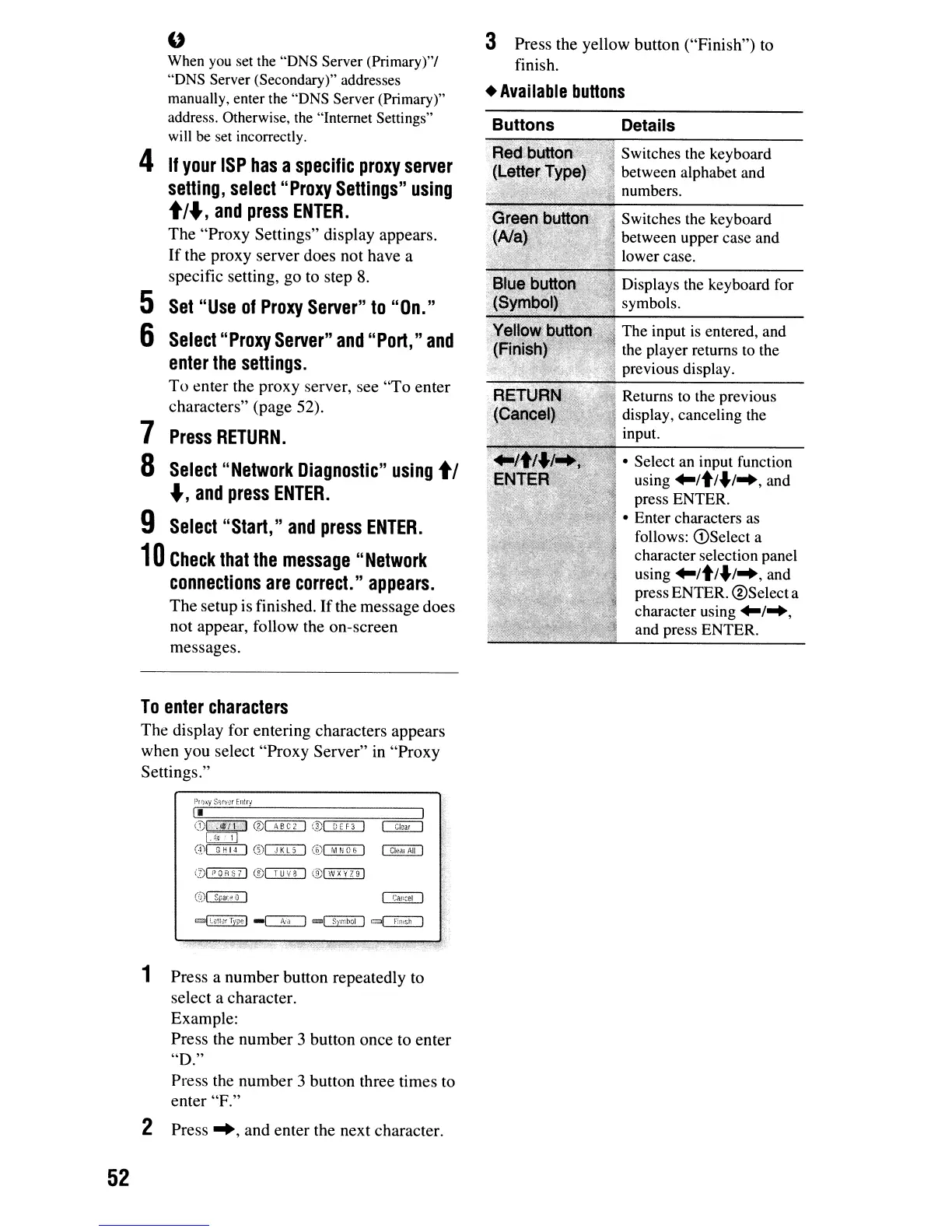
To
enter
characters
The
display for entering characters appears
when you select
"Proxy
Server"
in
"Proxy
Settings."
1 Press a
number
button repeatedly to
select a character.
Example:
Press the
number
3 button
once
to
enter
"D."
Press the
number
3 button three times to
enter
"F."
2 Press
~,
and
enter the next character.
3 Press the yellow button ("Finish") to
finish.
•
Available
buttons
Details
Switches the keyboard
between alphabet and
numbers.
Switches the keyboard
between upper case and
lower case.
Displays the keyboard for
symbols.
The input
is
entered, and
the player returns
to
the
previous display.
Returns to the previous
display, canceling the
input.
• Select an input function
using
~/t/./~,
and
press ENTER.
• Enter characters as
follows: <DSelect a
character selection panel
using
~/t/./~,
and
press ENTER. @Selecta
character using
~/~,
and press ENTER.


 To Next Page