Managing pictures on a Windows computer
Managing pictures on a Windows computer
25
5 Connect your camcorder to a
computer via a USB cable (supplied)
(p. 11).
[Picture Package Menu] starts up
automatically.
b Note
• When you connect your camcorder to a
computer, make sure you insert the connector in
the correct direction. If you insert the connector
forcibly, it may be damaged, and causes a
malfunction of your camcorder.
6 For touch panel models,
select [BURN VCD] on or
of your camcorder.
For SEL/PUSH EXEC dial models,
press BURN DVD/VCD of your
camcorder, then select [VCD] on the
[SELECT DISC].
[Picture Package VCD Maker] starts up.
The procedure of the menu settings varies
depending on the model.
7 Place a new CD-R in the disc drive of
the computer.
b Note
• CD-RWs cannot be used.
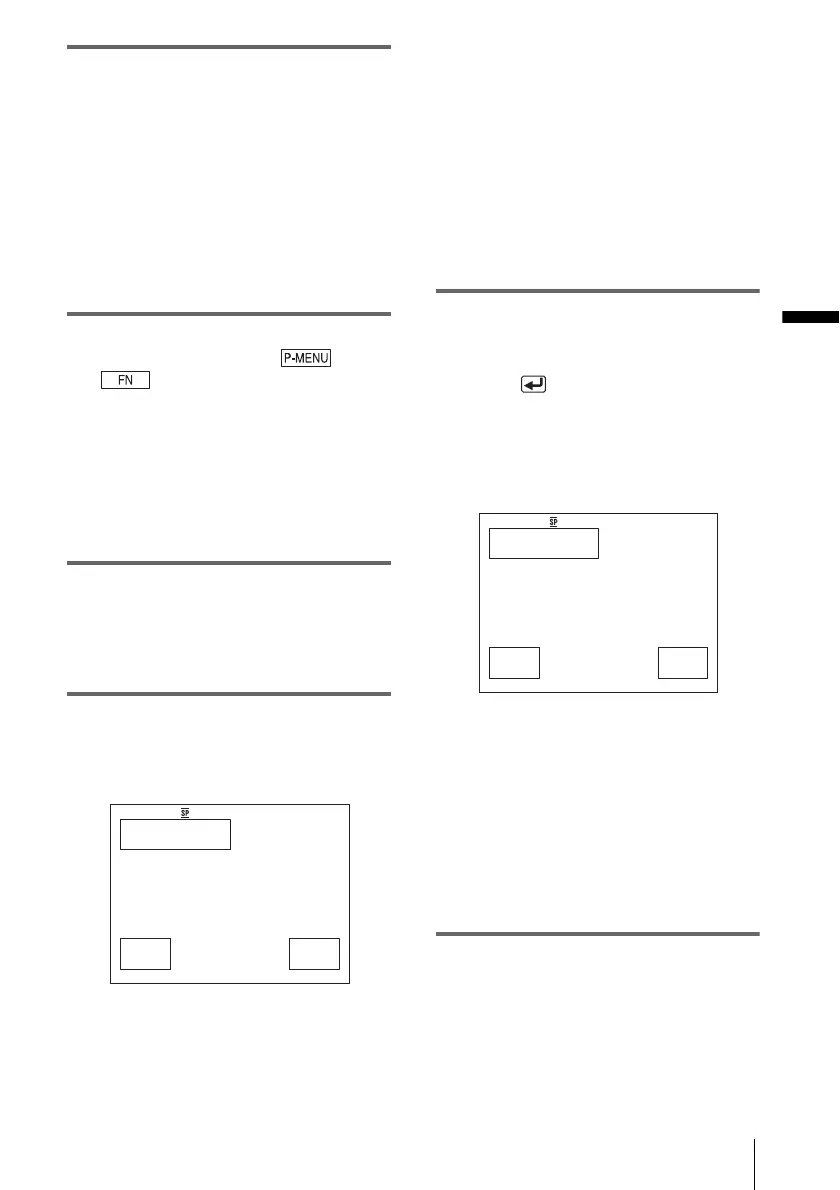
8 For touch panel models,
select [EXEC] of your camcorder.
For SEL/PUSH EXEC dial models,
press the dial of your camcorder.
.
The status of the operation on your
computer is displayed on the LCD screen of
your camcorder.
CAPTURING: The picture recorded on
the tape is being copied to the computer.
CONVERTING: The picture is being
converted to the MPEG1 format.
WRITING: The picture is being written
onto the CD-R.
b Notes
• The screen varies depending on the model.
• You cannot cancel the operation after
[Finalizing VCD.] is displayed on the LCD
screen of your camcorder.
9 Follow the steps below to finish
creating a Video CD.
For touch panel models
Select [ END] or [NO] of your
camcorder.
For SEL/PUSH EXEC dial models
Press BURN DVD/VCD of your
camcorder.
The disc tray comes out automatically.
.
To create another Video CD with the same
content, follow the on-screen instructions,
place a new CD-R in the disc drive, then
repeat steps 8 and 9.
b Note
• The screen varies depending on the model.
z
Tip
• You can also operate steps 8 and 9 from your
computer.
b Notes
• The importing of the picture stops automatically,
when there is a blank portion of 10 seconds or longer
on the tape.
• Select a hard disk that has enough space (more than
about 6 GB) for the [Temporary folder] on the
[Options] screen.
BURN VCD
START
EXEC
0:00:00:00
CREATE VCD?
CANCEL
BURN VCD
COMPLETED
YES
0:00:00:00
Create another
copy?
Disctray opens.
NO
,continued



 To Next Page