44
GB
x BACKGROUND
Selects the background color or picture on the
TV screen in stop mode or while playing an
audio CD or MP3 audio track.
The default setting is underlined.
x 4:3 OUTPUT
This setting is effective only when:
– you set “TV TYPE” in “SCREEN SETUP” to “16:9”
(page 43).
– the type of signal output from the system is set to
“PROGRESSIVE AUTO” or “PROGRESSIVE
VIDEO” (page 44).
Adjust this to watch 4:3 aspect ratio progressive
signals. If you can change the aspect ratio on
your progressive format (525p/625p)
compatible TV, change the setting on your TV,
not the system.
The default setting is underlined.
To change the type of signal
output from the system
— PROGRESSIVE
Progressive is the method for displaying TV
images which reduces flickering, and sharpens
the image. To display using this method, you
need to connect to a TV that accepts progressive
signals.
1 Press FUNCTION + or – repeatedly (or
touch DVD on the unit) to switch the function
to DVD.
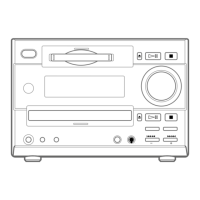
2 Press PROGRESSIVE on the unit.
Each time you press PROGRESSIVE on the
unit, the on-screen display changes as
follows:
PROGRESSIVE AUTO* t
PROGRESSIVE VIDEO* t
NORMAL (INTERLACE)
* “P AUTO” or “P VIDEO” appears in the front
panel display when the system outputs
progressive signals.
x PROGRESSIVE AUTO
Select this setting when your TV accepts
progressive signals and the TV is connected to
the COMPONENT VIDEO OUT jacks.
Normally select this setting under the above
condition. This setting automatically detects the
software type, and selects the appropriate
conversion method.
Note that the picture will not be clear or no
picture will appear if you select these settings
when either of the above conditions is not met.
x PROGRESSIVE VIDEO
Select this setting when your TV accepts
progressive signals and the TV is connected to
the COMPONENT VIDEO OUT jacks and you
want to fix the conversion method to
PROGRESSIVE VIDEO for video-based
software.
Select this setting if the image is not clear when
you select “PROGRESSIVE AUTO”.
Note that the picture will not be clear or no
picture will appear if you select these settings
when either of the above conditions is not met.
x NORMAL (INTERLACE)
Select this setting when your TV does not accept
progressive signals or your TV is connected to
the VIDEO OUT jack.
JACKET
PICTURE
The jacket picture (still picture)
appears in the background, but
only when the jacket picture is
already recorded on the disc (CD-
EXTRA, etc.). If the disc does not
contain a jacket picture, the
“GRAPHICS” picture appears.
GRAPHICS A preset picture stored in the
system appears.
BLUE The background color is blue.
BLACK The background color is black.
FULL
Select this when you can change
the aspect ratio on your TV.
NORMAL Select this when you cannot
change the aspect ratio on your
TV. Shows a 16:9 aspect ratio
signal with black bands on left and
right sides of the image.
16:9 aspect ratio TV



 To Next Page
 Loading...