EasyManua.ls Logo

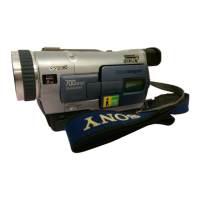
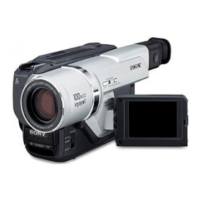
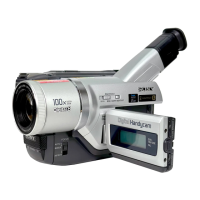
Sony Digital8 DCR-TRV120E - User Manual

Sony Digital8 DCR-TRV120E
168 pages
Print Icon
To Next Page IconTo Next Page
Loading...
3-058-872-13 (1)
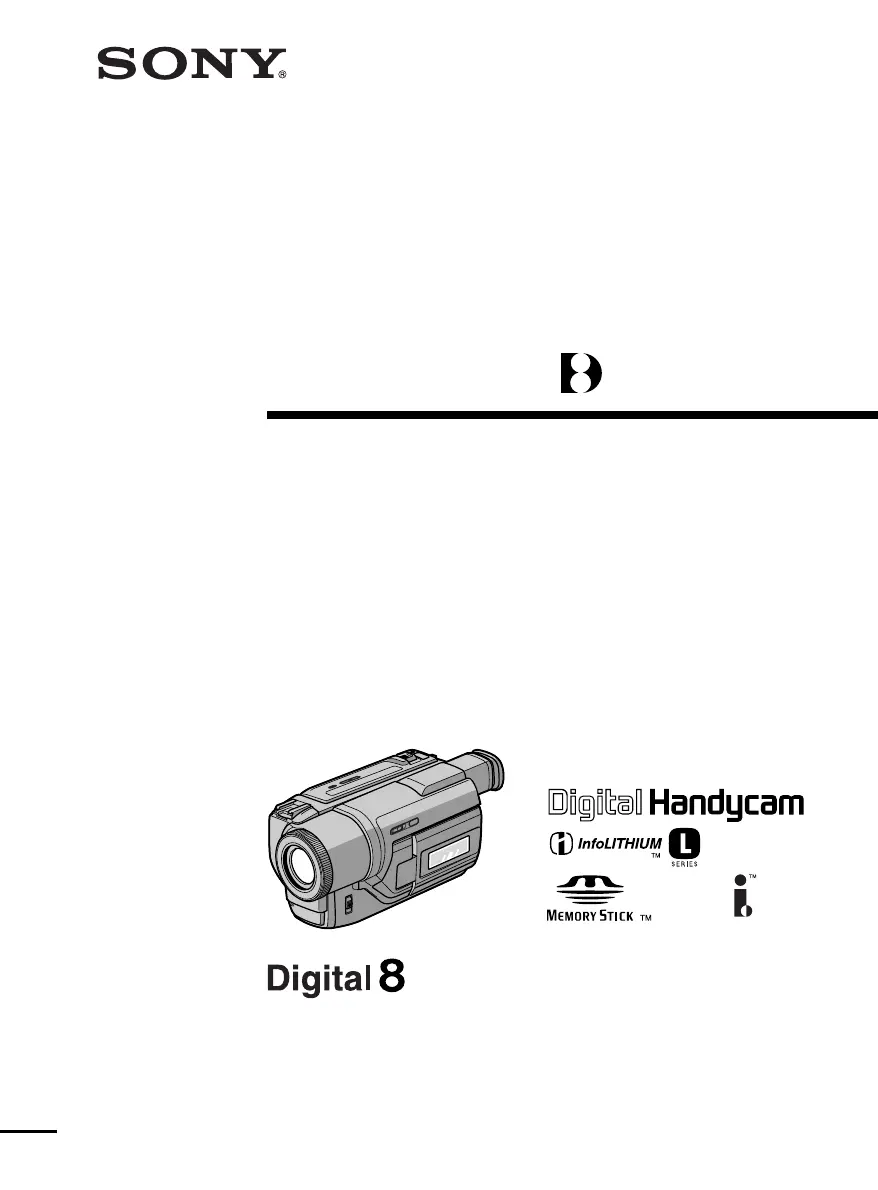
Digital
Video Camera
Recorder
Operating Instructions
Before operating the unit, please read this manual thoroughly,
and retain it for future reference.
ИНСТРУКЦИЯ ПО ЭКСПЛУАТАЦИИ
Перед эксплуатацией аппарата внимательно прочтите,
пожалуйста, данное руководство и сохраняйте его для
дальнейших справок.
DCR-TRV120E/TRV125E/TRV320E
DCR-TRV320E
©2000 Sony Corporation

Table of Contents

Questions and Answers

  • P
    Philip Gilbert Jr.Aug 20, 2025
    How to fix Sony Digital8 DCR-TRV120E Camcorder START/STOP not working?
    • M
      marissa79Aug 20, 2025
      To resolve the issue with the Sony Camcorder's START/STOP function, ensure the POWER switch is set to CAMERA. If it's set to OFF (CHARGE), PLAYER, or MEMORY (DCR-TRV320 only), the START/STOP function will not operate.
  • L
    Leroy WilliamsAug 22, 2025
    What to do if Sony Digital8 DCR-TRV120E Remote Commander not working?
    • R
      Richard NolanAug 22, 2025
      If the Remote Commander supplied with your Sony camcorder isn't working, check the menu settings. Ensure that COMMANDER is set to ON. If it's set to OFF, the remote will not function.
  • D
    Daniel GrossAug 25, 2025
    Why does my Sony Digital8 DCR-TRV120E show tiny white spots?
    • L
      Linda KimAug 25, 2025
      If your Sony Camcorder displays tiny white spots on the LCD screen or in the viewfinder, it might be due to the activation of Slow Shutter, Low Lux, or Super NightShot mode. This is not a malfunction.
  • Z
    Zachary JordanAug 26, 2025
    Why does my Sony Digital8 DCR-TRV120E Camcorder show a vertical band when shooting lights against a dark background?
    • E
      ecooperAug 26, 2025
      If a vertical band appears when you shoot a subject such as lights or a candle flame against a dark background with your Sony Camcorder, it means that the contrast between the subject and background is too high. This is not a malfunction.
  • E
    emily58Aug 27, 2025
    Why does my Sony Digital8 DCR-TRV120E Camcorder automatically start demonstration?
    • J
      jpalmerAug 28, 2025
      If your Sony camcorder automatically starts a demonstration, insert a cassette to stop it. This happens if 10 minutes elapse after setting the POWER switch to CAMERA or if DEMO MODE is set to ON in the menu settings without a cassette inserted.
  • B
    bradfordkimberlyAug 29, 2025
    What to do if the image to protect is not played back on Sony Camcorder?
    • T
      Teresa GarzaAug 29, 2025
      If the image you want to protect isn't playing back on your Sony camcorder, press MEMORY PLAY to initiate playback.
  • N
    Nina LopezAug 31, 2025
    How to clean video heads on Sony Digital8 DCR-TRV120E?
    • J
      jennifer66Aug 31, 2025
      If you are experiencing issues with the picture quality on your Sony camcorder, the video head may be dirty. To resolve this, clean the heads using the Sony V8-25CLD cleaning cassette (not supplied).
  • S
    Samantha MaloneSep 2, 2025
    How to increase volume on Sony Digital8 DCR-TRV120E Camcorder?
    • L
      Lori HendersonSep 2, 2025
      If there is no sound from your Sony Camcorder, open the LCD panel and press VOLUME + to increase the volume.
  • A
    Allison PopeSep 4, 2025
    How to turn on SteadyShot on Sony Digital8 DCR-TRV120E?
    • B
      Becky MayerSep 4, 2025
      If your Sony Camcorder's steady shot feature is not working, check the menu settings. If STEADYSHOT is set to OFF, set it to ON.
  • C
    Christian PowersSep 6, 2025
    How to set autofocus on Sony Digital8 DCR-TRV120E?
    • A
      Alicia JohnsonSep 6, 2025
      If your Sony Camcorder's focus is set to MANUAL, set it to AUTO to enable autofocus.

Sony Digital8 DCR-TRV120E Specifications

General IconGeneral
Video FormatDigital8
Optical Zoom20x
Image SensorCCD
LCD Screen Size2.5 inches
ViewfinderColor
Image StabilizationElectronic
Image Sensor Size1/4 inch
ConnectivityFireWire (IEEE 1394)
Recording MediaHi8/Digital8 tape
MicrophoneStereo
Battery TypeInfoLithium

Related product manuals