73
Using your computer
• With Windows XP, the AutoPlay wizard
appears on the desktop.
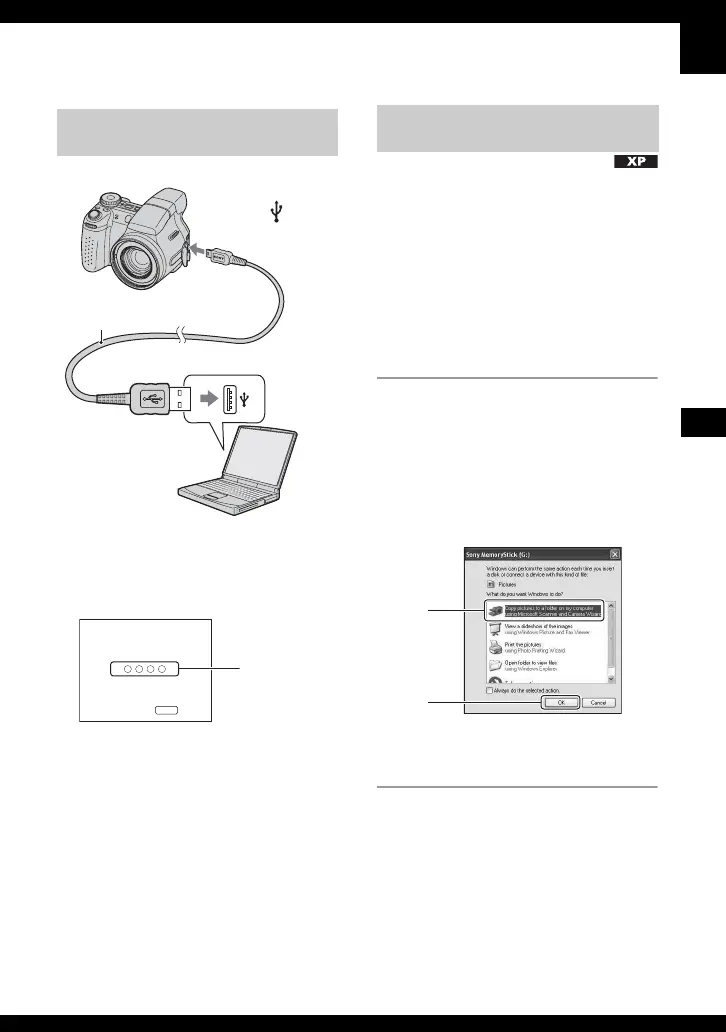
“USB Mode Mass Storage” appears on the
screen of the camera.
When a USB connection is established for
the first time, your computer automatically
runs a program to recognize the camera.
Wait for a while.
* During communication, the access indicators
turn red. Do not operate the computer until the
indicators turn white.
• If “USB Mode Mass Storage” does not appear,
set [USB Connect] to [Mass Storage] (page 67).
• For Windows 2000/Me, follow the procedure
explained in “Stage 3-B: Copying images to a
Computer” on page 74.
• For Windows XP, when the wizard screen does
not appear automatically, follow the procedure
explained in “Stage 3-B: Copying images to a
Computer” on page 74.
This section describes an example of
copying images to a “My Documents”
folder.
1 After making a USB connection in
Stage 2, click [Copy pictures to a
folder on my computer using
Microsoft Scanner and Camera
Wizard]
t [OK] as the wizard
screen appears automatically on
the desktop.
The “Scanner and Camera Wizard”
screen appears.
2 Click [Next].
The images saved on the “Memory
Stick Duo” of the camera appear.
• If no “Memory Stick Duo” is inserted,
images in the internal memory appear.
Stage 2: Connecting the camera
and your computer
1 To the USB jack
2 To the (USB)
jack
USB cable
USB Mode
MENU
Switch on
Mass Storage
Memory Stick
Access
indicators*
Stage 3-A: Copying images to a
computer
1
2

 To Next Page
 Loading...