Videos
The Video and TV SideView application
Use the Video & TV SideView application to play movies and other saved video
content. The application also serves as a TV programme guide to show detailed
programme information and related content, including social media posts about the
programmes. Use the application to make your device a remote controller for a
compatible home device. You can also play your movies on other devices that are
connected to the same network or saved in the cloud.
Some video files may not be playable in the Video & TV SideView application. The availability
of the TV programme guide and the remote controller varies by market and connected device.
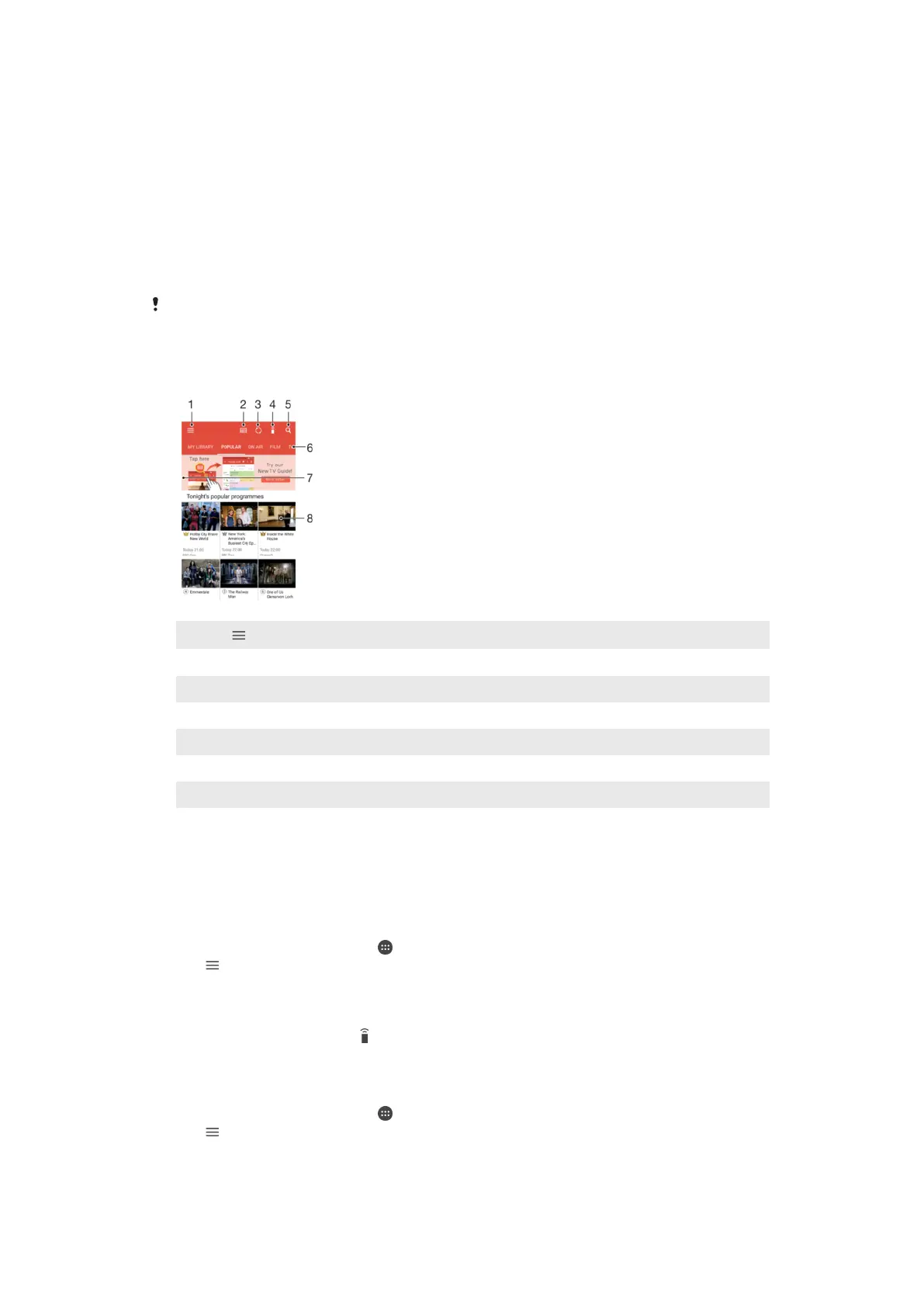
1
Tap to open the Video & TV SideView home screen menu
2 View the programme guide
3 Refresh content
4 Use your device as a remote controller when paired with a compatible device
5 Search content
6 Switch between your video library and online programmes
7 Drag the left edge of the screen to the right to open the menu, browse content and adjust settings
8 Tap a programme to view detailed information and related content
To use your device as a remote controller
You can use your device as a remote controller for another compatible home network
device. Both devices need to be connected to the same network before you can pair
them.
1
From your Home screen, tap
, then find and tap Video & TV Sideview.
2
Tap to open the home screen menu, then tap Add device.
3
Select the home device from the list.
4
Enter the registration number shown on the home device and follow the
instructions to finish pairing.
5
When pairing is complete,
appears. You can now use your device as a fully
functional remote controller for the home device.
To change settings
1
From your Home screen, tap , then find and tap Video & TV Sideview.
2
Tap to open the home screen menu, then tap Settings.
3
Change the settings as desired.
113
This is an Internet version of this publication. © Print only for private use.















 To Next Page