masterpage:Left
filename[G:\_Upload\3073074111\307307411MVCFD100UC\02GB-
MVCFD100UC\08adv.fm]
80
model name1[MVC-FD100/200]
[3-073-074-11(1)]
To continue copying to other
floppy disks
After “COMPLETE” appears in step 4,
select [CONTINUE] and repeat steps 3
and 4 above.
To cancel copying partway
Select [CANCEL].
Note
If you eject and insert the floppy disk
without selecting [EXIT] after
“COMPLETE” appears, DISK COPY will
be carried out onto the floppy disk.
Selecting still images
to print (PRINT MARK)
You can mark a print mark on still
images recorded with your camera.
This mark is convenient when you
have images printed at a shop that
conforms with the DPOF (Digital Print
Order Format) standard.
To unmark the print mark
Select [OFF] in step 2.
4
Insert another floppy disk.
“RECORDING” appears. When
copying is completed,
“COMPLETE” appears.
To end copying, select [EXIT].
In single mode
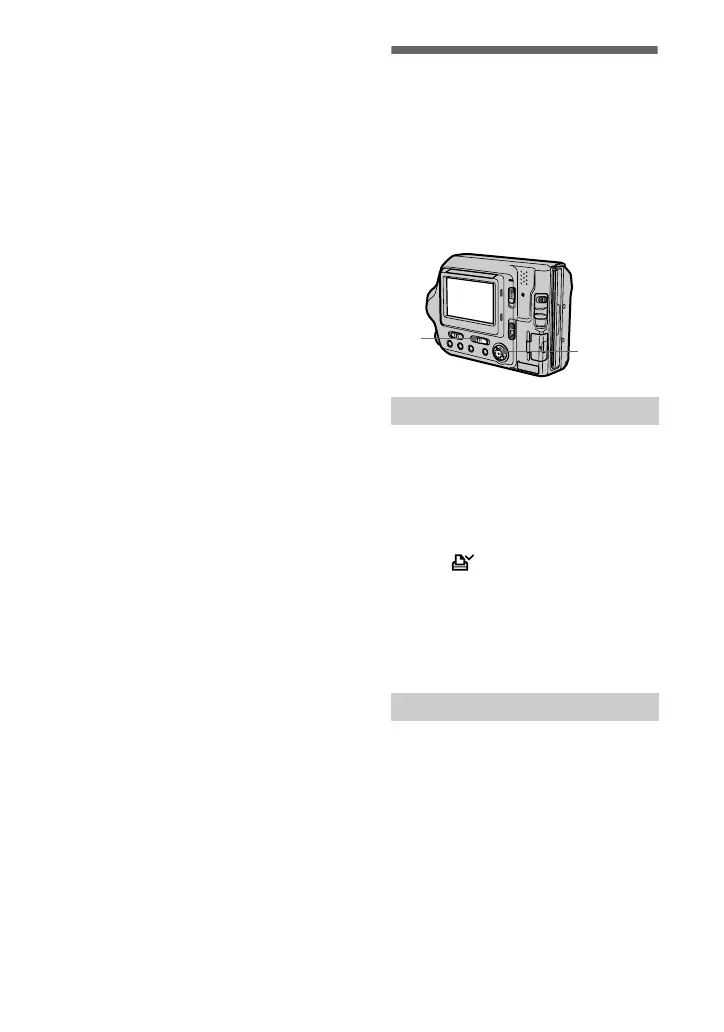
1
Set the PLAY/STILL/MOVIE
selector to PLAY and display
theimageyouwanttoprint.
2
Select [FILE], [PRINT MARK],
and then [ON] from the menu.
The (print) mark is marked on
the displayed image.
In INDEX mode
1
Set the PLAY/STILL/MOVIE
selector to PLAY, then
display the INDEX screen.
2
Select [FILE], [PRINT MARK],
and then [SELECT] from the
menu.
3
Selecttheimagestobe
marked with the control
button.
1
2, 3, 4
01cov.book Page 80 Thursday, November 29, 2001 1:20 PM


 To Next Page
 Loading...