EasyManua.ls Logo

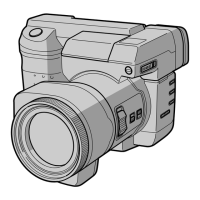
Sony Mavica MVC-CD1000 - User Manual

Sony Mavica MVC-CD1000
80 pages
Print Icon
To Next Page IconTo Next Page
Loading...
model name1[MVC-CD1000]
[3-062-473-12(1)]
masterpage:Right
filename[D:\MVC-CD1000 kaihan\3062473121\3062473121MVCCD1000UC\01COV-
MVCCD1000UC\010cov.fm]
3-062-473-12(1)
Digital Still Camera
Operating Instructions
Before operating the unit, please read this manual thoroughly, and retain it
for future reference.
Owner’s Record
The model and serial numbers are located on the bottom. Record the serial
number in the space provided below. Refer to these numbers whenever you
call upon your Sony dealer regarding this product.
Model No. MVC-CD1000
Serial No. ________________________
©2000 Sony Corporation
MVC-CD1000
010cov.fm Page 1 Wednesday, July 19, 2000 10:32 AM

Table of Contents

Questions and Answers

  • C
    Christina RobinsonAug 19, 2025
    What to do if my Sony Mavica MVC-CD1000 Digital Camera does not work?
    • M
      Megan VelazquezAug 19, 2025
      If your Sony Digital Camera isn't working, try the following: ensure you are using an “InfoLITHIUM” battery pack, remove and re-insert the disc, charge the battery pack, securely connect the camera to the DC IN jack and a wall outlet, or turn the power off and then on again after one minute.
  • A
    Alisha McdonaldAug 21, 2025
    How to fix the flash on my Sony Mavica MVC-CD1000 Digital Camera?
    • T
      thomascampbellAug 21, 2025
      If the flash on your Sony Digital Camera isn't working, make sure the flash is set to (no indication), , or . Also, cancel the PROGRAM AE function or set the flash to . Ensure the camera is set to STILL and that the flash is popped up.
  • D
    davisdanielAug 23, 2025
    Why is the battery life so short on my Sony Digital Camera?
    • T
      Travis NelsonAug 23, 2025
      If you notice that the battery life of your Sony Digital Camera is short, fully charge the battery pack. If the problem persists, replace the battery pack with a new one.
  • R
    Ricky BrownAug 26, 2025
    Why does my Sony Digital Camera power turn off suddenly?
    • A
      Amy CaldwellAug 26, 2025
      If your Sony Digital Camera turns off suddenly, try turning the camera back on. If that doesn’t work, replace the battery pack with a charged one.
  • C
    Claudia SextonAug 27, 2025
    How to get my computer to recognize my Sony Digital Camera?
    • M
      Mrs. Megan HernandezAug 28, 2025
      If your personal computer does not recognize your Sony Digital Camera, turn on the camera. Use the AC power adaptor. Disconnect the USB cable and reconnect it firmly. Disconnect all USB cables except those connected to the keyboard, mouse, and camera.
  • K
    Kristina StephensAug 29, 2025
    Why is my Sony Digital Camera image in monochrome?
    • C
      Christopher HughesAug 30, 2025
      If the image on your Sony Digital Camera is in monochrome, cancel the TEXT mode or cancel the B&W mode.
  • J
    James DavisSep 1, 2025
    Why is the battery remaining time not displayed correctly on my Sony Mavica MVC-CD1000 Digital Camera?
    • B
      bphelpsSep 1, 2025
      If the battery remaining time indication is not proper on your Sony Digital Camera, replace the battery pack with a new one, or install the charged battery pack.
  • M
    Mallory StantonSep 3, 2025
    What to do if my Sony Mavica MVC-CD1000 turns off with sufficient battery?
    • S
      Stephanie AndersonSep 3, 2025
      If the power of your Sony Digital Camera turns off immediately even if the battery level seems sufficient, charge the battery pack about one hour after the normal charge is complete.
  • C
    Christopher HickmanSep 5, 2025
    What to do if my Sony Digital Camera cannot record images?
    • D
      David StephensSep 5, 2025
      If your Sony Digital Camera cannot record images, ensure that the camera is set to MOVIE or STILL. Also, verify that a disc is inserted and, if necessary, initialize the disc.
  • L
    Lucas HammondSep 7, 2025
    What to do if my Sony Mavica MVC-CD1000 Digital Camera cannot delete an image?
    • R
      ruizashleySep 7, 2025
      If your Sony Digital Camera cannot delete an image, try initializing the disc. If that doesn’t work, cancel the protection.

Summary

Operating Instructions

Owners Record

Safety and Compliance Information

Warnings and Cautions

Important safety precautions to prevent hazards like fire and shock.

Declaration of Conformity

Compliance statement regarding FCC rules for electromagnetic interference.

Before Using Your Camera

Important Precautions

Key warnings and advice on handling, avoiding moisture, and protecting components.

Getting Started

Identifying the Parts

Visual guide to camera components and their functions.

Preparing the Power Supply

Instructions on installing and charging the camera's battery pack.

Setting the Date and Time

Guide for configuring the camera's internal clock and date settings.

Inserting a Disc

Steps for correctly loading an 8 cm CD-R disc into the camera.

Basic Operations

Initializing a Disc

Process for preparing a new CD-R disc for recording images.

Recording Still Images

Step-by-step instructions for capturing still photographs with the camera.

Recording Moving Images

Guide for capturing video clips with audio using the camera.

Playing Back Still Images

Playing Back Moving Images

Viewing Images on a Personal Computer

Communications with Your Personal Computer

Preparing for Viewing Images on CD-ROM Drives

Explains the finalization process needed to read discs on CD-ROM drives.

Advanced Operations

Using Camera Controls

Explains the PLAY/STILL/MOVIE selector and control button usage.

Changing Menu Settings

Guide to accessing and modifying various camera settings via the menu system.

Menu Settings

Effect Settings

Options for image special effects like SOLARIZE, B&W, SEPIA, NEG.ART.

Recording Settings

Playback and Editing Settings

Camera Settings

Setup Menu Options

DELETE

Removes unwanted images from the disc.

Various Recording

Setting the Image Size

Options to select resolution for still and moving images to manage disc space.

Recording Still Images for E-mail

Captures small-size images simultaneously for e-mail transmission.

Adding Audio Files to Still Images

Records audio clips to accompany still images.

Recording Text Documents

Records text in black and white GIF format for clear text images.

Recording Uncompressed Images (TIFF)

Records images in both TIFF (uncompressed) and JPEG formats.

Recording Images in Macro

Focusing Manually

Using the PROGRAM AE Function

Using the Spot Light-Metering Function

Adjusting the Exposure

Adjusting the White Balance

Recording the Date and Time on the Still Image

Enjoying Picture Effects

Various Playback

Playing Back Six Images at Once (INDEX)

Displays multiple images on screen for quick browsing.

Enlarging a Part of the Still Image (Zoom and Trimming)

How to zoom into and crop sections of still images.

Rotating a Still Image

Allows changing the orientation of still images.

Playing Back Still Images in Order (SLIDE SHOW)

Configures automatic playback of images in sequence.

Viewing Images on a TV Screen

Editing

Preventing Accidental Erasure (PROTECT)

Protects selected images from being deleted.

Deleting Images

Removes unwanted images from the disc.

Changing the Recorded Still Image Size (RESIZE)

Adjusts the resolution of recorded still images.

Selecting Still Images to Print (PRINT MARK)

Marks images for printing via DPOF.

Additional Information

Precautions

Important advice on handling, cleaning, and operating the camera safely.

Preventing Moisture Condensation

Steps to prevent condensation and its effects on camera operation.

On Vanadium-Lithium Battery

Information about the internal battery for retaining settings.

On Discs

Guidelines for using 8 cm CD-Rs and disc care.

Using Your Camera Abroad

Power Sources

Information on using the camera with different voltage standards worldwide.

Troubleshooting

Warning and Notice Messages

Self-Diagnosis Display

Specifications

LCD Screen;Viewfinder Indicators

Indicators During Still Image Playback

Details the indicators displayed while reviewing still images.

Indicators During Moving Image Playback

Explains indicators shown during video playback.

Sony Mavica MVC-CD1000 Specifications

General IconGeneral
Camera typeDigital Camera
Image SensorCCD
Max resolution1600 x 1200
Sensor size1/2.7"
Optical zoom10x
Digital zoom2x
Storage mediaCD-R, CD-RW
LCD screen size2.5"
Video RecordingYes
Battery TypeLithium-ion
BatteryNP-F330
Image Resolution1600 x 1200, 640 x 480
Effective Pixels2.1 Megapixels

Related product manuals