masterpage:Right
filename[D:\MVC-CD1000 kaihan\3062473121\3062473121MVCCD1000UC\02GB-
MVCCD1000UC\07adv.fm]
B
BB
B Various recording
47
model name1[MVC-CD1000]
[3-062-473-12(1)]
B
Various recording
Setting the image size
(IMAGE SIZE)
The number of images or the time
that you can record on a disc
∗ When [REC MODE] is set to
[NORMAL].
∗∗Numbers in parentheses indicate the
maximum time in a continuous
recording.
Notes
• You can delete images recorded on a disc,
however, even if you delete images, the
disc remaining space does not increase.
• The number of images recordable on a disc
may decrease depending on conditions.
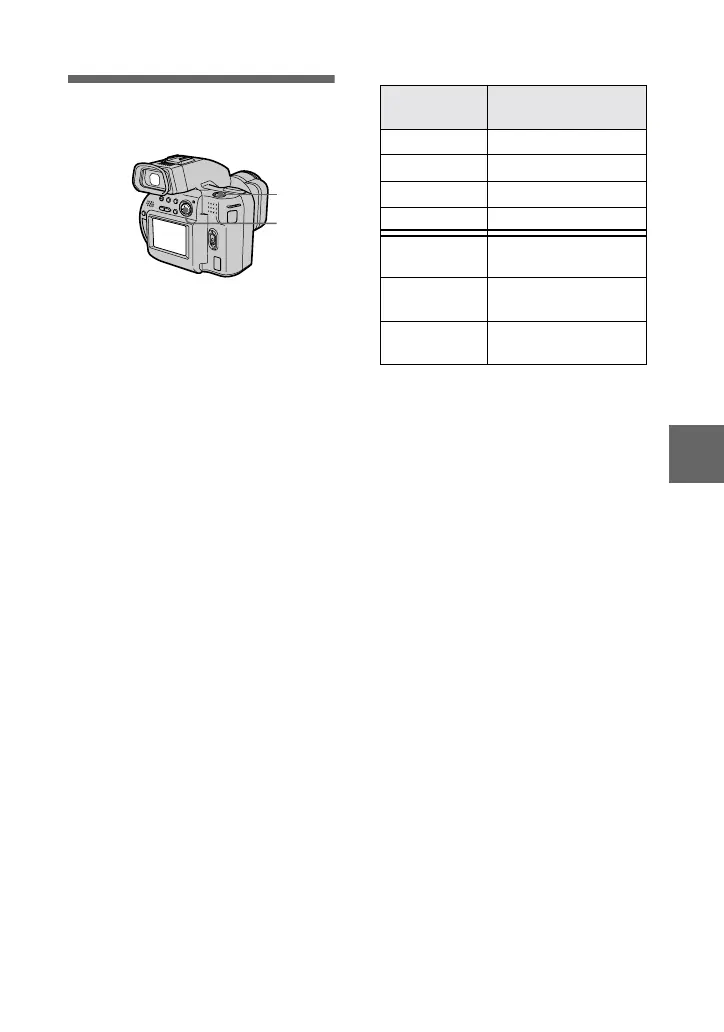
1
Set the PLAY/STILL/MOVIE
selector to MOVIE or STILL.
2
Select [FILE] and then
[IMAGE SIZE] from the menu.
3
Select the desired image
size.
Still image sizes:
1600×1200, 1600 (3:2)*,
1024×768, 640×480
∗ The image is recorded in the ratio of
three to two to fit the printing paper
size.
Moving image sizes:
320 (HQ)*, 320×240, 160×112
∗ High Quality mode
2, 3
1
Image size Number of images or
time*
1600×1200
Approx. 160
1600 (3:2) Approx. 170
1024×768 Approx. 350
640×480 Approx. 1080
320 (HQ) Approx. 370 (15)**
sec
320×240 Approx. 1400 (15)**
sec
160×112 Approx. 5100 (60)**
sec
01cov.book Page 47 Wednesday, July 19, 2000 10:33 AM



 To Next Page
 Loading...