masterpage:Left
filename[D:\MVC-CD1000 kaihan\3062473121\3062473121MVCCD1000UC\02GB-
MVCCD1000UC\07adv.fm]
54
model name1[MVC-CD1000]
[3-062-473-12(1)]
2 Shoot a white object such as paper
full under the same situation you
will shoot.
3 Press .
The indicator flashes quickly.
When the white balance has been
adjusted and stored in the memory,
the indicator stops flashing.
To reactivate auto
adjustment
Select [AUTO] in step 2.
Notes
• Select [AUTO] when shooting with
fluorescent lighting.
• The indicator means:
Slow flashing: white balance is not set.
Quick flashing: white balance is being
adjusted (after you pressed ).
Lit steady: white balance has been set.
• If the indicator keeps flashing even
when you press , record in automatic
white balance mode.
Recording the date
and time on the still
image (DATE/TIME)
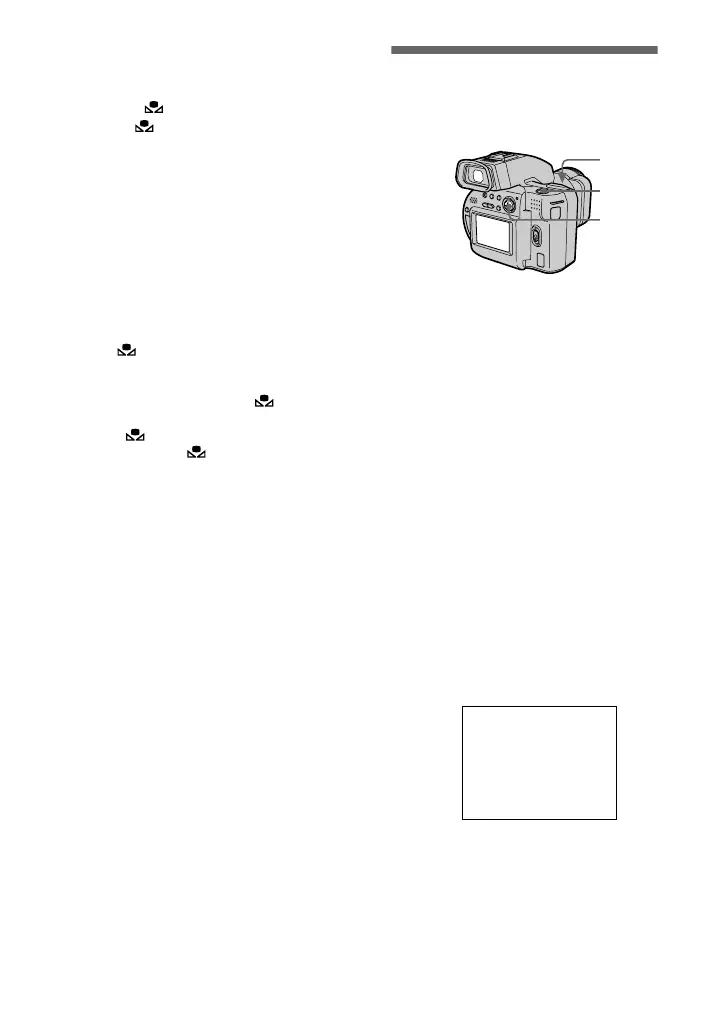
1
Set the PLAY/STILL/MOVIE
selector to STILL.
2
Select [EFFECT] and then
[DATE/TIME] from the menu.
3
Selectthedateandtime.
DAY & TIME
Imposes the date, hour, and
minute.
DATE
Imposes the year, month, and day.
OFF
Does not impose the date and time.
4
Record the image.
The date and time do not appear on
the LCD screen or on the
viewfinder during shooting, these
appear during playback only.
2, 3
1
4
2000 7 4
01cov.book Page 54 Wednesday, July 19, 2000 10:33 AM



 To Next Page
 Loading...