EasyManua.ls Logo

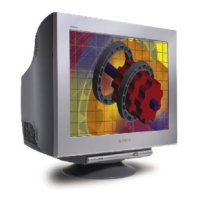
Sony GDM-F520 - User Manual

Sony GDM-F520
52 pages
Print Icon
To Next Page IconTo Next Page
Loading...
4-082-083-11 (1)
© 2000 Sony Corporation
Trinitron Color
Graphic Display
â
Operating Instructions
Mode d’emploi
Bedienungsanleitung
Manual de instrucciones
Istruzioni per l’uso
Инструкция по эксплуатации
Bruksanvisning
Gebruiksaanwijzing
GB
FR
DE
ES
RU
NL
IT
SE
GDM-F520

Other manuals for Sony GDM-F520

Questions and Answers

  • B
    Brandon BrownAug 19, 2025
    Why is my Sony GDM-F520 Monitor picture flickering?
    • J
      Jon CampbellAug 19, 2025
      If your Sony Monitor picture flickers, bounces, oscillates, or is scrambled, try the following: Eliminate potential sources of electric or magnetic fields such as other monitors, laser printers, electric fans, fluorescent lighting, or televisions. Move the monitor away from power lines or place a magnetic shield near it. Try a different AC outlet, preferably on a different circuit. You might also try turning the monitor 90° to the left or right. Check your graphics board manual for the proper monitor setting. Confirm that the graphics mode and the frequency of the input signal are supported by this monitor. Adjust the computer’s refresh rate (vertical frequency) to get the best possible picture.
  • M
    Mary AllenAug 21, 2025
    What to do if my Sony GDM-F520 Monitor has no picture?
    • A
      Anna HaleAug 21, 2025
      If your Sony Monitor displays no picture, try these steps: Ensure the power cord is properly connected and the power switch is in the “on” position. Verify the video signal cable is correctly connected and all plugs are firmly seated. Check the INPUT switch setting and ensure the HD15 video input connector’s pins are not bent. Confirm that the computer is powered on and not in power saving mode (press a key or move the mouse). Also, check that the graphic board is completely seated and use the Self-diagnosis function.
  • M
    marywagnerAug 23, 2025
    What to do if USB peripherals do not function on Sony Monitor?
    • B
      Brittany KingAug 25, 2025
      If USB peripherals aren't working with your Sony Monitor, ensure the USB connectors are securely connected. Try turning the monitor off and then on again, then reconnect the USB cable. If you connected a keyboard or mouse to the USB connectors and then booted your computer for the first time, the peripheral devices may not function. First connect the keyboard and mouse directly to the computer and set up the USB compliant devices. Then connect them to this monitor. Also, ensure you have the latest device drivers installed on your computer.
  • J
    Jeffrey ZimmermanAug 26, 2025
    How to fix fuzzy picture on Sony GDM-F520 Monitor?
    • C
      Charles GarciaAug 26, 2025
      To fix a fuzzy picture on your Sony Monitor, adjust the contrast, brightness, and PICTURE EFFECT. You can also try to degauss the monitor. Additionally, adjust the degree of moire cancellation until the moire is minimal, or set CANCEL MOIRE to OFF.
  • S
    Sarah OdonnellAug 28, 2025
    Why is the color not uniform on my Sony GDM-F520 Monitor?
    • J
      Jennifer MyersAug 28, 2025
      If the color on your Sony Monitor is not uniform, try degaussing the monitor. Also, if you have placed equipment that generates a magnetic field, such as a speaker, near the monitor, or if you change the direction the monitor faces, color may lose uniformity, you should adjust the landing.
  • W
    webbkimberlyAug 30, 2025
    What to do if the picture is not centered on Sony GDM-F520?
    • K
      Kenneth RobinsonAug 30, 2025
      If the picture on your Sony Monitor is not centered or sized properly, perform the Auto Size Center function. You can also manually adjust the size or centering. Note that just after turning on the power switch, the size/center may take a while to adjust properly.
  • E
    Edward ThomasSep 1, 2025
    How to fix ghosting picture on Sony Monitor?
    • L
      Lance MilesSep 2, 2025
      To resolve picture ghosting on your Sony Monitor, eliminate the use of video cable extensions and/or video switch boxes. Also, check that all plugs are firmly seated in their sockets.
  • N
    Nancy WoodardSep 4, 2025
    Why does my Sony GDM-F520 Monitor make a humming sound when turned on?
    • J
      Juan CoxSep 4, 2025
      The hum you hear right after turning on your Sony Monitor is the sound of the auto-degauss cycle. When the power is turned on, the monitor is automatically degaussed for a few seconds. If a second degauss cycle is needed, allow a minimum interval of 20 minutes for the best result.
  • D
    Dr. Jonathan SchultzSep 6, 2025
    Why does white not look white on my Sony GDM-F520 Monitor?
    • T
      Thomas CarsonSep 6, 2025
      If white does not look white on your Sony Monitor, try adjusting the color temperature. Also, check that the 5 BNC connectors are connected in the correct order.
  • J
    Jeffrey SalasSep 8, 2025
    How to fix wavy pattern (moire) on Sony Monitor?
    • G
      Glenn SmithSep 9, 2025
      If you see a wavy or elliptical pattern (moire) on your Sony Monitor, adjust the degree of moire cancellation until the moire is minimal. You can also try changing your desktop pattern.

Summary

Safety and Compliance Information

WARNING

Crucial safety instructions to prevent fire, shock, or internal unit damage.

Setup and Connection

Connecting the Monitor

Instructions for connecting the monitor to computers via HD15 and 5 BNC connectors.

Picture Adjustments

Troubleshooting Guide

No Picture Issues

Steps to resolve when the monitor displays no picture or has power indicator issues.

Picture Display Problems

Solutions for flickering, fuzziness, ghosting, centering, and geometric distortions.

On-Screen Messages

Interpreting and resolving messages like 'NO SIGNAL' and 'OUT OF SCAN RANGE'.

Specifications and Diagnostics

Self-Diagnosis Function

Procedure for using the monitor's built-in diagnostic test.

Precautions and Maintenance

Power Connection Warnings

Safety guidelines for using the correct power cord and connections.

Installation Guidelines

Recommendations for optimal placement and environmental conditions.

Sony GDM-F520 Specifications

General IconGeneral
Screen Size21 inches
Aspect Ratio4:3
Max Resolution2048 x 1536
Horizontal Refresh Rate30 - 121 kHz
Vertical Refresh Rate48 - 160 Hz
Display TypeCRT
ConnectivityVGA, BNC
Input Video SignalAnalog RGB
Dot Pitch0.24 mm

Related product manuals