36
GB
To use the Tools menu in PC input mode
Press TOOLS to display the following options when
viewing pictures input from the connected PC.
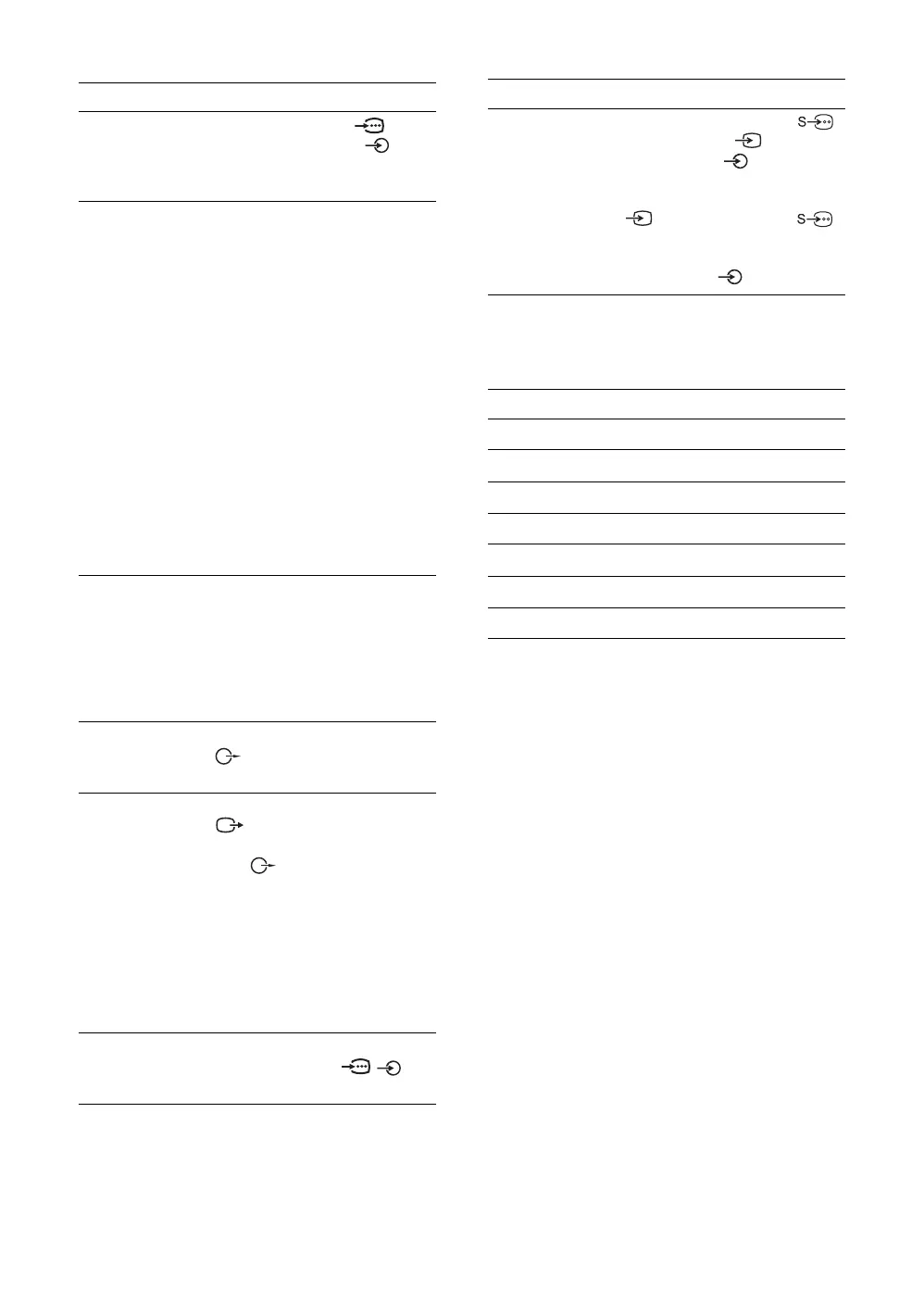
To connect Do this
PC C Connect to the PC IN (RGB)
jack and the audio jack . It is
recommended to use a PC cable
with ferrites.
Digital receiver or
DVD player D
Connect to the HDMI IN jack if
the equipment has an HDMI jack.
The digital video and audio signals
are input from the equipment. If
the equipment has a DVI jack,
connect the DVI jack to the HDMI
IN jack through a DVI - HDMI
adaptor interface (not supplied),
and connect the equipment’s audio
out jacks to the audio in the HDMI
IN jacks.
Notes
• The HDMI jack only support the
following video inputs: 480i,
480p, 576i, 576p, 720p and 1080i.
To connect a PC, use the PC IN
jack.
• Be sure to use only an HDMI cable
that bears the HDMI logo.
Home theater
system with digital
input E
Connect to the DIGITAL OUT
(OPTICAL) jack using the Optical
audio cable.
Note
The DIGITAL OUT (OPTICAL)
jack only supports digital terrestrial
signals.
Hi-Fi audio
equipment F
Connect to the audio output jacks
to listen to the sound from the
TV on Hi-Fi audio equipment.
DVD recorder or
VCR G
Connect to the video output jack
to record the image from the
TV. Connect to the audio output
jacks to record the sound from
the TV on the DVD recorder or
VCR.
Note
Digital broadcasting images that are
recorded on this TV appear enlarged
when they are played on a 4:3 screen,
which cannot be adjusted to other
aspect modes.
DVD player with
component output
H
Connect to the component jacks
and the audio jacks / .
Video game
equipment, DVD
player or VCR
IJ
Connect to the S video jack 1
or the video jack 1 or 3, and
the audio jacks 1 or 3. To
avoid picture noise, do not connect
the camcorder to the video jack
1 and the S video jack 1
at the same time. If you connect
mono equipment, connect to the L
(MONO) jack 1 or 3.
Options Description
Close Close the Tools Menu.
Power Saving See page 27.
Picture Mode See page 20.
Sound Mode See page 22.
Auto Adjustment See page 29.
Horizontal Shift See page 29.
Vertical Shift See page 29.
To connect Do this





 To Next Page