Reader™ User Guide
Print
Search
Getting started
Basic Operations
Adding/Getting Content
Browsing Content Lists
Reading
Organizing
Other Applications
Settings
Other Information
Contents list
Top page > Getting started > Wireless Connectivity > Join a Wi-Fi® Network
Join a Wi-Fi
®
Network
To shop at Reader Store or connect to the internet wirelessly, set up a wireless (Wi-
Fi
®
) internet connection with the following steps.
Preparing to set up a Wi-Fi connection
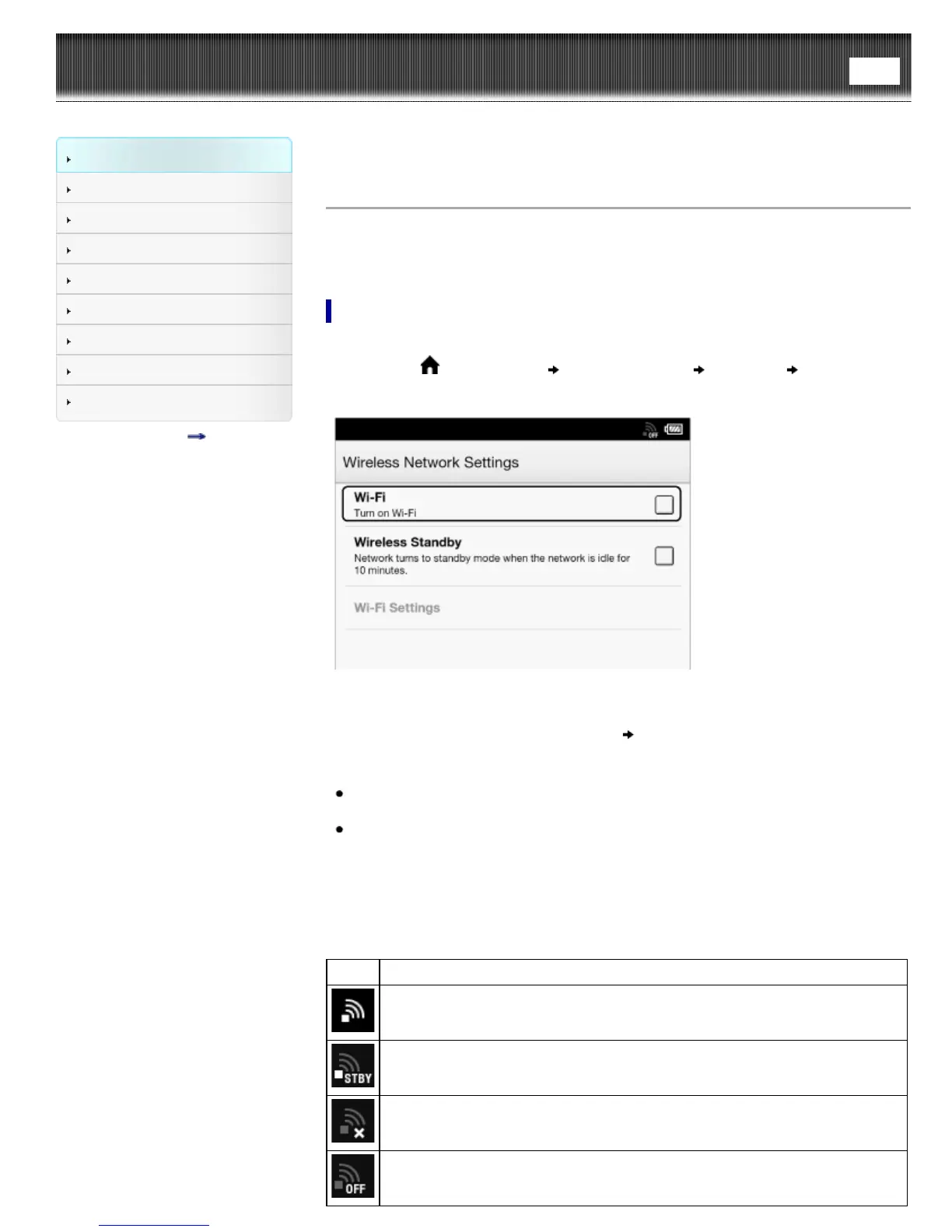
Before connecting to an access point, turn on [Wi-Fi] on the Reader.
1. Press the
(Home) button tap [Applications] [Settings] [Wireless
Network Settings].
2. Check the check box to the right of [Wi-Fi] to turn on the Wi-Fi network.
A check indicates that [Wi-Fi] is turned on. Wi-Fi is turned off by default.
Alternatively, you can tap the status bar
[Wi-Fi]. See Details.
Tip
Turn off [Wi-Fi] when it is not in use in order to extend the battery life of the
Reader.
Turn on [Wireless Standby] when you want to extend the battery life. See Details.
Wi-Fi status icons
The following icons in the status bar indicate the status of the Wi-Fi connection.
Icon Status
Wi-Fi is activated. The number of bars indicates the Wi-Fi signal strength.
The Wi-Fi network feature of the Reader is in standby mode. See Details.
There is no Wi-Fi access point. In this state, you cannot access Reader Store.
The [Wi-Fi] setting is turned off.





 To Next Page