Set up a Wi-Fi network connection manually; connect to an access point for which the
SSID is set to be invisible. See Details.
Case A: A WPS-compatible Wi-Fi router with WPS button
The Reader is compatible with WPS (Wi-Fi Protected Setup), which lets you easily
make a Wi-Fi connection using the “WPS” or “Connect” button on your WPS-compatible
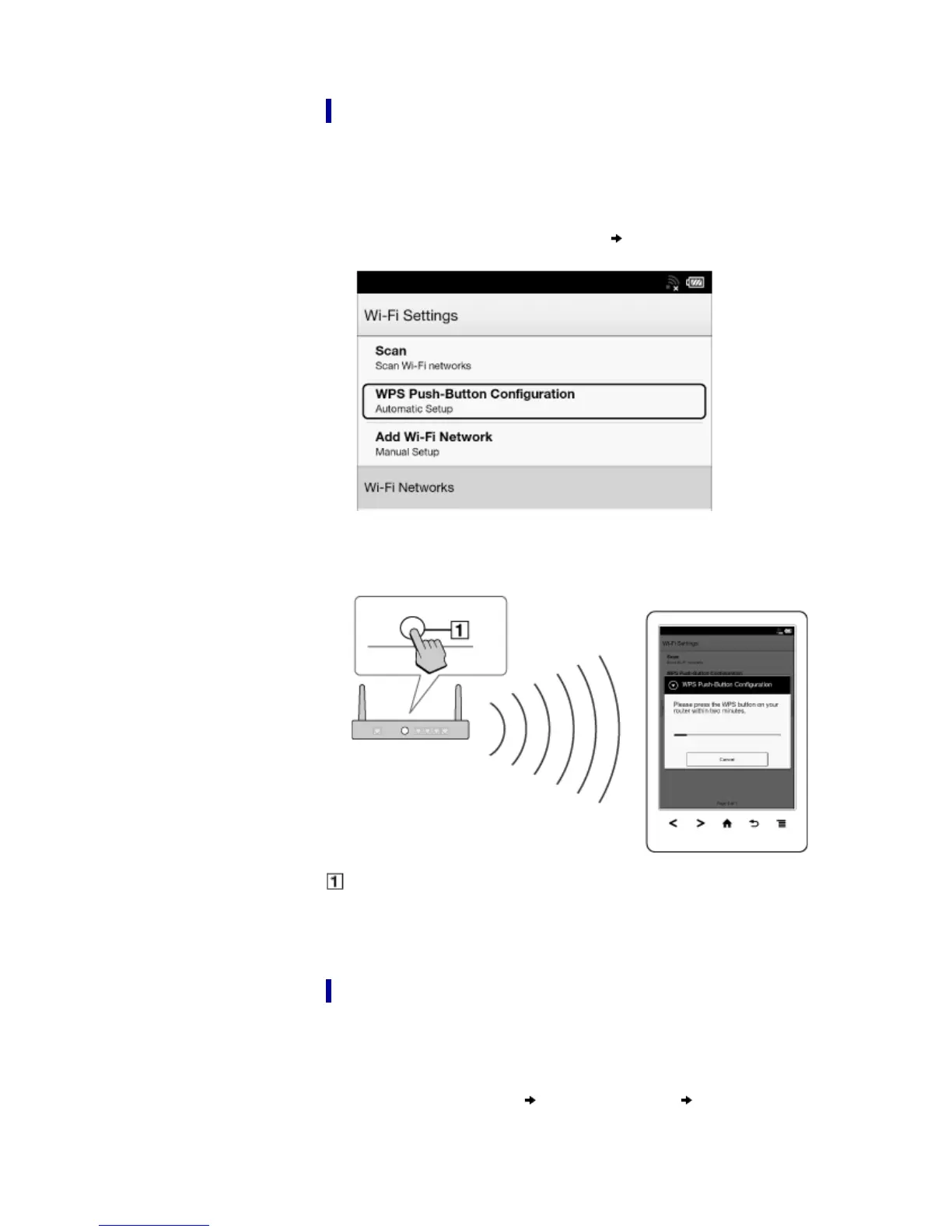
Wi-Fi router. Make sure to turn on [Wi-Fi] and tap [Wi-Fi Settings] on the [Wireless
Network Settings] screen. Alternatively, you can turn on [Wi-Fi] by tapping the status bar
and tapping [Wi-Fi Settings].
1. Tap [WPS Push-Button Configuration]
[Start].
2. On your Wi-Fi router, press the “WPS” or “Connect” button within 2 minutes.*
The Reader automatically attempts to establish a Wi-Fi connection.
* The name of the button on your Wi-Fi router may vary.
“WPS” or “Connect” button
3. After the Reader screen shows the setup completion, tap [OK].
The wireless connection status is displayed in the status bar. See Details.
For more technical notes, see Details.
Case B: A WPS-compatible Wi-Fi router with PIN input
If your WPS-compatible Wi-Fi router does not support push-button configuration,
connect by using a PIN (Personal Identification Number). Make sure to turn on [Wi-Fi]
and tap [Wi-Fi Settings] on the [Wireless Network Settings] screen. Alternatively, you
can turn on [Wi-Fi] by tapping the status bar and tapping [Wi-Fi Settings].
1. Tap [Add Wi-Fi Network]
[WPS PIN Method] [Start].




 To Next Page