to which you want to connect requires a password. A password may also be
called a WEP key/WPA key/encryption key/network key, etc.
2. Tap your Wi-Fi router’s SSID (Service Set Identifier) in the [Wi-Fi Networks] list. For
details on determining your Wi-Fi router’s SSID, refer to your Wi-Fi router’s
instruction manual.
3. If prompted for a password, tap the input area and type in the password using the
on-screen keyboard.
4. Tap [Connect].
The Reader connects to the Wi-Fi network.
The wireless connection status is displayed in the status bar. See Details.
For more technical notes, see Details.
Case D: Connecting to an available Wi-Fi network
Some public wireless access points, or “hotspots”, are open and you can simply connect
to them. Make sure to turn on [Wi-Fi] and tap [Wi-Fi Settings] on the [Wireless Network
Settings] screen. Alternatively, you can turn on [Wi-Fi] by tapping the status bar and
tapping [Wi-Fi Settings].
1. Tap [Scan].
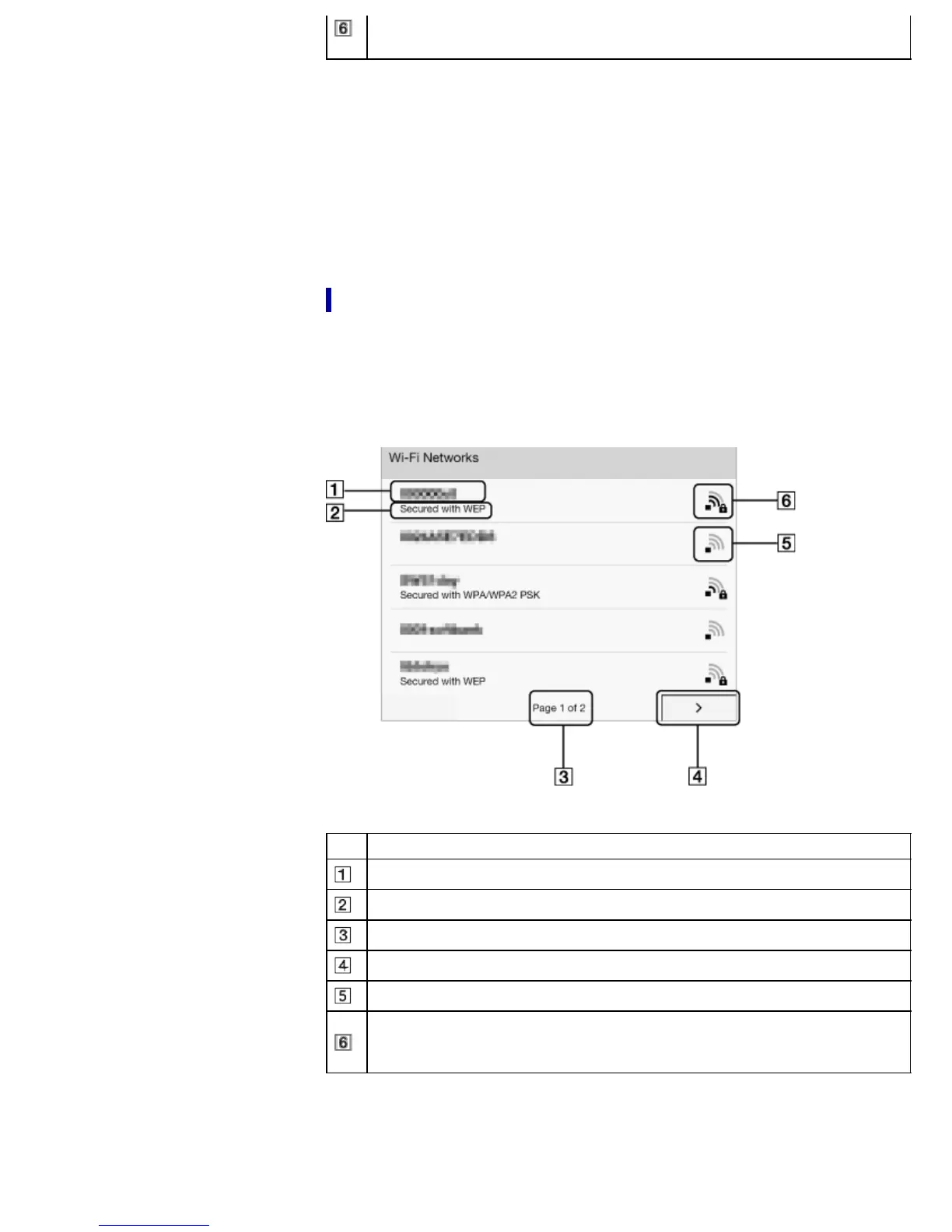
The available access points are listed under [Wi-Fi Networks].
Item Description
Network SSID
Security type
Page indicator
Page turn icon
Wi-Fi is activated and the Reader detects an unsecured network.
Wi-Fi is activated and the Reader detects a secured network. The Wi-Fi router
to which you want to connect requires a password. A password may also be
called a WEP key/WPA key/encryption key/network key, etc.
2. Tap your Wi-Fi router’s SSID (Service Set Identifier) in the [Wi-Fi Networks] list.
3. If prompted for a password, tap the input area and type in the password using the
on-screen keyboard.
4. Tap [Connect].
The wireless connection status is displayed in the status bar.





 To Next Page