Reader™ User Guide
Print
Search
Getting started
Basic Operations
Adding/Getting Content
Browsing Content Lists
Reading
Organizing
Other Applications
Settings
Other Information
Contents list
Top page > Reading > Reading eBooks > Finding Keywords in a Book
Finding Keywords in a Book
You can find pages that contain specific words using a keyword search.
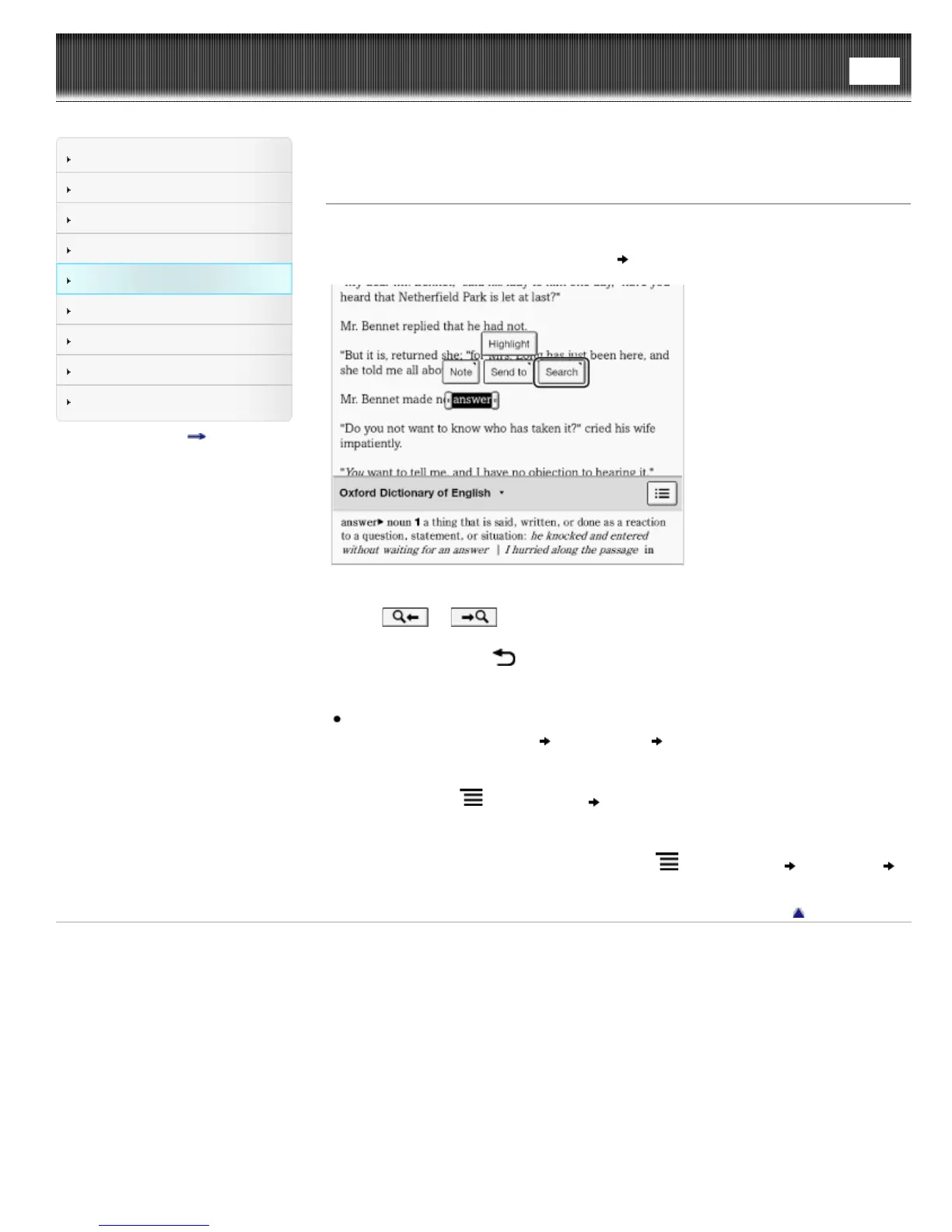
1. Tap and hold a word, and tap [Search]
[in This Book] in the pop-up menu.
2. A page that includes the keyword for which you searched is displayed.
Tap
or to display to the previous/next page that contains the selected
keyword.
To cancel, press the
(Back) button.
Tip
You can find the definition of a word and more at the Wikipedia and Google Web
sites. Tap and hold a word
tap [Search] [Wikipedia] or [Google]. The
[Browser] application will open to the Wikipedia or Google Web site and search for
the word. (A Wi-Fi network connection is necessary. See Details.) To return to the
book, press the
(Menu) button tap [Continue Reading].
You can also directly enter the keyword for a search.
1. When viewing a book or periodical, press the
(Menu) button tap [More]
[Search], and enter the keyword using the on-screen keyboard.
Go to page top
Copyright 2013 Sony Corporation




 To Next Page