21
Getting Started
Getting Started
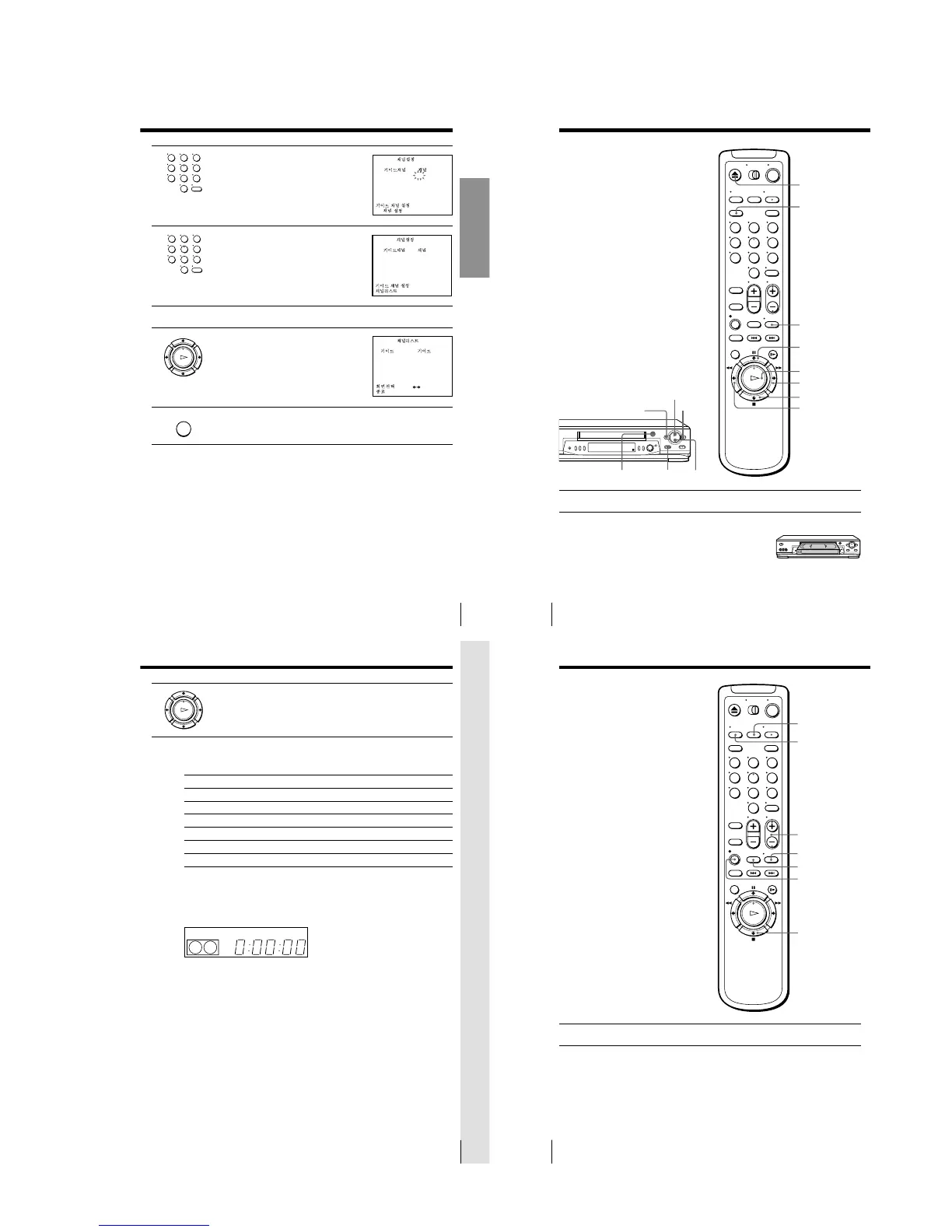
2 Enter the guide channel number assigned
in the program guide and press ENTER.
3 Enter the actual number on your TV (and
VCR) and press ENTER.
4 Repeat steps 2 and 3 for each channel whose numbers don’t match.
5 When you have set all channels, press OK
to confirm your channel settings.
6 After all settings are complete, press MENU to exit.
123
456
789
0
123
456
789
0
TV
25 –––
[ ENTER ]
:
:
G-CODE
TV
[ 0 – 9 ]
25 – 117
[ OK ]
:
:
G-CODE
TV
[ 0 – 9 ]
:
:
G-CODE
PAGE 1
TV TV
2 – 73 59 – 47
5
1
1
–
2
4
– –486– –
96
7 – 55 77 – 35
8 – – 986– 210
3 – –1118 90 – 22
[ MENU ]
[
]
MENU
OK
PLAY
Basic Operations
22
Basic Operations
Playing a tape
Z EJECT
CLEAR
DISPLAY
H PLAY
M FF
x STOP
m REW
X PAUSE
1 Turn on your TV and set it to the video channel.
2 Insert a tape.
The VCR turns on and starts playing
automatically if you insert a tape with its
safety tab removed.
23
Basic Operations
Basic Operations
3 Press H PLAY.
When the tape reaches the end, it will rewind automatically.
Additional tasks
To
Stop play
Pause play
Resume play after pause
Fast-forward the tape
Rewind the tape
Eject the tape
Press
x STOP
X PAUSE
X PAUSE or H PLAY
M FF during stop
m REW during stop
Z EJECT
To use the time counter
At the point on the tape that you want to find later, press CLEAR. The
counter in the display window resets to “0:00:00.” Search for the point
afterwards by referring to the counter.
To display the counter on the TV screen, press DISPLAY.
Notes
• Tapes recorded in the LP mode on other VCRs can be played back on this VCR but
the picture quality cannot be guaranteed.
• While setting the menu on the TV screen, you cannot use the H PLAY, X PAUSE,
M FF, m REW, or x STOP buttons.
• The counter resets to “0:00:00” whenever a tape is reinserted.
• The counter stops counting when it comes to a portion with no recording.
EP
VIDEO
APC
OK
PLAY


 To Next Page