Using your headset with an Android™
phone
Pairing the headset with an Android™ phone
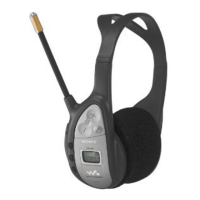
To use the headset with an Android™ phone, you need to first pair the headset with the
phone. After successful pairing, the headset connects automatically to the phone as
soon as the headset is turned on and within range.
To enter pairing mode
1
Turn on the headset.
2
Press the Menu key to open the menu.
3
Press the Next key
or the Previous key to select the settings icon , then
press the Select key .
4
Press the Next key or the Previous key to select Bluetooth devices, then
press the Select key .
5
Press the Next key
or the Previous key to select Pairing, then press the
Select key .
If the headset is not already paired with a Bluetooth™ compatible device, it automatically
enters pairing mode after starting up.
To pair the headset with an Android™ phone
1
Phone: Under Settings, tap Wireless and Networks > Bluetooth. The
Bluetooth™ function is now enabled.
2
Headset: Enter pairing mode.
3
Phone: Tap Bluetooth Settings > Scan for devices, then tap Smart Wireless
Headset pro in the Bluetooth devices list.
4
When a Bluetooth™ pairing request appears, tap Pair on your phone and press
the Select key on your headset.
5
After the headset is successfully paired with your Android™ phone, the time
appears on the headset display, which should look similar to the following
illustration:
. The time displayed is the same as that displayed on your
phone. A phone icon also appears on the headset display, indicating that your
phone is paired and connected.
Multipoint functionality
With multipoint functionality enabled, you can connect your headset to more than one
Android™ phone or Bluetooth™ compatible device at the same time. This allows you to,
for example, receive phone calls from two Android™ phones or select an Android™
phone and another Bluetooth™ compatible device to stream music from. Before you can
use multipoint functionality, you must first pair the headset with the other devices and
then enable multipoint functionality. Note that you can only connect to a maximum of two
devices using this feature.
To pair the headset with a second Android™ phone
1
Phone: Under Settings, tap Wireless and Networks > Bluetooth. The
Bluetooth™ function is now enabled.
2
Headset: Enter pairing mode.
3
Phone: Tap Bluetooth Settings > Scan for devices, then tap Smart Wireless
Headset pro in the Bluetooth devices list.
4
When a Bluetooth™ pairing request appears, tap Pair on your phone and press
the Select key
on your headset.
10
This is an Internet version of this publication. © Print only for private use.


 To Next Page