EasyManua.ls Logo

Sony STR-D911 - Video Editing and Dubbing; Video Tape Dubbing Procedures

Sony STR-D911
36 pages
Print Icon
To Next Page IconTo Next Page
To Previous Page IconTo Previous Page
Loading...
ekoti
dae
mr:
Mm
ale(ctemecyelel
ges
Wi
To[-tomm
E-]
elm
B10]
eleliare
if
the
AUDIO
indicator
is
lit
on
the
display,
press
the
EDIT
AUDIO
button
to
make
the
indicator
go
out.
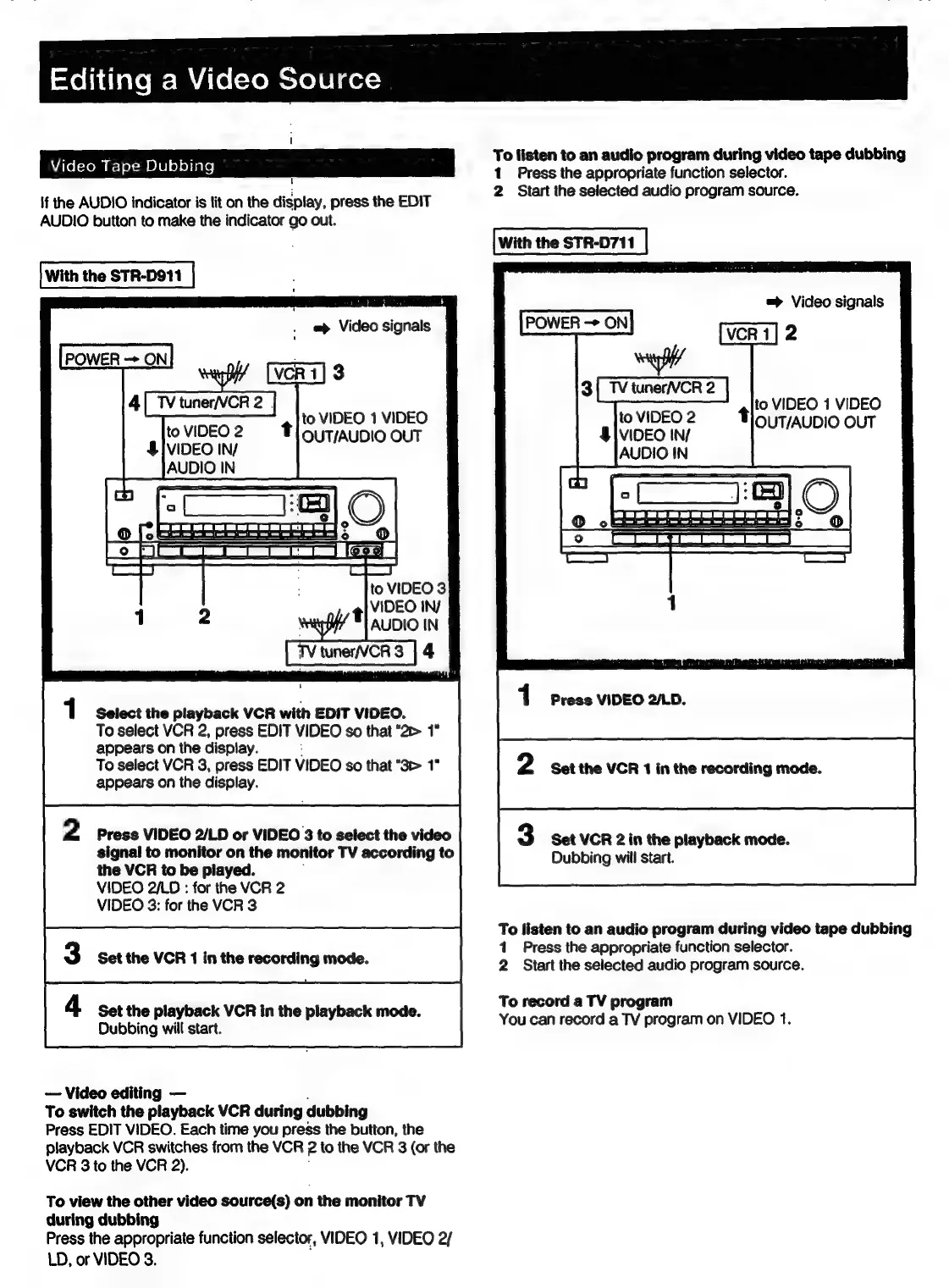
With
the
STR-D911
i
to
VIDEO
1
VIDEO
OUT/AUDIO
OUT
es
3
1
Select
the
playback
VCR
with
EDIT
VIDEO.
To
select
VCR
2,
press
EDIT
VIDEO
so
that
“2>
appears
on
the
display.
To
select
VCR
3,
press
EDIT
VIDEO
so
that
“3>
appears
on
the
display.
2
Press
VIDEO
2/LD
or
VIDEO
3
to
select
the
video
signal
to
monitor
on
the
monitor
TV
according
to
the
VCR
to
be
piayed.
VIDEO
2/LD
:
for
the
VCR
2
VIDEO
3:
for
the
VCR
3
3
Set
the
VCR
1
in
the
recording
mode.
4
Set
the
playback
VCR
in
the
playback
mode.
Dubbing
will
start.
Video
editing
To
switch
the
playback
VCR
during
dubbing
Press
EDIT
VIDEO.
Each
time
you
press
the
button,
the
playback
VCR
switches
from
the
VCR
2
to
the
VCR
3
(or
the
VCR
3
to
the
VCR
2).
To
view
the
other
video
source(s)
on
the
monitor
TV
during
dubbing
Press
the
appropriate
function
selector,
VIDEO
1,
VIDEO
2/
LD,
or
VIDEO
3.
To
listen
to
an
audio
program
during
video
tape
dubbing
1
Press
the
appropriate
function
selector.
2
Start
the
selected
audio
program
source.
With
the
STR-D711
Video
signals
t
to
VIDEO
1
VIDEO
OUT/AUDIO
OUT
Press
VIDEO
2/LD.
Set
the
VCR
1
in
the
recording
mode.
Set
VCR
2
in
the
playback
mode.
Dubbing
will
start.
To
listen
to
an
audio
program
during
video
tape
dubbing
1
Press
the
appropriate
function
selector.
2
Start
the
selected
audio
program
source.
To
record
a
TV
program
You
can
record
a
TV
program
on
VIDEO
1.

Related product manuals