EasyManua.ls Logo

Sony STR-D965 - Tuning Preset Stations; Indexing

Sony STR-D965
28 pages
Print Icon
To Next Page IconTo Next Page
To Previous Page IconTo Previous Page
Loading...
12
Receiver
Operations
Tuning
preset
stations
(preset
tuning)
You
can
tune
directly
to
a
preset
station
by
entering
its
preset
number.
If
you
don’t
know
which
stations
are
preset
on
which
numbers,
you
can
tune
by
scanning
the
preset
stations.
Press
TUNER.
The
last
received
station
is
tuned
in.
2
Press
SHIFT
to
select
a
memory
page
(A,
B
or
C),
then
press
the
number.
For
example,
select
A
and
then
press
7
to
tune
in
the
station
preset
as
A7.
Key
You
can tune
by
scanning
the
preset
stations
First
press
TUNER
and
then
press
PRESET
TUNING
+
or
~
to
select
the
station
you
want.
Each
time
you
press
the
buttons,
the
preset
numbers
change
as
follows:
ulignk
pmeiceas
>
C0
SH
02
+ >
Cl
ae
ee
ae
Indexing
You
can
index
preset
stations
and
then
use
the
index
names
to
scan
specific
stations
in
the
preset
memory.
You
can
also
use
the
index
feature
to
label
program
sources
so
that
the
receiver
displays
the
names
of
the
components
you
connected,
for
example,
“VHS”.
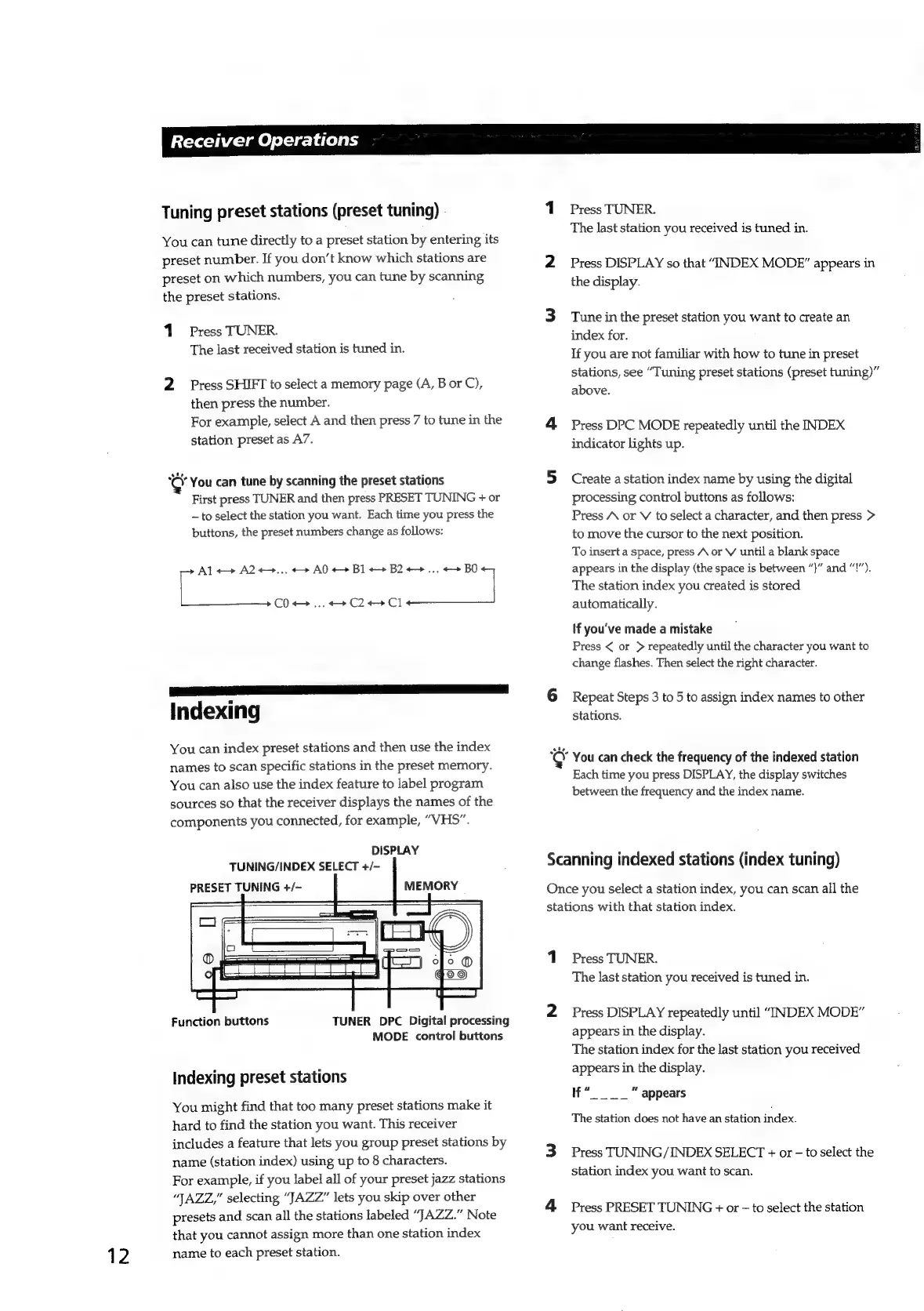
DISPLAY
TUNING/INDEX
SELECT
+/~
PRESET
TUNING
+/-
MEMORY
Function
buttons
TUNER
DPC
Digital
processing
MODE
control
buttons
Indexing
preset
stations
You
might
find
that
too
many
preset
stations
make
it
hard
to
find
the
station
you
want.
This
receiver
includes
a
feature
that
lets
you
group
preset
stations
by
name
(station
index)
using
up
to
8
characters.
For
example,
if
you
label
all
of
your
preset
jazz
stations
“JAZZ,”
selecting
“JAZZ”
lets
you
skip
over
other
presets
and
scan
all
the
stations
labeled
“JAZZ.”
Note
that
you
cannot
assign
more
than
one
station
index
name
to
each
preset
station.
1
Press
TUNER.
The
last
station
you
received
is
tuned
in.
2
Press
DISPLAY
so
that
“INDEX
MODE"
appears
in
the
display.
3
Tune
in
the
preset
station
you
want
to
create
an
index
for.
If
you
are
not
familiar
with
how
to
tune
in
preset
stations,
see
“Tuning
preset
stations
(preset
tuning)”
above.
4
Press
DPC
MODE
repeatedly
until
the
INDEX
indicator
lights
up.
5
Create
a
station
index
name
by
using
the
digital
processing
control
buttons
as
follows:
Press
A
or
V
to
select
a
character,
and
then
press
>
to
move
the
cursor
to
the
next
position.
To
insert
a
space,
press
A
or
V
until
a
blank
space
appears
in
the
display
(the
space
is
between
“}”
and
“!”).
The
station
index
you
created
is
stored
automatically.
If
you've
made
a
mistake
Press
<
or
>
repeatedly
until
the
character
you
want
to
change
flashes.
Then
select
the
right
character.
6
Repeat
Steps
3
to
5
to
assign
index
names
to
other
stations.
cay
You
can
check
the
frequency
of
the
indexed
station
Each
time
you
press
DISPLAY,
the
display
switches
between
the
frequency
and
the
index
name.
Scanning
indexed
stations
(index
tuning)
Once
you
select
a
station
index,
you
can
scan
all
the
stations
with
that
station
index.
1
Press
TUNER.
The
last
station
you
received
is
tuned
in.
2
Press
DISPLAY
repeatedly
until
“INDEX
MODE”
appears
in
the
display.
The
station
index
for
the
last
station
you
received
appears
in
the
display.
If“____
"
appears
The
station
does
not
have
an
station
index.
3
Press
TUNING/INDEX
SELECT
+
or
~
to
select
the
station
index
you
want
to
scan.
4
Press
PRESET
TUNING
+
or
to
select
the
station
you
want
receive.

Related product manuals