103
nN
Using Peripheral Devices >
Using the Noise Canceling Headphones
What to do if the icon and the balloon do not appear
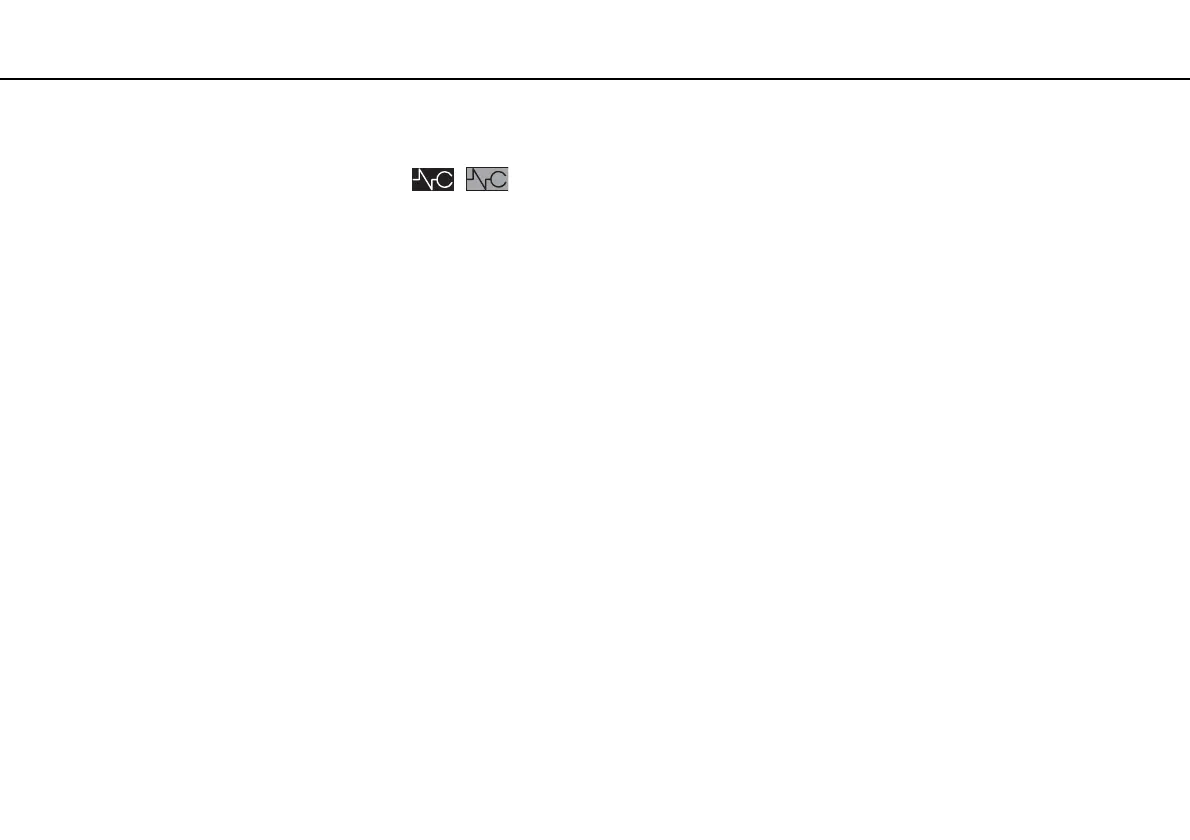
When the noise canceling function icon ( / ) is not on the taskbar and the balloon message does not pop up from
the icon, change the noise canceling function settings.
To display the balloon message and the icon
1 Click Start and Control Panel.
2 Click Hardware and Sound.
3 Click Manage audio devices under Sound.
4 On the Playback tab, double-click the speakers or headphones icon.
5 Click the Enhancements tab.
6 Click to select the Noise Canceling Function check box and click Modify Settings.
✍
If the Disable all enhancements check box is selected, click to cancel the check box.
7 Click to select the Display an icon for the noise canceling headphones in the task tray or Display a message when
noise canceling headphones are connected check box.
8 Click OK.



 To Next Page