
 To Next Page
O
obarnettSep 9, 2025
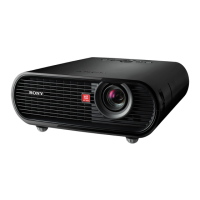
How to enable on-screen display on Sony vpl-px41?
- TTravis WheelerSep 9, 2025
If the on-screen display does not appear on your Sony Projector, set Status in the MENU SETTING menu to On.



How to enable on-screen display on Sony vpl-px41?
If the on-screen display does not appear on your Sony Projector, set Status in the MENU SETTING menu to On.
Why is Sony Projector picture too dark?
If the picture on your Sony Projector is too dark, adjust the Contrast or Brightness in the PICTURE SETTING menu. If this doesn't solve the issue, the lamp may be burnt or dim, and you might need to replace it.
How to correct color balance on Sony vpl-px41 Projector?
If the color balance is incorrect on your Sony Projector, first adjust the picture settings. If that doesn't work, set the Color System in the SET SETTING menu to match the color system being input.
How to fix no picture on Sony vpl-px41 Projector?
If there is no picture on your Sony Projector, first ensure that all cable connections are correct. Then, using the INPUT key, select the correct input source. Also, check if the picture is muted and, if so, press the PIC MUTING key. Finally, if you're using a computer, ensure the signal is set to output only to an external monitor.
How to troubleshoot no sound on Sony vpl-px41?
If there is no sound from your Sony Projector, first check that all cable connections are correct. Ensure you are using a no-resistance stereo audio cable. Then, adjust the sound settings. Finally, check that the audio is not muted by pressing the AUDIO MUTING key.
What to do if Sony vpl-px41 Remote Commander does not work?
If the Remote Commander for your Sony Projector isn't working, replace the batteries with new ones.
What does “Please check INPUT-D setting” mean on Sony vpl-px41?
If “Please check INPUT-D setting” appears on your Sony Projector despite inputting the correct signal from INPUT D, select Computer, Video GBR, or Component for Input-D Signal Sel. in the SET SETTING menu according to the input signal.
Why does sound come through one channel only on Sony vpl-px41?
If sound comes through one channel only when inputting through the AUDIO connector on your Sony Projector, input stereo sound instead of monaural sound.
What does it mean when the LAMP/COVER indicator flashes on Sony vpl-px41?
If the LAMP/COVER indicator is flashing on your Sony Projector, make sure that the lamp cover or the air filter cover is securely attached.
How to stop Sony vpl-px41 picture from flickering?
If the picture on your Sony Projector flickers, adjust the Dot Phase in the INPUT SETTING menu.
Safety and handling guidelines for the projector, including electrical safety and care.
Guidelines for proper installation to prevent malfunction or damage, covering ventilation and environmental factors.
Description of each button on the projector's control panel, including Power, Menu, and Input keys.
Details about INPUT A, B, C, and D connectors for various signal inputs.
Explains the function of each button on the provided remote control.
Guidance on projector placement and distance from the screen for optimal viewing.
Steps for connecting the projector to a computer via HD D-sub or DVI cable.
Steps to power on the projector, connect equipment, and select input sources.
Introduction to navigating and using the projector's on-screen menu system.
Adjusting picture parameters like contrast, brightness, color, and hue.
Adjusting input signal properties like wide mode and scan converter.
Configuring projector settings like Smart APA, Auto Input Search, and Power Saving.
Step-by-step guide for replacing the projector lamp, including safety precautions.
Instructions for cleaning the projector's air filter to maintain performance.
Diagnosing and resolving problems related to the projector not turning on.
Diagnosing and resolving problems with the projected image quality and display.
Diagnosing and resolving problems with the projector's audio output.
Troubleshooting issues related to the remote control not working correctly.
 General