68
Copying images to your computer
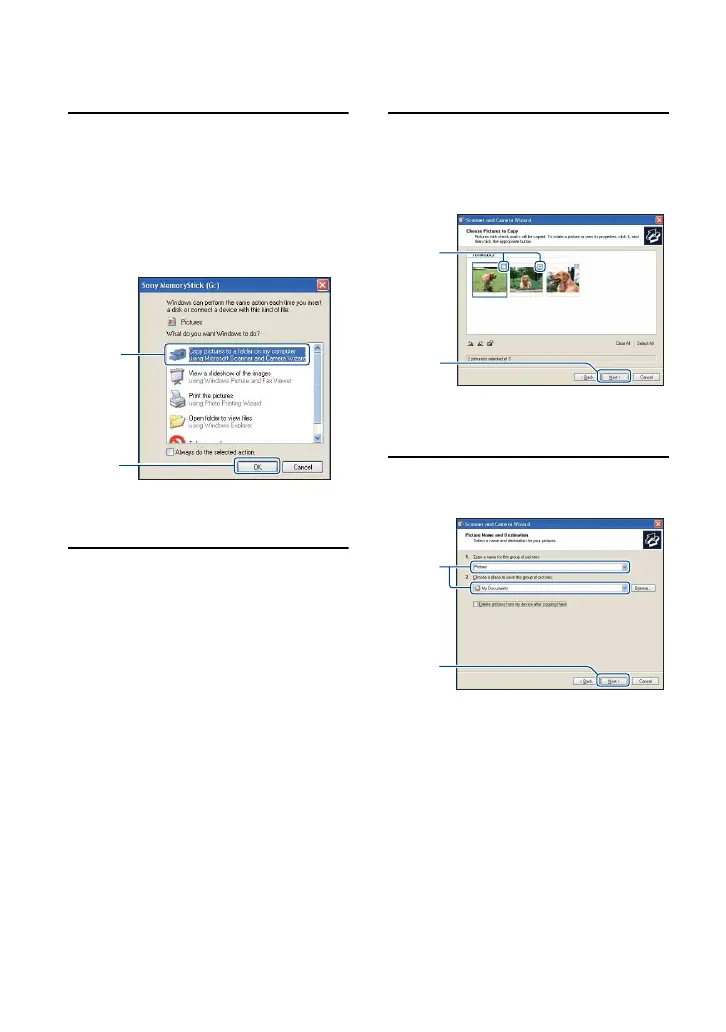
1 After making a USB connection in
Stage 2, click [Copy pictures to a
folder on my computer using
Microsoft Scanner and Camera
Wizard]
t [OK] as the wizard
screen appears automatically on
the desktop.
The “Scanner and Camera Wizard”
screen appears.
2 Click [Next].
The images saved on the “Memory
Stick Duo” of the camera appear.
• If no “Memory Stick Duo” is inserted,
images in the internal memory appear.
3 Click the check box of unwanted
images to remove the checkmark
so they are not copied, then click
[Next].
The “Picture Name and Destination”
screen appears.
4 Select a name and destination for
the images, then click [Next].
Image copying starts. When the copying
is completed, the “Other Options”
screen appears.
• This section describes an example of
copying images to the “My Documents”
folder.
1
2
1
2
1
2






 To Next Page