Bluetooth
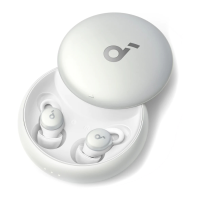
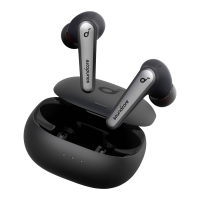
How do I reset soundcore A30i ?
Make sure the charging case has enough power and reset the earbuds by following the steps below:
1) Open the charging case and take out the earbuds.
2) Press and hold the touch areas of both earbuds simultaneously for 10 seconds.
If the earbuds are already connected to two
devices, how do I connect them to another
device?
Method 1:
Disconnect One of the Bluetooth Connections
1) In the app, under More Settings, in the Dual Connections section, turn off one of the devices (this does not
turn off the device), and then the new device can be found and connected to A30i.
Note: The previously disconnected device will not automatically reconnect, it must be manually reconnected.
Method 2:
Disconnect Bluetooth Connections from Both Devices
1) Open the charging case and take out the earbuds, then presss and hold the touch areas of both earbuds
simultaneously for 10 seconds to reset your earbuds.
2) Connect with the new device
How can I troubleshoot the following issues?
1. Earbuds not pairing.
2. Sound only coming from one earbud.
3. One side not pairing with the other side or
the device.
4. Lack of audio playback after connecting to
my device.
5. Failure to automatically connect with my
device upon removing from the charging case.
1. Ensure that the protective film covering the connectors on the earbuds has been removed.
2. Reboot the Bluetooth device (e.g., phone or computer). Forget all the previous pairing records on your device
and disable Bluetooth.
3. Make sure the charging case has enough power and reset the earbuds by following the steps below:
* Open the charging case and take out the earbuds.
* Press and hold the touch areas of both earbuds simultaneously for 10 seconds.
4. Turn on the Bluetooth of your device and search for soundcore A30i and pair.
5. Please try it with another device (phone/tablet/etc.) and see if the issue persists.
If there is a pop-up window to confirm pairing for "soundcore A30i," please select "pair" If you accidentally
select "cancel" you need to refresh (turn off and turn on) the Bluetooth of your device and pair the earbuds again.
What should I do if soundcore A30i
disconnects or the sound is choppy?
Please note that this doesn't necessarily mean there is an issue with the earbuds but may have something to do
with the connected device and environment. Bluetooth signals may be influenced by obstructions, such as walls,
pillars, home appliances, Wi-Fi, and more. To ensure a stable connection, we recommend avoiding such
obstructions.
To fix this issue, please try the following:
1. Look at the L/R logo on the back of the earbuds to make sure you are wearing the left and right earbuds on
the correct sides.
2. Reset the earbuds by following the steps below:
* Open the charging case and take out the earbuds.
* Press and hold the touch areas of both earbuds simultaneously for 10 seconds.
3. Turn off Adaptive ANC in the soundcore app via Noise Cancellation > Mode> Manual Mode
4. Turn off Dual Connections via the soundcore app.
5. Check the earbuds by listening to downloaded music/videos.
6. Check the earbuds with another Bluetooth device in a different environment to see if it works well.
Setting the input and output on a computer as
soundcore A30i
For Windows systems:
1. If you only want to listen to the audio on the computer, select "soundcore A30i Stereo" for the computer
audio. If you need to adjust the volume, adjust both the software and the computer volume.
2. If you need to use a conference app on your computer such as Zoom/Microsoft Teams, please set the input
and output of the software as stated below:
- Microphone on the conference software: soundcore A30i Hands-Free
- Speaker on the conference software: soundcore A30i Hands-Free
If you need to adjust the volume, please do so through the software. If you cannot adjust the volume via the
software, please select soundcore A30i Hands-Free as the output on your computer and adjust the volume.
3. If you need to use an audio and video app on the computer and you cannot set the input and output via the
app, please open the computer audio settings and choose the correct settings:
Input: soundcore A30i Hands-Free
Output: soundcore A30i Hands-Free
For iOS systems:
Set both input and output as soundcore A30i.


 To Next Page
 Loading...